Plan, draft, approve, publish and report from a chat. The ZoomSphere MCP server gives your AI agent the same calendar, statuses, Ideas and analytics your team already works in. Included in every account, at no extra cost.
MCP (Model Context Protocol) is the open standard that lets an AI agent use an app with your login and your permissions. ZoomSphere exposes its functions once; every MCP client can use them.
Create, edit, change the status of, approve, publish and delete posts on every connected channel. The server returns the rules per network, so a draft is valid before a person ever sees it.
Read, create and update Ideas in the calendar. One line in Ideas becomes a full brief for a scheduled task that writes the post, makes the visual and files a draft.
Per-post and per-channel metrics, cross-network summaries, best posts of the month. The numbers come from the sync, the agent never recalculates them, and it can turn them into a PDF, a deck or a live dashboard.
Upload visuals from a URL, from a phone folder or straight from Canva. Every draft lands in the status you choose, so approval stays exactly where your team does it today.
Our MCP is a standard remote server (Streamable HTTP with OAuth sign-in). If your AI client can add a custom connector, it can add ZoomSphere. No plugin to install, no API key to paste.
Desktop, web, mobile and Claude Code. Settings → Connectors → Add custom connector. Scheduled tasks turn it into a colleague that works while you sleep.
Setup guide belowAdd ZoomSphere as a connector in Developer mode, or let a workspace admin publish it for the whole team.
Setup guide belowAdd the server address as a custom MCP connector in Grok and sign in with your ZoomSphere account.
Custom connectorCoding agents read the same server from an mcp.json entry. Handy for building your own automations on top of ZoomSphere.
mcp.jsonLM Studio, Open WebUI, Ollama-based clients and other local setups that speak MCP over HTTP. Your data stays between your machine and ZoomSphere.
Self-hostedApp builders and automation platforms with MCP support can call ZoomSphere as a tool inside the apps and flows you build.
Builders & automationAbout five minutes, no developer needed. The steps below are for Claude; ChatGPT and the others work the same way with their own connector settings.
In Claude: Settings → Connectors → Add custom connector. In ChatGPT: Settings → Connectors → Developer mode → Create.
Name it ZoomSphere and use https://mcp.zoomsphere.com/mcp as the URL. Leave the client ID and secret empty.
A ZoomSphere login window opens; approve access. Then ask the agent: "What is scheduled in my calendar this week?"
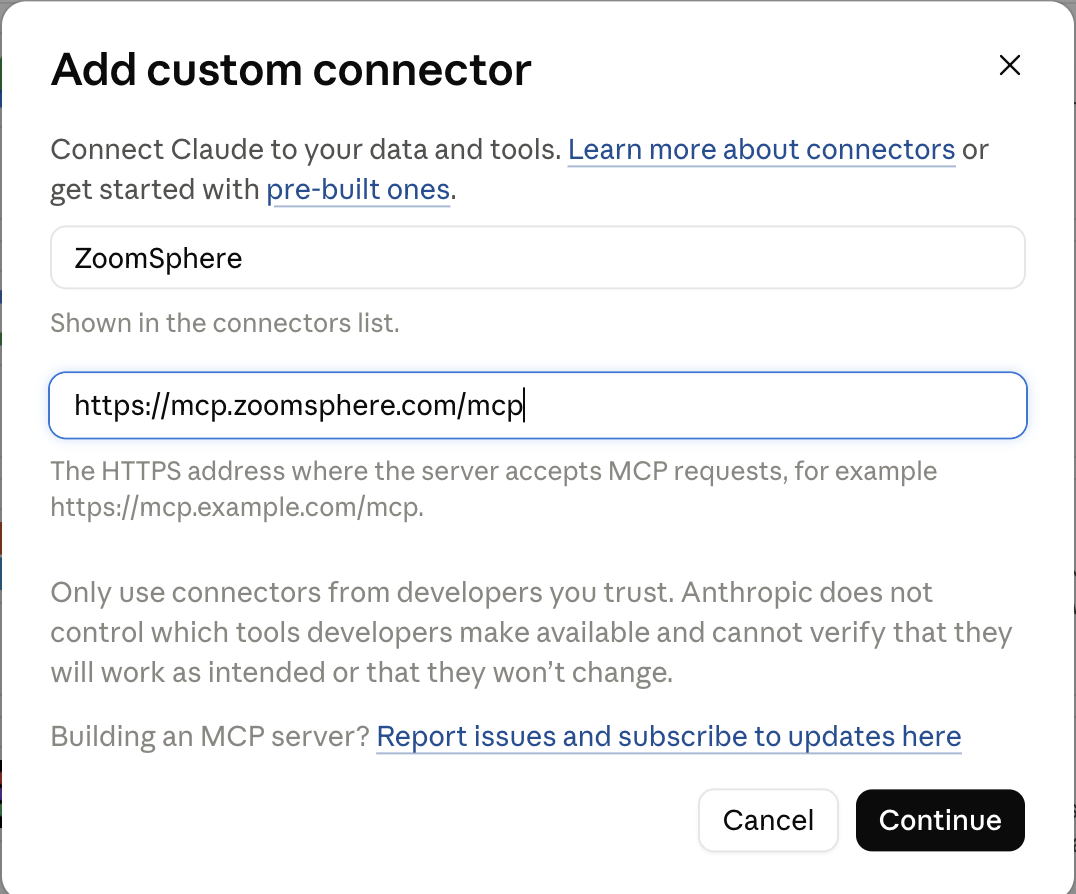
Something not working? See troubleshooting or the getting-started guide in our help centre.
Every example below runs in our own workspaces. The rules live in a scheduled task in the AI client, so the request itself can be one line.
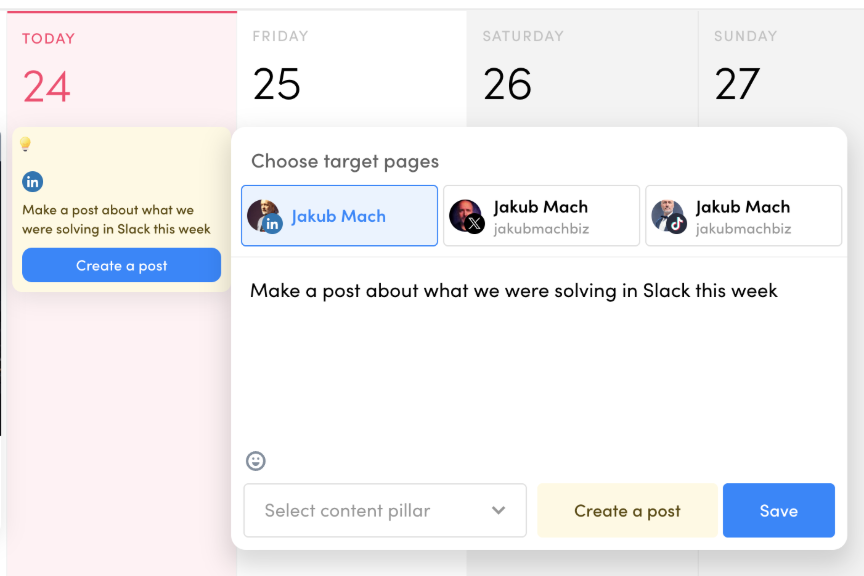
Type one line into Ideas. An hour later a draft with a visual is waiting in "To approve". Ideas like "a post about what we solved in Slack this week" become authentic posts, because the agent can read the source.
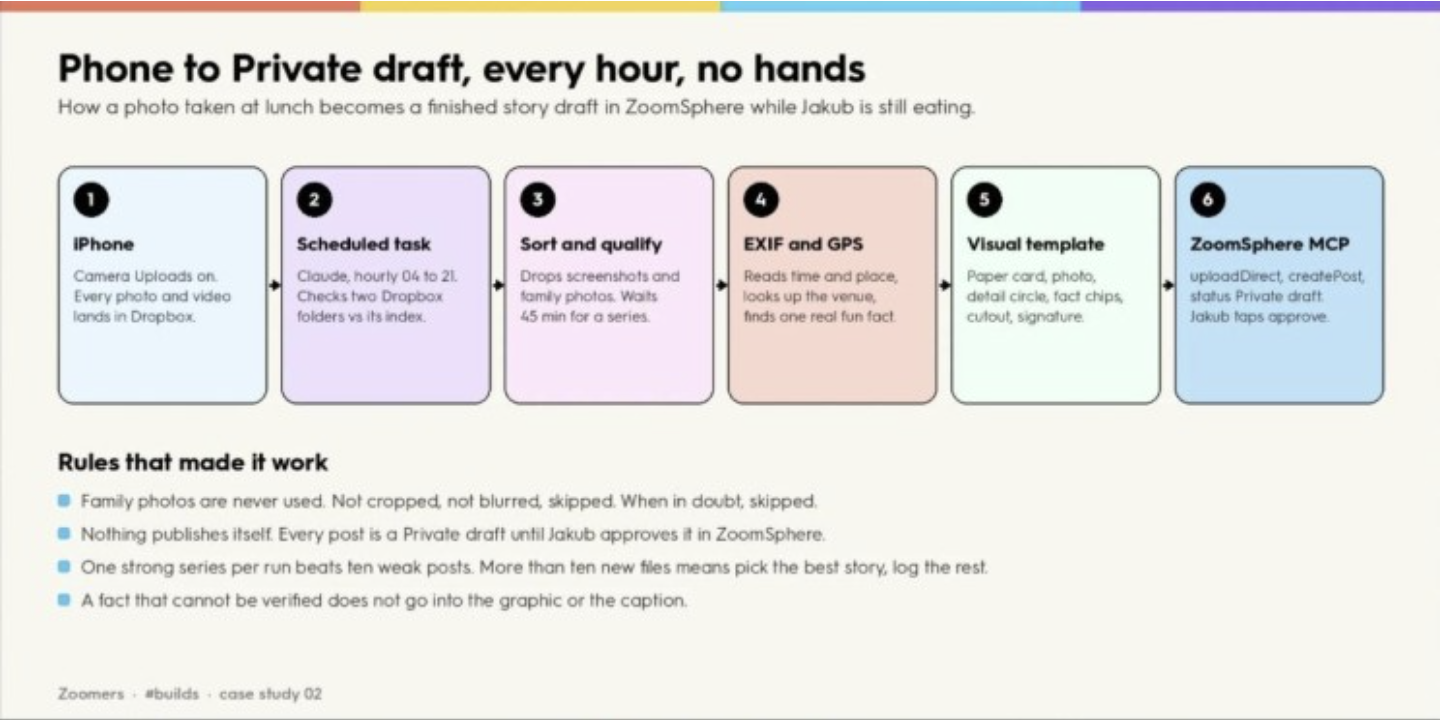
Camera uploads on, a scheduled task every hour. The agent sorts the new photos, drops the good ones into a template and files a draft. Twelve days, 97 photos, six drafts. The owner only taps approve.
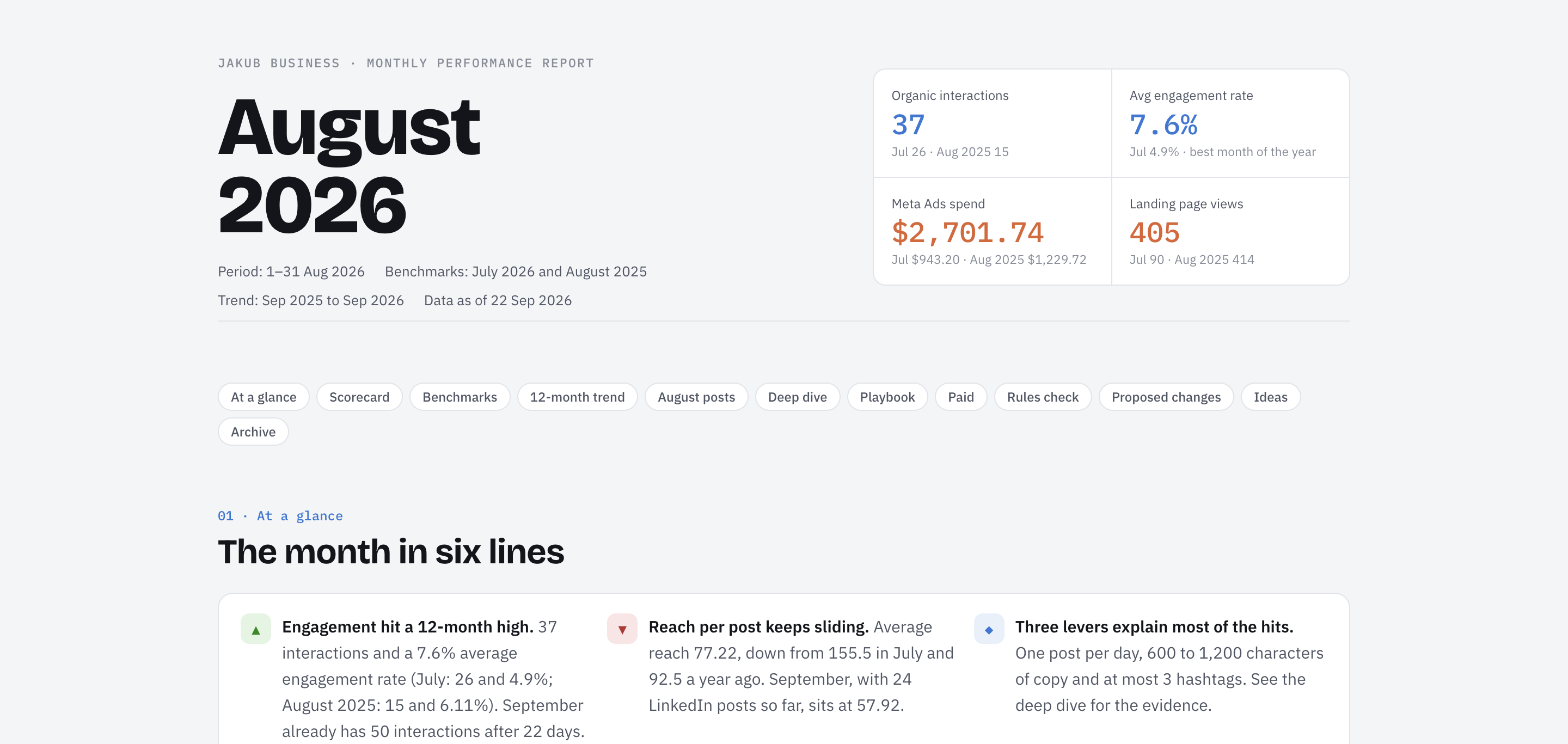
Per-channel numbers, best posts, what to repeat. The agent reads the analytics tools and writes the report as a PDF, a deck or a live dashboard; the numbers are exactly what ZoomSphere shows.
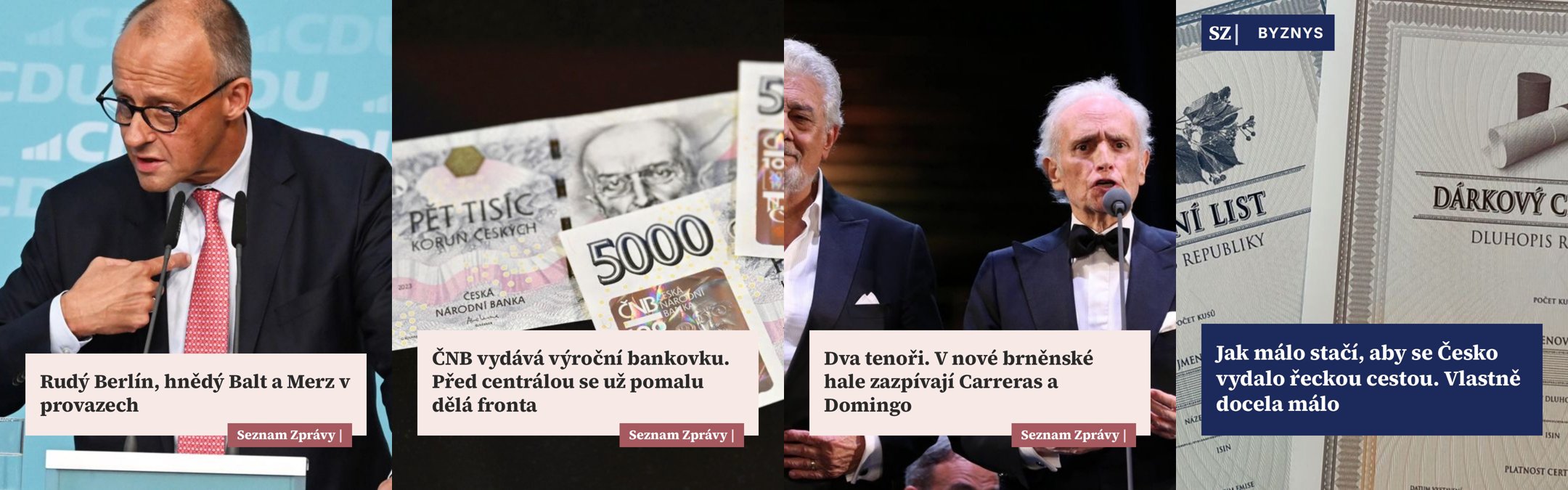
Every new article on your site becomes a set of drafts in the brand template, one per network, waiting for the editor's last word. Publishers run this on a schedule.
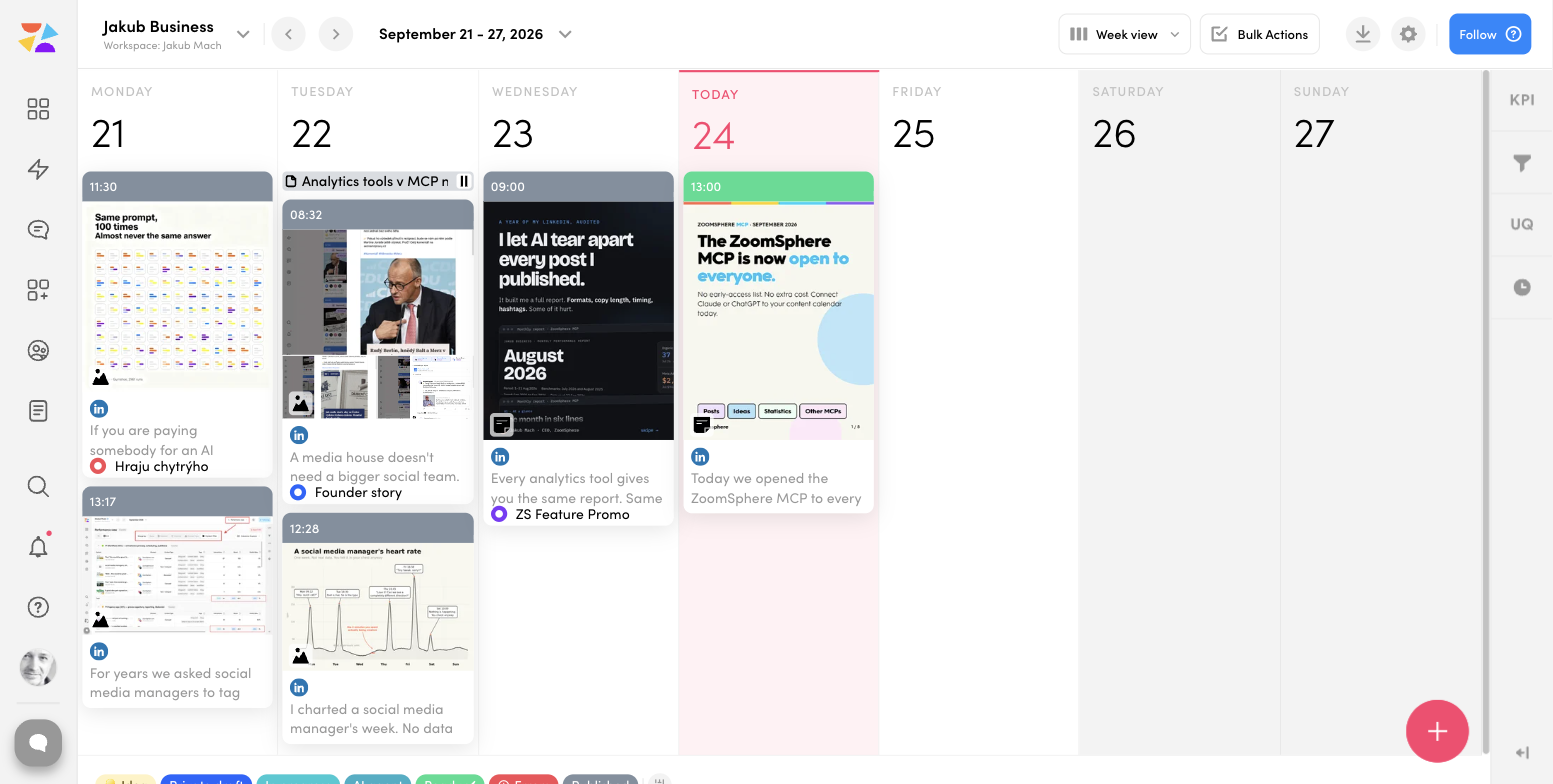
A typo monitor that scans every post waiting for approval and pings Slack. A pre-publish check that tests links, hashtags and character limits against the rules the server returns per network.
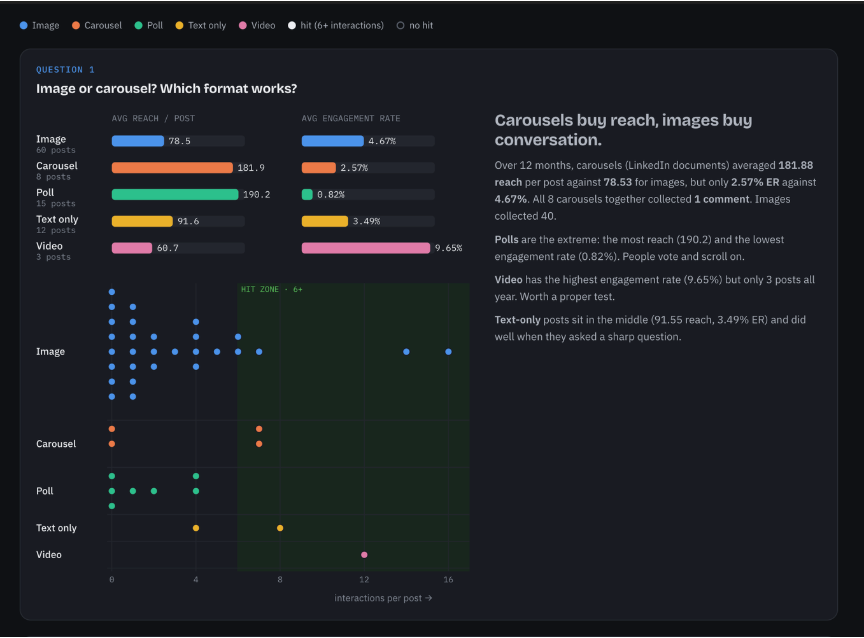
With the Meta Ads connector in the same conversation, the agent puts last month's organic reach next to the ad spend and answers the question every client asks: which posts deserve a boost.
The value is in the combination. A calendar connector alone is a faster way to type; a calendar plus your files, your designs and your team chat is a colleague.
We ranked the ones we use every day: The best MCP connectors for AI-powered social media management
An agent in your calendar should feel like a careful new colleague, not a loose cannon. The MCP is built for that.
You sign in with your own ZoomSphere account. The agent sees only the workspaces, channels and posts you can see.
Point the agent at a working status such as Private draft and keep publishing for people until a workflow has proven itself.
Claude and ChatGPT let you set write tools to "needs approval". Reads run freely, writes wait for your click.
Included in every ZoomSphere account. No API key to paste, no plugin to maintain. Disconnect in one click whenever you like.
Our Discord community, Zoomers, is where the recipes live: the full builds, the prompts, the scheduled-task rules, and the "what broke" sections that every honest build has.
Yes. It is included in every ZoomSphere account at no extra cost. You only need an AI client that supports MCP connectors, such as Claude or ChatGPT.
No. You add a custom connector with the address https://mcp.zoomsphere.com/mcp and sign in with your ZoomSphere account. It takes about five minutes, and there are step-by-step guides for Claude and ChatGPT in our help centre.
Any client that speaks MCP: Claude (including Claude Code), ChatGPT, Grok, coding agents such as Cursor, local models through clients like LM Studio or Open WebUI, and builders and automation platforms such as Lovable, n8n, Make and Zapier.
Only if you let it. Every write goes to the status you choose, so you can keep publishing for people and let the agent fill "To approve". In Claude and ChatGPT you can also set individual tools to require your approval.
Exactly what your ZoomSphere user can see: your workspaces, channels, posts, Ideas and analytics. Nothing more. You can disconnect the connector at any time.
Admins of Claude for Teams and ChatGPT for Workspaces can publish ZoomSphere once for the whole organization; each person then signs in with their own ZoomSphere account. See the Claude for Teams and ChatGPT for Workspaces guides.
The help centre has setup and troubleshooting guides, the support chat in the app reaches our team, and the Discord community is the fastest place to compare builds with other users.
Five minutes to connect. Then ask for this week's plan, hand over the Ideas, and let the drafts come to you.
We wrote a library of 30 ready-made prompts for the ZoomSphere MCP: everyday calendar operations, cross-workspace status checks, approval workflows, PowerPoint reports, live dashboards and scheduled AI colleagues that work while you sleep. Copy, paste, ship.
Open the MCP Prompt Library

