


How to Fill Every Client's Calendar With the Events That Matter, Using AI and ZoomSphere MCP (2026)

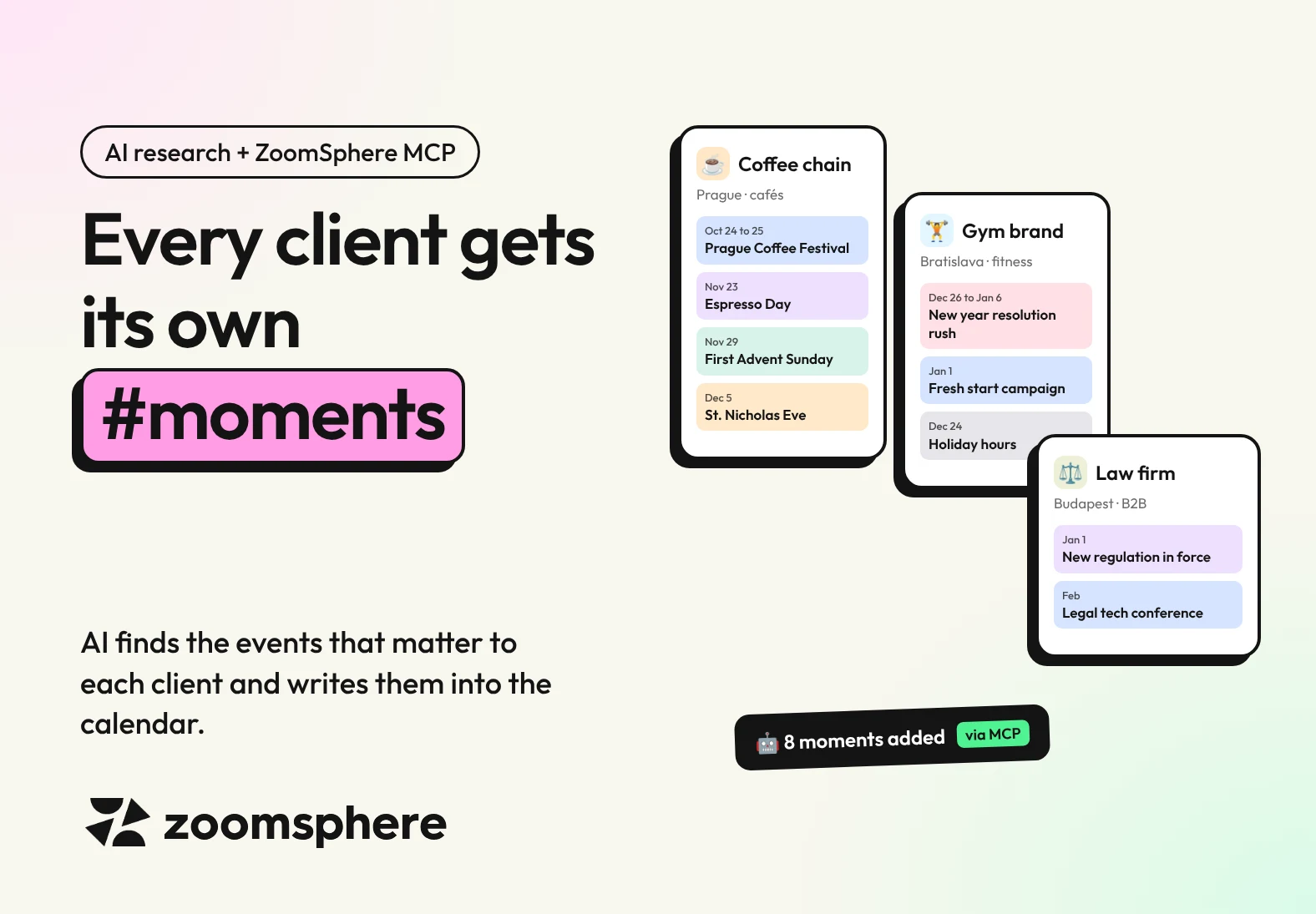
How do I fill each client's calendar with the events they should react to? Give your AI assistant a short event profile for every client: industry, cities, audience, their own key dates and what to avoid. The assistant researches the coming weeks, keeps only the moments with a clear link to that client, verifies every date, and writes them into the client's ZoomSphere calendar as Quick Notes through ZoomSphere MCP. Run it once a month per client and nobody on the team has to keep a moments spreadsheet again.
Key facts
- One profile per client: eight lines about the client decide which events are worth a post and which are noise.
- Relevance before volume: the assistant only adds a moment when it can say in one sentence why this client should care.
- Verified or flagged: every date is checked on a source. If it cannot be confirmed, the note says so instead of guessing.
- Tested on our demo client: one run added 8 moments for a Prague coffee chain in minutes, from a local coffee festival to Advent and the Christmas holidays.
- Fresh every month: a scheduled task repeats the research for each client and adds only what is new.
{{form-component}}
Why one marketing calendar never fits all clients
Generic marketing calendars are full of days nobody asked for. World Pizza Day is gold for a pizzeria and pure noise for a law firm. A regional festival matters to a café in that city and to nobody 200 kilometres away. And the most important dates of all, a client's store openings, product launches and brand birthday, are in no public calendar at all.
That is why an agency needs a different event calendar for every client, and why it rarely has one. Researching it by hand takes hours per client, and the list goes stale the moment someone saves it.
| Client | Moments worth a post | Moments to skip or keep quiet |
|---|---|---|
| Coffee chain, one city | Local coffee festivals, coffee "days", seasonal menus, Advent, local traditions | National holidays when cafés are closed, anything political |
| Gym brand, several cities | New year resolutions, local races and marathons, back to routine in September | Food-heavy holidays used for body shaming, health awareness days without expertise |
| Law firm, B2B | New laws coming into force, filing deadlines, industry conferences, awards | Fun "national days", trending memes, anything that looks unserious |
| Fashion e-shop, three markets | Shopping peaks, fashion weeks, seasonal drops, local holidays per market | Promotion on days of national mourning in any of its markets |
Step 1: write a short event profile for each client
The quality of the research depends on what the assistant knows about the client. Eight lines are enough, and you write them once. Keep them where your team already keeps client briefs: in the client's Project in Claude, in Notion or in a Google Doc.
Client event profile
EVENT PROFILE: [Client]
Industry and offer: [what they sell, to whom]
Markets and cities: [countries, cities, languages]
Audience: [who follows them and why]
Own key dates: [store openings, launches, brand birthday, recurring promos]
Event types we love: [festivals, sports, industry days, local traditions]
Avoid: [politics, religion, tragedies, topics the client never touches]
Tone for event posts: [playful, expert, quiet]
ZoomSphere calendar: workspace "[name]", scheduler "[name]"
The line people forget is own key dates. A café's fifth birthday or the opening of a new branch will beat any international coffee day, and only the client can tell you about it.
Step 2: let the assistant research and filter
With the profile in place, one prompt does the research. The important part is the filter: the assistant has to justify every moment for this specific client, and it has to verify every date.
Research and write prompt
Read the event profile for [Client]. Research events, holidays, industry moments, local happenings and awareness days for the next [8 weeks] in the client's markets and cities.
Keep only moments with a clear link to this client. For each one, write one sentence on why the client should care. Drop anything on the Avoid list. Prefer local and industry events over generic international days, and mark foreign "national days" with the country, for example (US).
Verify every date on an official or primary source. If you cannot confirm a date for this year, keep the moment but say clearly in the note that the date is not confirmed.
Before writing, list the Quick Notes already in the client's ZoomSphere calendar for that period and skip anything that is already there.
Then add each moment as a Quick Note to the client's calendar: first line an emoji and a short name of at most 18 characters, so the label stays readable in the calendar, then one or two sentences of context. Use one day or the full span for multi-day events. Colours: blue industry events, purple fun and awareness days, green seasons and traditions, orange client promos, grey closures and quiet days, yellow unconfirmed. Internal team only, unless the note is useful for the client to see.
End with a short table of what you added, with sources.
Step 3: what it looked like for our demo client
We ran exactly this for Demo Coffee Co., the fictional Prague coffee chain in our demo workspace. In a few minutes the assistant added eight moments for the next ten weeks, each with an emoji, a short reason and the right colour:
- Prague Coffee Festival, 24 to 25 October at Výstaviště Praha, as a two-day note in blue.
- National Cappuccino Day and National Espresso Day, marked as US days in purple, so nobody mistakes them for local holidays.
- First Advent Sunday, St. Nicholas Eve and New Year's Eve as seasonal moments for the cafés.
- Christmas holidays from 24 to 26 December in grey, with an instruction to keep promotion quiet while the cafés are closed.
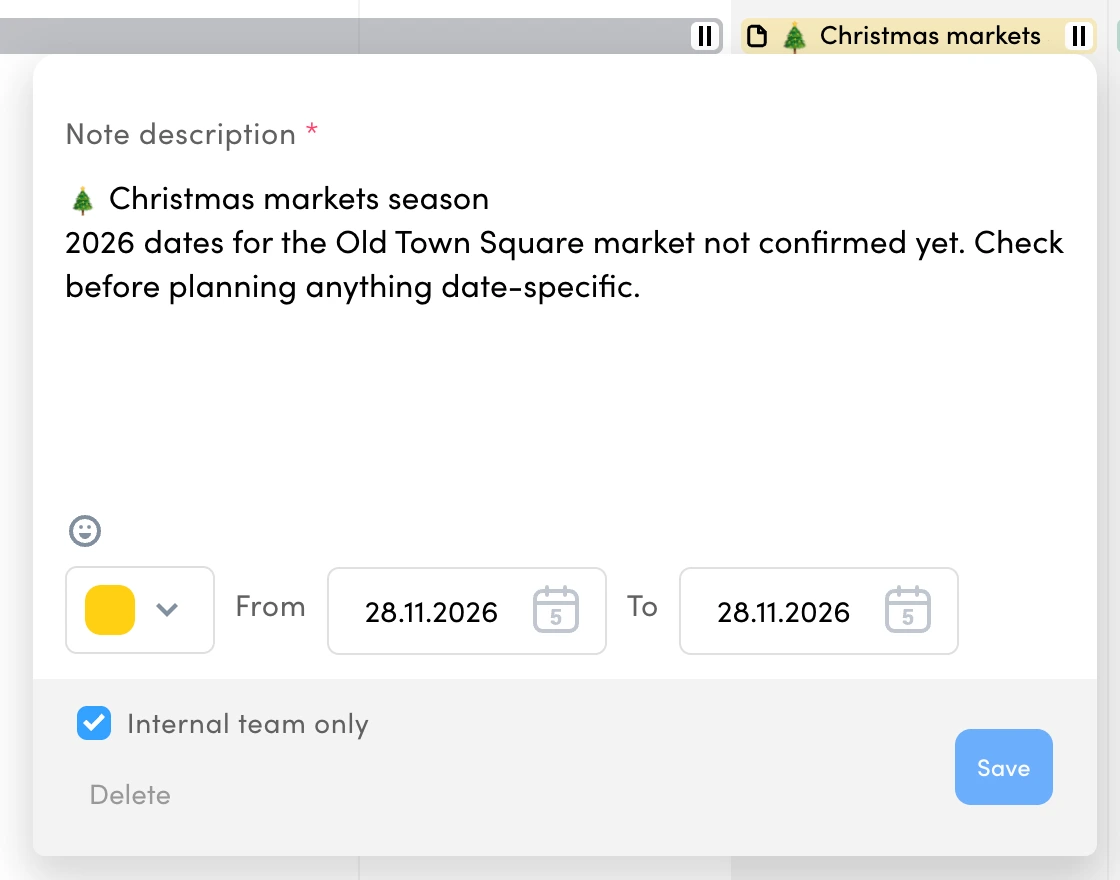
- Christmas markets season in yellow, because the 2026 dates for the Old Town Square market were not published yet.
Add the client's own dates from the event profile and a single week fills up fast. Here is the first week of December, with researched moments and the client's own deadlines side by side:
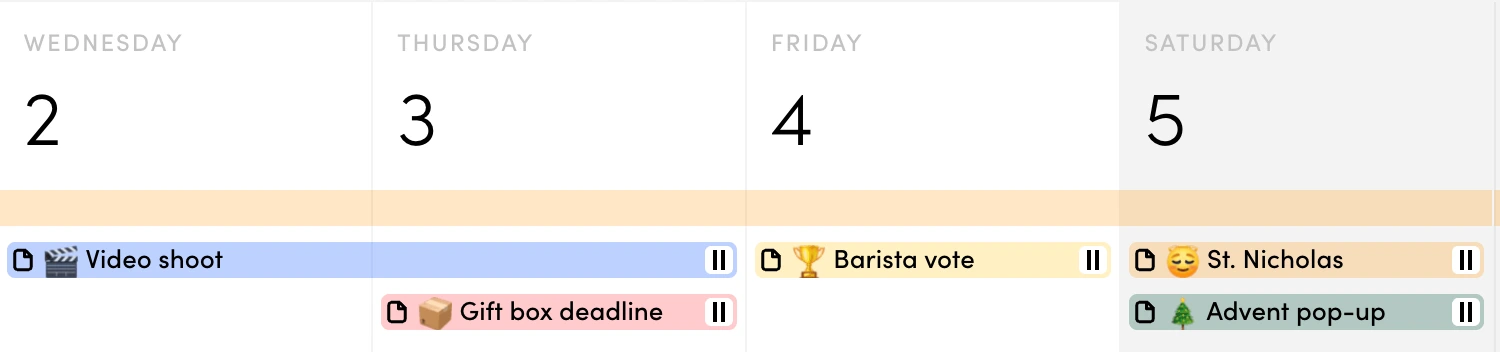
The yellow note is the one we like most. Instead of inventing a date, the assistant kept the moment and said plainly that the date still has to be checked. That is exactly what you want from research that lands in a client calendar.
{{cta-component}}
Step 4: keep every calendar fresh with a monthly task
Events get announced all year, so a one-off research run ages fast. Turn the prompt into a scheduled task in Claude that runs on the first working day of each month. Because it checks the existing notes first, it only adds what is new.
Monthly refresh, all clients
For every client listed in [Notion page "Client event profiles"], run the research and write prompt for the next 8 weeks. Skip moments that already have a Quick Note in that client's ZoomSphere calendar. Re-check every yellow (unconfirmed) note: if the date is now published, update the note and change it to the right colour.
Never delete or move notes written by people. End with one line per client: how many moments you added, updated or skipped.
Two habits make this work across many clients. Give every client its own profile, never one profile for all. And let one person own the monthly task, so somebody actually reads the report.
Show it to the client
Most notes should stay internal, but some are worth sharing. When a client opens the calendar and sees the local festival, their own anniversary and the holiday closures already marked, they see an agency that thinks ahead. Untick Internal team only on those notes and they appear in the client's view next to the posts.
Pitfalls to avoid
- Too many moments. Eight strong moments in two months beat thirty weak ones. If every day has a note, none of them stands out.
- Long labels. The calendar shows the start of the note text, so keep the first line short and put the details below it.
- Foreign days treated as local. A US "national day" can be a fun hook, but label it, so nobody plans a big campaign around it in Prague.
- Sensitive dates used for selling. Memorial days, tragedies and political events go into the calendar as quiet days, never as content hooks.
- Unverified dates. Ask for sources, and make the assistant say when a date is not confirmed.
The next step: let the agent react
Once every client calendar holds the right moments, the content agent can use them. A scheduled agent reads the Quick Notes before it plans posts, reacts to events, keeps the quiet days quiet and follows any instruction you put in a note. How to set that up is in our guide to briefing your AI content agent from the calendar with Quick Notes.
What you need
- A ZoomSphere account with a Scheduler module for each client, which holds the calendar and its Quick Notes.
- ZoomSphere MCP connected to your AI assistant. In Claude, add ZoomSphere from the connectors directory. The setup for other assistants is on our ZoomSphere MCP page.
- Web search switched on in your assistant, so it can find and verify events.
- A client event profile for each client, in a Claude Project, Notion or Google Docs.
Frequently asked questions
How do I find relevant events for each social media client?
Write a short event profile for each client with industry, cities, audience, their own key dates and topics to avoid. Then ask an AI assistant with web search to research the coming weeks and keep only moments with a clear link to that client.
Can AI add events to my ZoomSphere calendar automatically?
Yes. Through ZoomSphere MCP, an assistant such as Claude or ChatGPT can create Quick Notes on the right days in each client's calendar, including multi-day events, colours and internal-only notes.
How does the AI avoid wrong dates?
Ask it to verify every date on an official or primary source and to say in the note when a date is not confirmed. In our test it flagged the Christmas market dates instead of guessing them.
How often should I refresh client event calendars?
Once a month is enough for most clients. A scheduled task can repeat the research, skip moments already in the calendar and update notes whose dates were confirmed.
Should clients see these notes?
Only the ones that help them. Planning notes and agent instructions stay internal. Shared notes, such as local events or holiday closures, show the client that you plan ahead.
What is a Quick Note in ZoomSphere?
A coloured label over one or more days of the Scheduler calendar. Teams use it for campaigns, events, focus weeks and holidays, and it can be visible to clients or to the internal team only.
{{form-component}}










Recommended for you
.webp)
%20(1).webp)
%20(1).webp)