


Brief Your AI Content Agent From the Calendar: Quick Notes in ZoomSphere (2026)

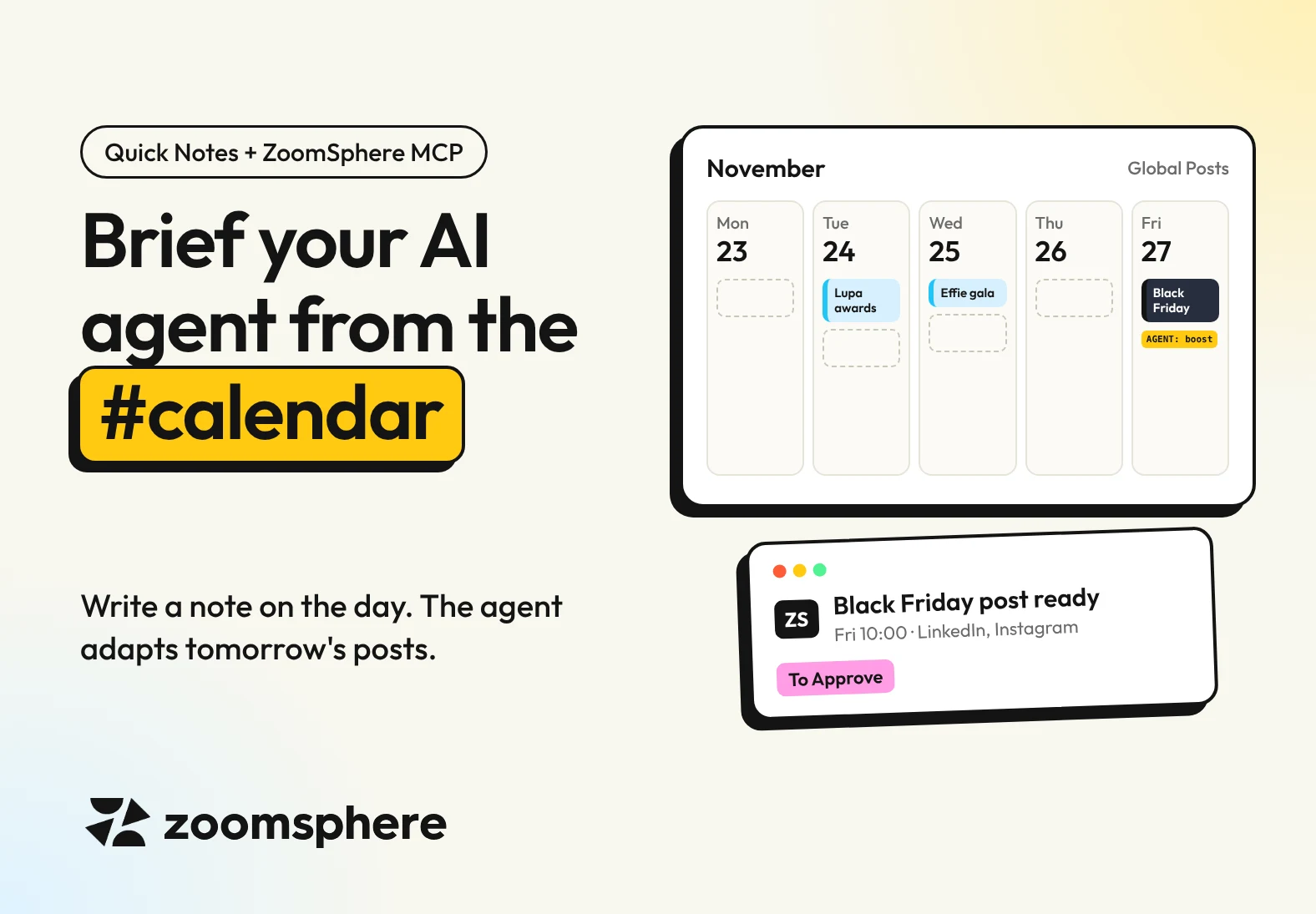
How do I steer an AI content agent without rewriting its prompt? Write a Quick Note on the day in your ZoomSphere calendar. A scheduled agent connected through ZoomSphere MCP reads the notes before it plans the next posts, so it reacts to events, keeps sensitive days quiet and follows any instruction you put in the note. Your AI assistant can even write those notes for you, after researching the events, holidays and anniversaries that matter to your audience.
Key facts
- Two directions: through ZoomSphere MCP an AI assistant can both write Quick Notes into your calendar and read them.
- Tested on our own calendar: one prompt found and verified 14 marketing moments for the next six weeks and placed them on the right days in minutes.
- No prompt editing: anyone who plans in the calendar can brief the agent, simply by adding or moving a note.
- Precise when you need it: a single line starting with AGENT: switches the topic, mutes promotion or adds a post.
- Safe by design: every post the agent creates because of a note waits in To Approve, and sensitive days are never used for selling.
{{form-component}}
The problem: an autopilot that doesn't know what day it is
A content autopilot is brilliant at keeping the calendar full, and blind to everything around it. It will happily publish a cheerful product promo on a national holiday. It will post its usual Tuesday tip while the whole industry talks about the biggest conference of the year. The agent is not careless, it simply has no idea what that day means.
The fix is not a longer prompt. It is the calendar your team already plans in.
One calendar, two directions
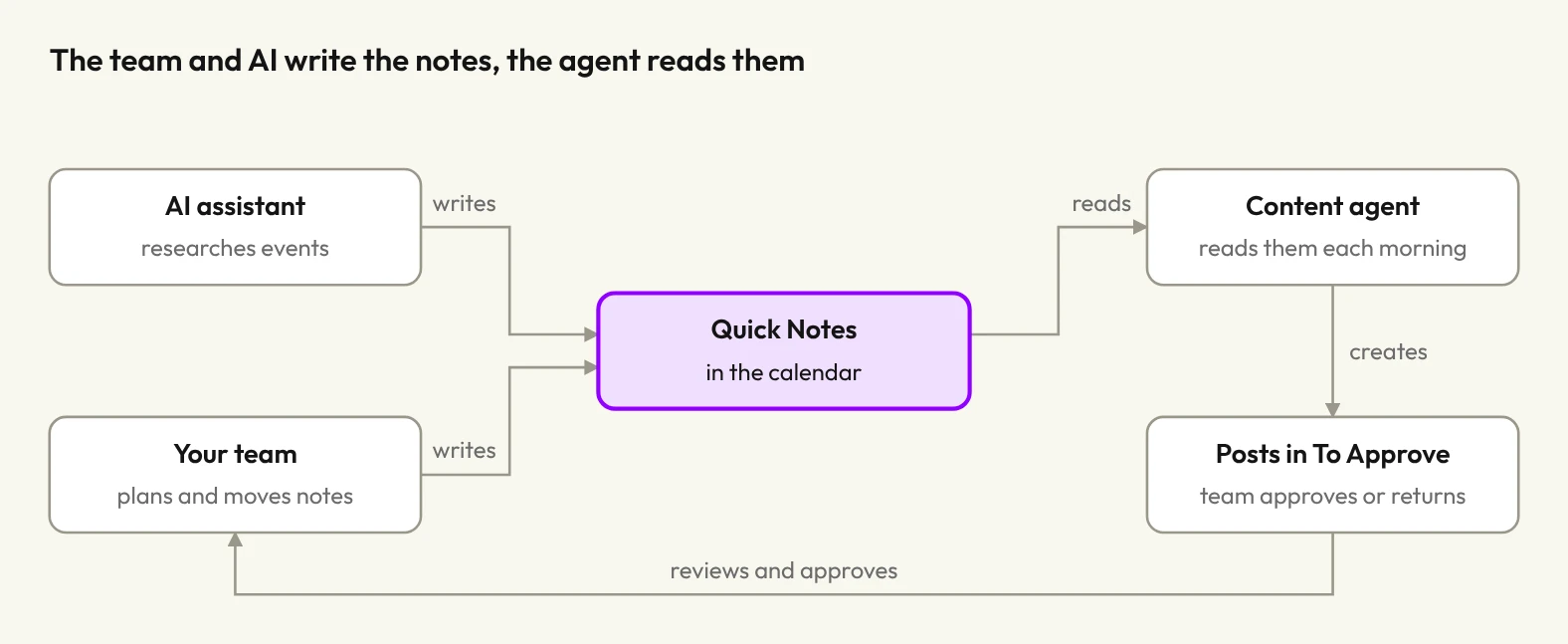
Quick Notes are the coloured labels you put over one or more days in the ZoomSphere calendar: a campaign, a launch, a focus week, a holiday. Through ZoomSphere MCP, an AI assistant can now both write them and read them. That turns a planning label into a two-way channel between your team and your agent.
- Writing: you ask your AI assistant to research the events, holidays and anniversaries that matter to your audience, and it adds them to the calendar as Quick Notes.
- Reading: your scheduled content agent checks the Quick Notes before it plans each day, and adapts the topic, the tone or the volume to what the note says.
Put the two together and you get a loop: research fills the calendar, the team adjusts it like any other plan, and the agent follows it. Nobody edits a prompt, nobody briefs the agent in a separate tool.
Part 1: let AI fill your calendar with the moments that matter
Every agency keeps some version of a marketing moments list: industry conferences, award nights, platform anniversaries, shopping peaks, public holidays in every market it serves. Usually it lives in a spreadsheet nobody opens after January. With ZoomSphere MCP, your AI assistant researches the list for the coming weeks and writes it straight into the calendar where the content is planned.
Research prompt
Research marketing events, industry conferences, award ceremonies, social media platform anniversaries, shopping peaks and public holidays in [Czech Republic, Slovakia and Hungary] for the next six weeks. Verify every date on an official source.
Then add each one as a Quick Note to my ZoomSphere calendar "[calendar name]": start the note text with an emoji and a short name, add one or two sentences of context, and make it visible to my internal team only.
Colour them by type: blue for industry events, grey for public holidays, purple for anniversaries, dark for shopping days.
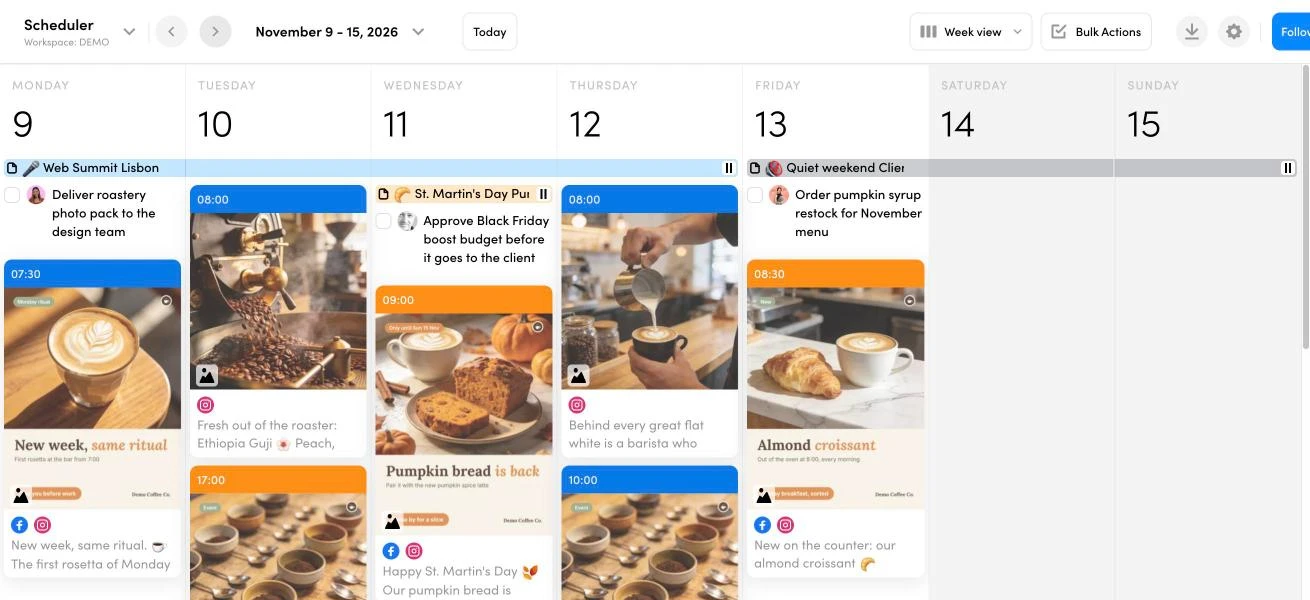
We ran exactly this for our own calendar. In a couple of minutes the assistant found and verified fourteen moments for the next six weeks, from a Prague AI conference and Web Summit in Lisbon to the Effie Awards gala, Black Friday and the public holidays in all three of our home markets, and placed them on the right days with consistent colours.
Here is how it looks in a client calendar. A note can sit on a single day or stretch over a whole week, every type gets its own colour, and an emoji at the start makes each label readable at a glance.
Two details are worth keeping:
- Internal team only. Quick Notes can be hidden from clients, so your planning notes and agent instructions never show up in the client's view of the calendar.
- Notes, not posts. Ask for Quick Notes, not Ideas. An Idea is a draft post. A Quick Note is context for a day, and that is what you want the agent to react to.
Part 2: let your content agent read the notes
The second half is where it gets interesting. Many teams already run a semi-autonomous setup: a scheduled task in Claude that wakes up every morning, checks the ZoomSphere calendar and prepares tomorrow's posts. Add one paragraph to that task and it starts reading Quick Notes too.
Add to your scheduled task
Before you choose topics, read the Quick Notes in the ZoomSphere calendar from today to five days ahead.
If a note contains a line starting with "AGENT:", follow it exactly.
If it does not, use judgement: industry events, award nights, platform anniversaries and seasonal moments are opportunities, so react to them and tie the post to a real benefit of our product or service. If an event is a few days away and needs a video or a carousel, prepare it now.
Public holidays, memorial days and sensitive events are never used for promotion or jokes. Keep those days neutral and light on selling.
Every post you create because of a Quick Note goes to the "To Approve" status, never straight to publishing. Verify any fact about an external event with a web search before you use it. Only read Quick Notes, never change or delete them.
From then on the morning run looks different. The agent sees that tomorrow is a public holiday in Hungary and keeps the Hungarian posts quiet. It sees the Effie shortlist on a date five days out and prepares a carousel about proving campaign results in time. It sees nothing special and simply follows the usual content plan.
The report at the end of each run says which notes influenced the plan and how, so you always know why the agent did what it did. How to set up the daily task itself is in our guide to putting social media on autopilot with scheduled AI tasks.
{{cta-component}}
The AGENT line: precise instructions in plain words
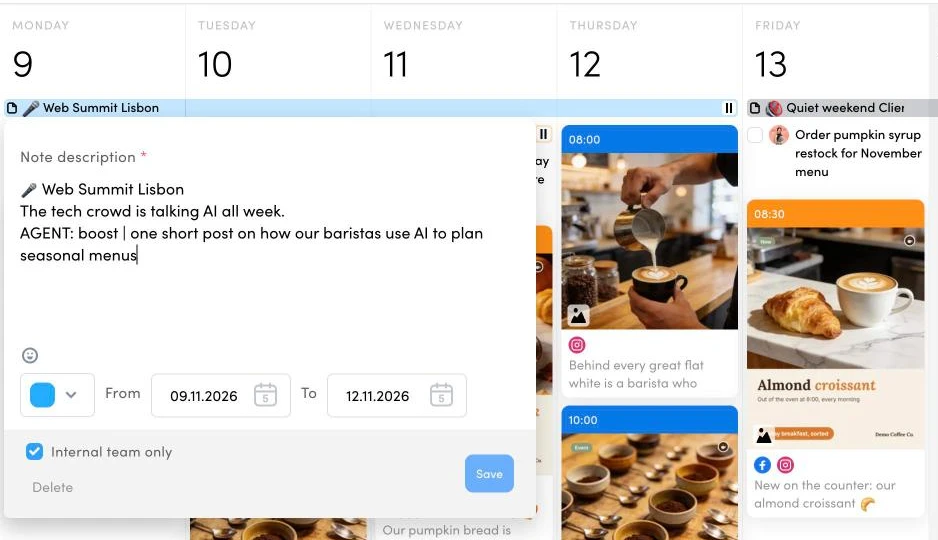
Judgement covers most days, but sometimes you want the agent to do exactly one thing. For that, add a single line to the note text that starts with AGENT:. The agent treats it as an order, everything else in the note stays context for humans.
| Instruction | What the agent does | Example note text |
|---|---|---|
| AGENT: switch | Replaces the planned topic for that day | AGENT: switch | a carousel on how agencies prove campaign results to clients |
| AGENT: mute | No promotional or hard-sell posts that day | AGENT: mute on a day of national mourning |
| AGENT: boost | Adds one extra post on the topic | AGENT: boost | a short reaction video on the conference keynote |
| market: | Limits the instruction to one market's channels | AGENT: mute | market: HU |
| lead: | Prepares the content that many days ahead | AGENT: switch | Black Friday posting data | lead: 3d |
The beauty of it: anyone on the team who can plan in the calendar can now brief the agent. An account manager hears that a client's product launch moved, drags the note to the new date, and tomorrow's run already knows.
Guardrails that keep it safe
Reactive content is exactly where automation burns brands fastest, so the setup builds in four guardrails.
- Note-driven posts wait for approval. Standard posts can follow your usual flow, but anything the agent creates because of a Quick Note lands in the To Approve status. You see it in the calendar and in notifications on web and mobile, and you approve or send it back with one click. This is the same approval workflow your clients already use, so there is nothing new to learn.
- Sensitive days are off limits for selling. National holidays, memorial days and tragic events are never turned into promotion or humour, even if a note sits on that day without an instruction.
- Facts get verified. Before the agent writes about an external event, it checks the date, the place and the names with a web search. If it cannot verify something, it keeps the post general instead of inventing details.
- Notes are read only. The agent never edits or deletes a Quick Note, so the calendar stays the team's plan, not the agent's.
Four ways agencies use it
- Focus management. Mark a whole week as a focus week (a product launch, a sale, a hiring push) with one Quick Note spanning seven days. The agent leans its topics toward the focus without you rewriting the content plan.
- Reactions to industry moments. Conferences, award shortlists and platform anniversaries become timely posts prepared in advance, not a scramble on the day.
- A quiet day in seconds. When something serious happens, one note with AGENT: mute over the affected days stops the promotional tone across every channel the agent plans for. Your scheduled posts stay visible in the calendar so the team can decide what to move.
- Multi-market agencies. One calendar can hold holidays for several countries. With market: the agent mutes only the channels of the market that is celebrating, while the rest keep running.
How to start in ten minutes
- Create a ZoomSphere account and a Scheduler module. The Scheduler holds the calendar the agent works with. Connect your social profiles, or start with Virtual Channels if you just want to try it.
- Connect ZoomSphere MCP to your AI assistant. In Claude, add ZoomSphere from the connectors directory and sign in. The setup for ChatGPT and other assistants is on our ZoomSphere MCP page.
- Run the research prompt from Part 1 and check the Quick Notes in your calendar.
- Add the paragraph from Part 2 to your scheduled content task, or ask Claude to set up a new daily scheduled task that prepares tomorrow's posts.
- Try one AGENT line. Put AGENT: switch on a day next week and see what the agent makes of it.
Frequently asked questions
What is a Quick Note in ZoomSphere?
A coloured label over one or more days of the Scheduler calendar, used to mark campaigns, launches, focus days, holidays or events. It can be visible to clients or to your internal team only.
Can an AI assistant create Quick Notes?
Yes. Through ZoomSphere MCP, an assistant such as Claude or ChatGPT can create, list and update Quick Notes in your calendar, for example after researching upcoming events.
How does an AI agent use Quick Notes when creating content?
A scheduled task reads the notes for the coming days before it plans posts. It reacts to events, keeps sensitive days neutral and follows any explicit line starting with AGENT:.
Will the agent publish reactive posts without my approval?
Not with the setup in this article. Posts created because of a Quick Note go to the To Approve status, and you approve them in the calendar or in the mobile app.
Do clients see the agent instructions?
No, if you mark the note as internal team only. Clients then see only the notes you want them to see.
What is the difference between a Quick Note and an Idea?
An Idea is a draft of a specific post. A Quick Note is context for a day. Use Ideas when you want the agent to build a particular post, and Quick Notes when you want it to adapt to what is happening.
{{form-component}}










Recommended for you
%20(1).webp)
%20(1).webp)
.webp)