Your Posts Have Authors, Your Alerts Should Too: Author-Based Slack Notifications With ZoomSphere MCP (2026)

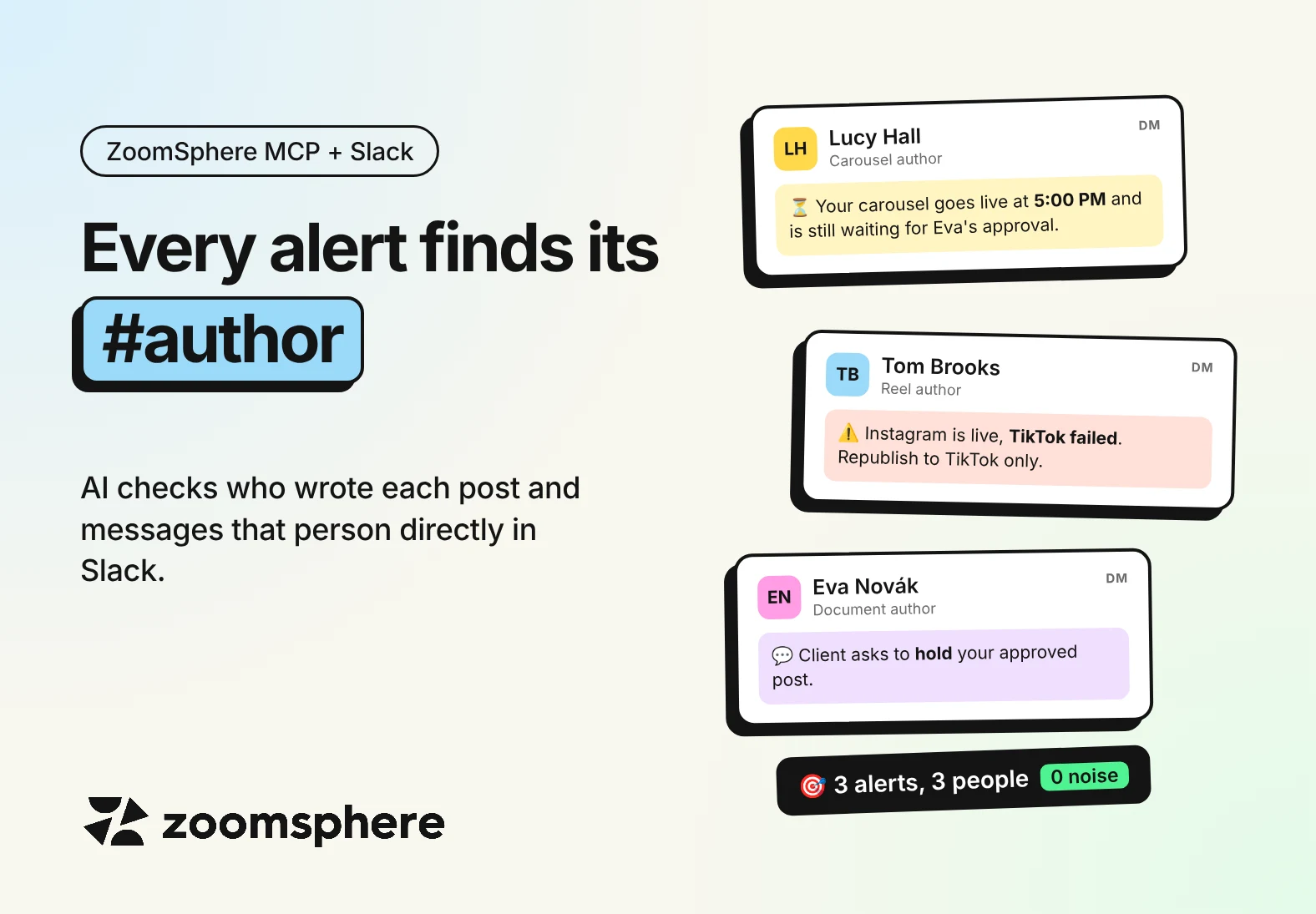
How do I make sure the right person hears about a stuck or failed post? Let your AI assistant read who wrote each post in ZoomSphere and message that person directly in Slack. Claude connects to ZoomSphere through ZoomSphere MCP and to Slack through the Slack connector, and sits in between. A scheduled task checks the calendar every hour and sends a short direct message to the one person who can fix the problem: an unapproved post an hour before it goes live, a failed upload, an urgent client comment. No alerts channel, no bot everyone mutes, and nothing to install in ZoomSphere or Slack.
Key facts
- One post, one person: every ZoomSphere post knows its owner and assigned user, and ZoomSphere MCP hands both to your AI assistant.
- Claude is the bridge: this is not a native Slack integration. Claude reads ZoomSphere through one connector and writes to Slack through another.
- Four moments worth a ping: not approved before publish time, publishing errors, urgent client comments and posts that beat the usual numbers.
- Ten minutes to set up: connect two connectors in Claude, create one scheduled task, paste one instruction.
- Tested on our own calendar: a single run over October found two posts stuck in To Approve after their date and a carousel that went out on Instagram but failed on TikTok.
{{form-component}}
Why the alerts channel doesn't work
A shared #social-alerts channel feels responsible. In practice it trains everyone to scroll past, because every alert is probably about someone else's client. Nobody ignores a failed post on purpose. The alert simply goes everywhere, so it reaches no one in particular.
We found this out the honest way. A quick look at our own October calendar turned up two posts still waiting in To Approve days after their publish date, and a carousel that went out on Instagram but failed on TikTok. All three had an author. None of the authors knew.
Why the author is the right person to ping
The author wrote the caption, knows the client and can fix a typo or chase an approver in two minutes. ZoomSphere MCP returns two fields on every post that make this possible:
- Owner: the person who created the post.
- Assigned user: the person currently responsible for it, if someone set one.
Claude picks the assigned user first and falls back to the owner, looks that person up in Slack by their work email and writes to them directly, by first name. One post, one problem, one person.
How it's wired
There is no direct connection between ZoomSphere and Slack, and you don't need one. Claude does the work in the middle: it reads your calendar through the ZoomSphere connector, decides what needs a person, and sends the message through the Slack connector, as the Slack account you connected.
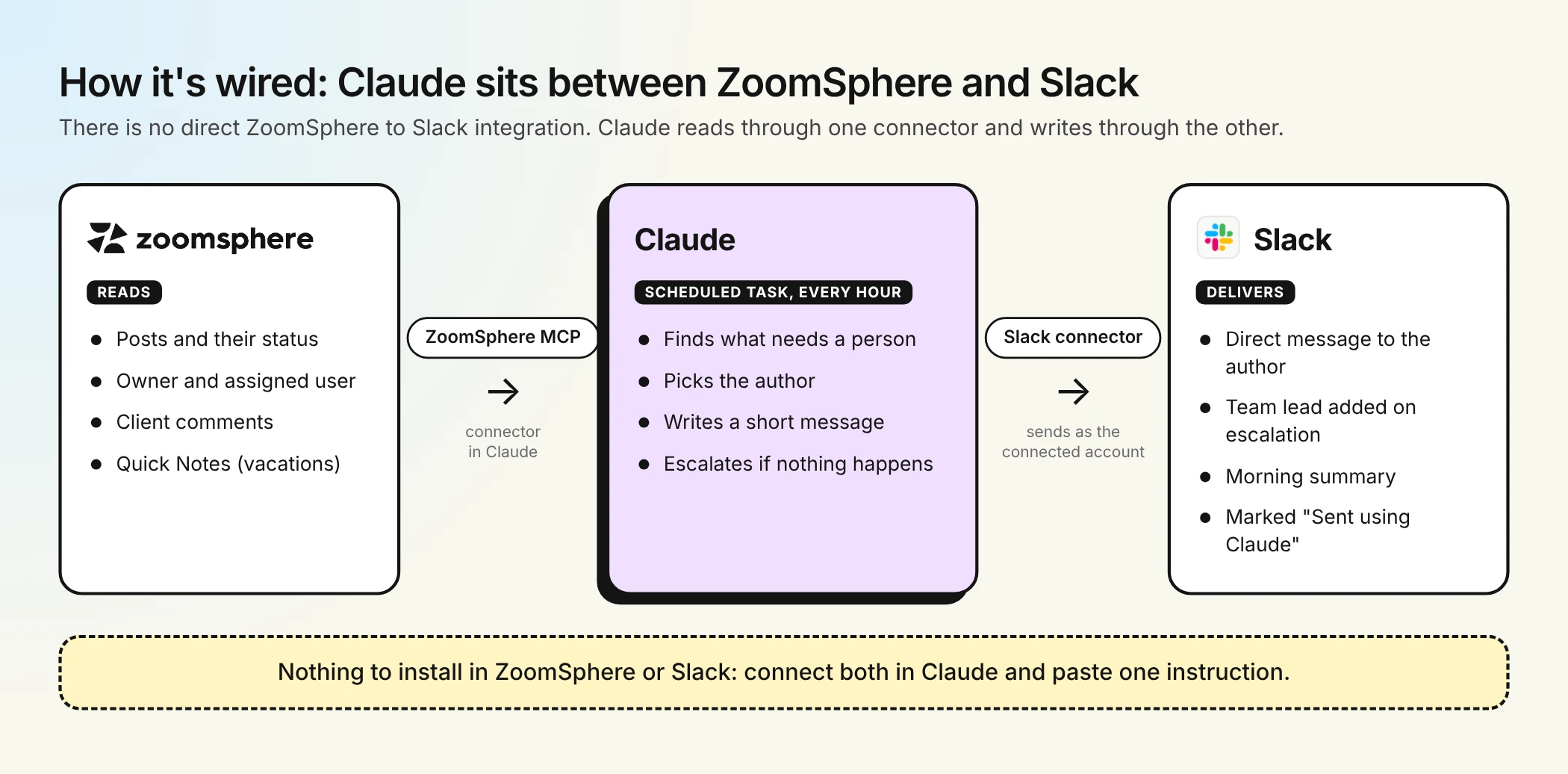
That has two practical consequences. The messages come from a real person's Slack account, not from a bot, and Slack labels each one as sent using Claude. And you can change what gets sent at any time, simply by editing the task's instruction in plain words.
Four moments worth a direct message
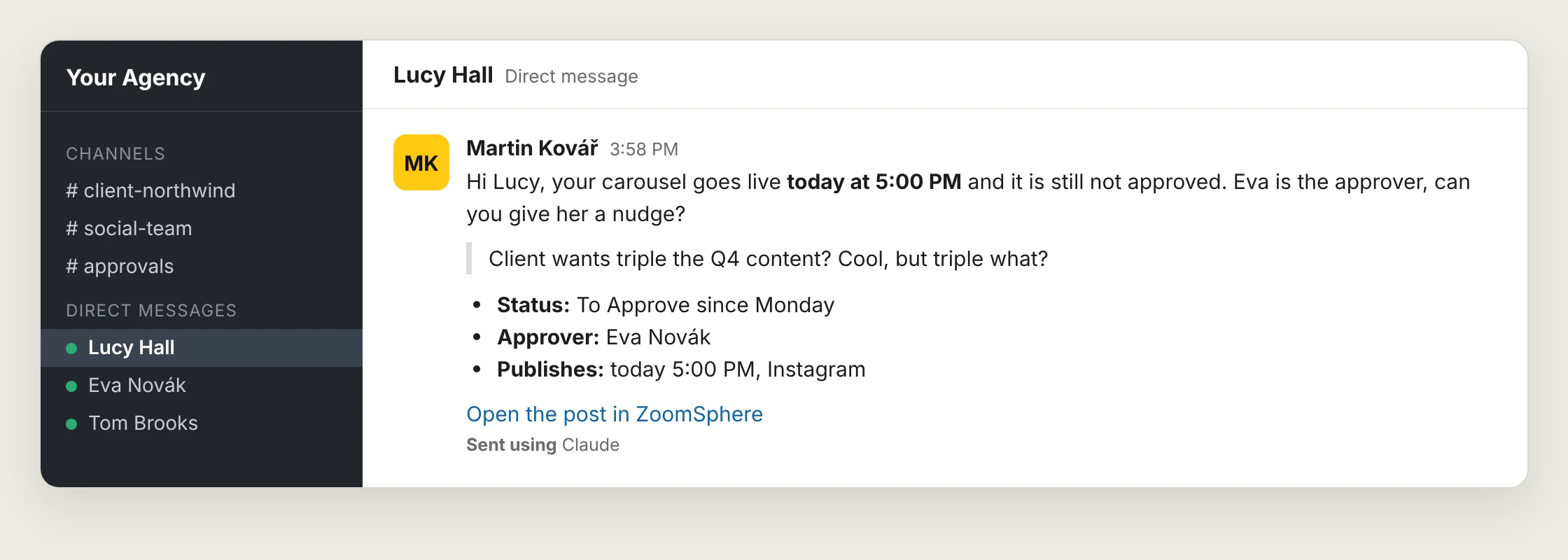
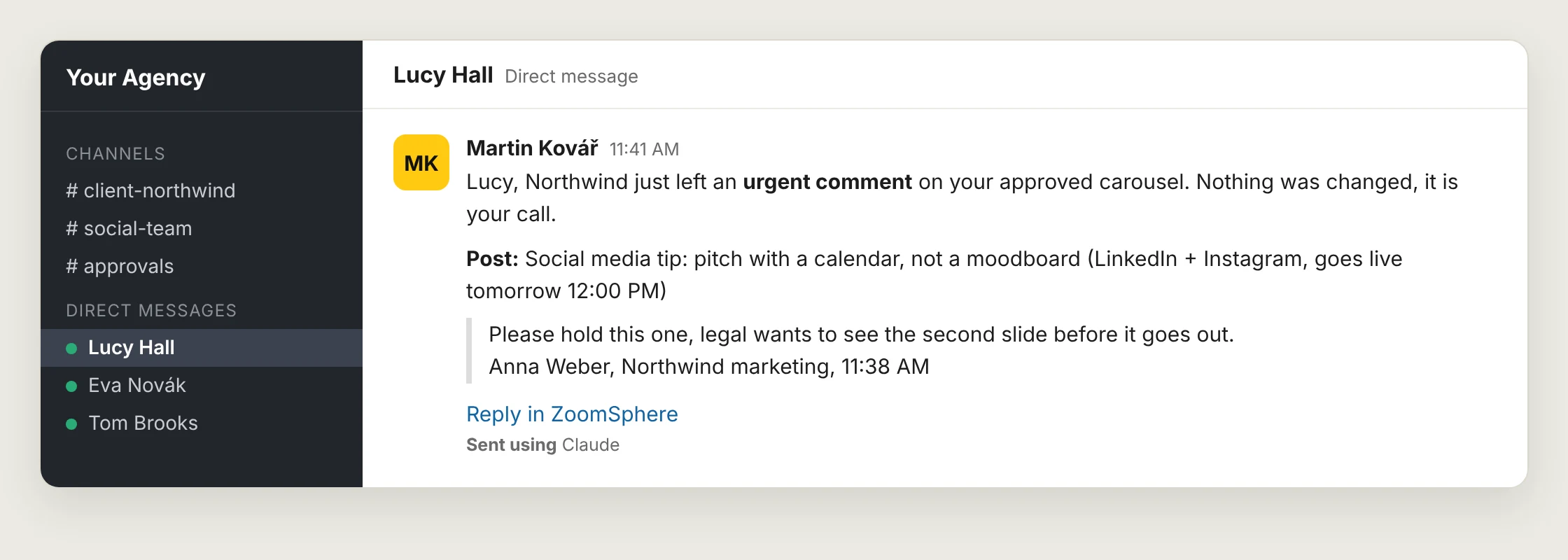
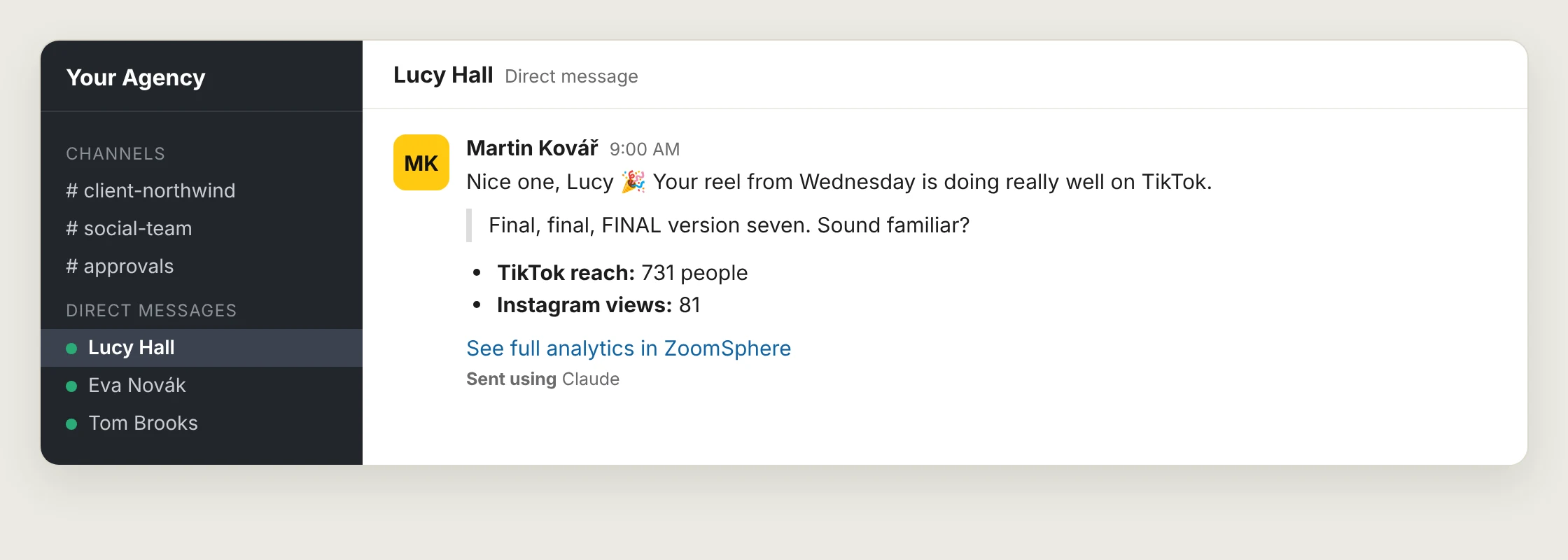
Not everything deserves a ping. These four do, because each one costs real money or reputation when it is missed. The examples use real posts and numbers from our own calendar; the people and the client are made up. In these examples Martin, the team lead, runs the task, so every message goes out from his account. You are looking at his direct message conversation with Lucy, the author of the post. The messages are plain Slack text, exactly what Claude can send: bold, quotes, bullet points and a link.
1. The post goes live soon and nobody approved it
If a post is still in To Approve close to its publish time, it will not go out. Claude tells the author an hour ahead, names the approver and suggests a nudge.
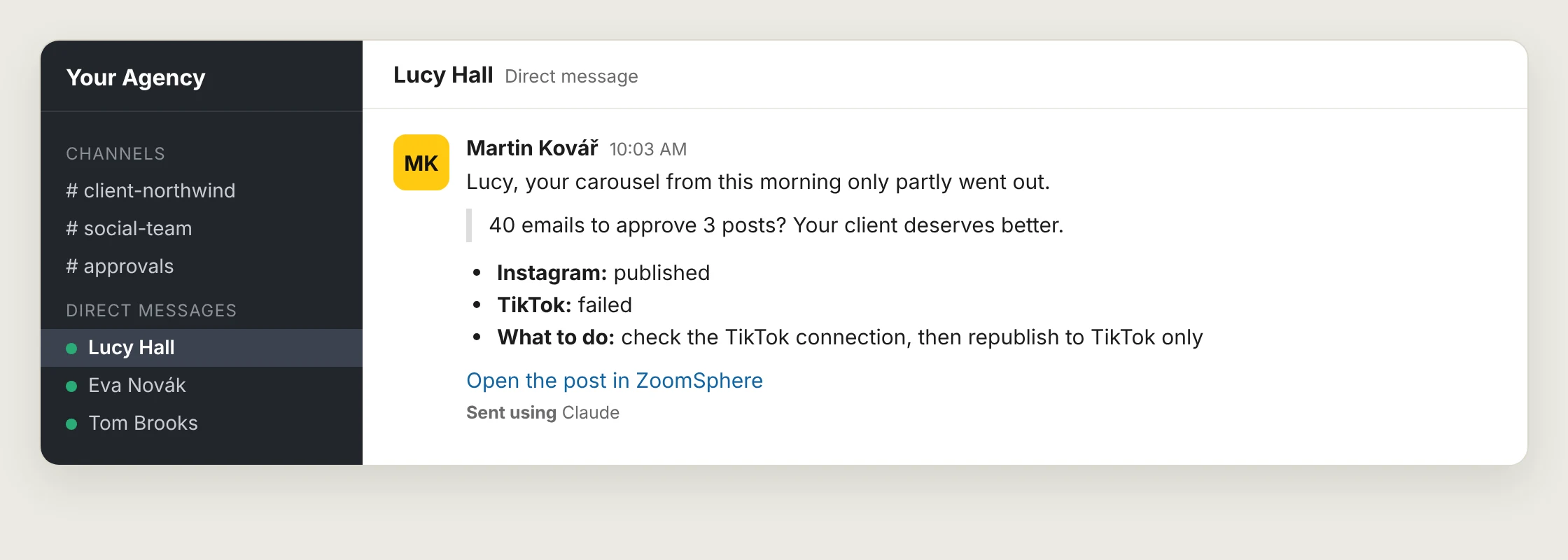
2. The post failed, or only partly went out
A multi-channel post can succeed on Instagram and fail on TikTok. The calendar shows Errors, but nobody looks at the calendar after publish time. The author gets a message within the hour, with the channel that failed.
3. The client left an urgent comment
Not every client comment is urgent. "Love it" can wait for the morning summary. "Please hold this one" on an already approved post cannot. Claude reads the comment, decides which kind it is, and only interrupts for the second.
4. The post is doing really well
Notifications do not have to be bad news. When a post clearly beats the account's usual numbers, tell the person who made it. It costs nothing and people remember it.
Escalate, respect vacations, and batch the rest
One message to one person is the start, not the whole system. Three rules keep it useful instead of noisy.
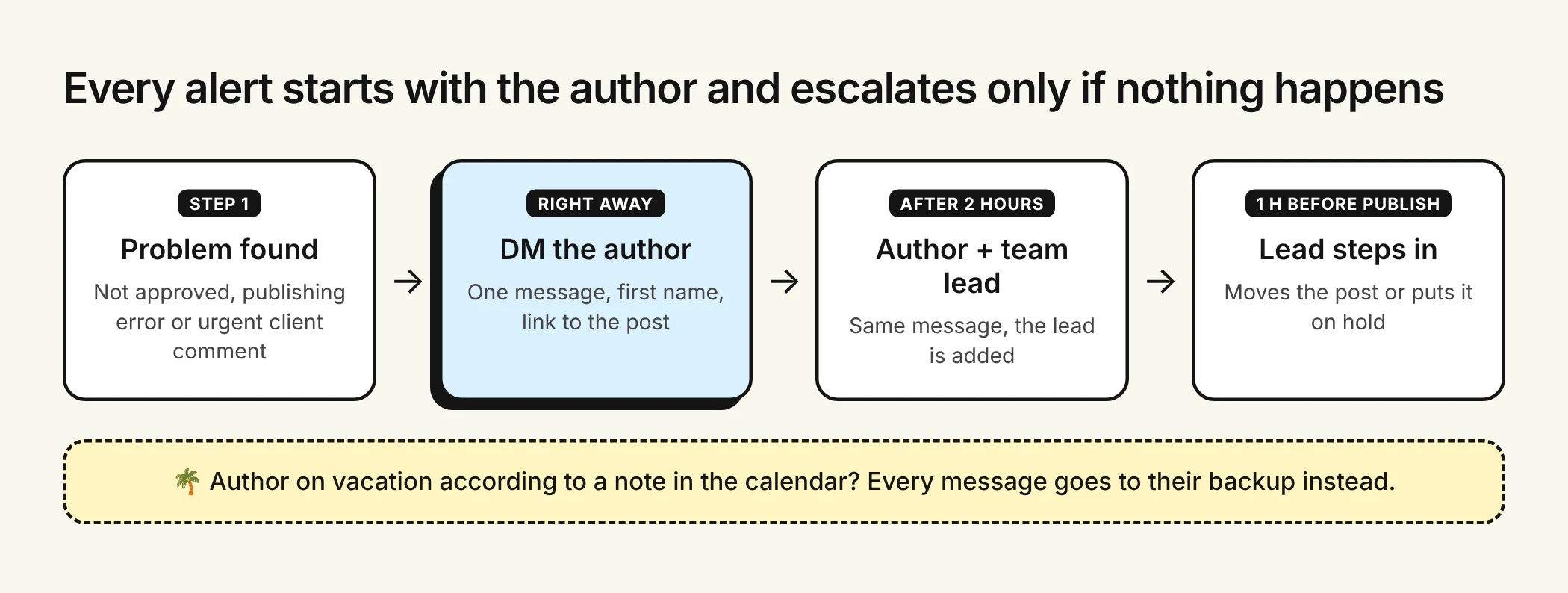
- Escalate only when nothing happens. If the problem is still open two hours later, the team lead is added. An hour before publish time, the lead decides: move the post or hold it.
- Read the calendar before you message. Many teams already mark vacations with a Quick Note in the ZoomSphere calendar. Claude reads those notes, so a message for someone on the beach goes to their backup instead of an unread inbox.
- Send one morning summary instead of ten pings. Anything that is not urgent waits for a daily digest: what goes out today, what still needs the author, which client comments are unanswered.
{{cta-component}}
How to set it up in Claude
You do not write any code and you do not install anything in ZoomSphere or Slack. Everything happens in Claude, in three steps.
Step 1: connect ZoomSphere and Slack
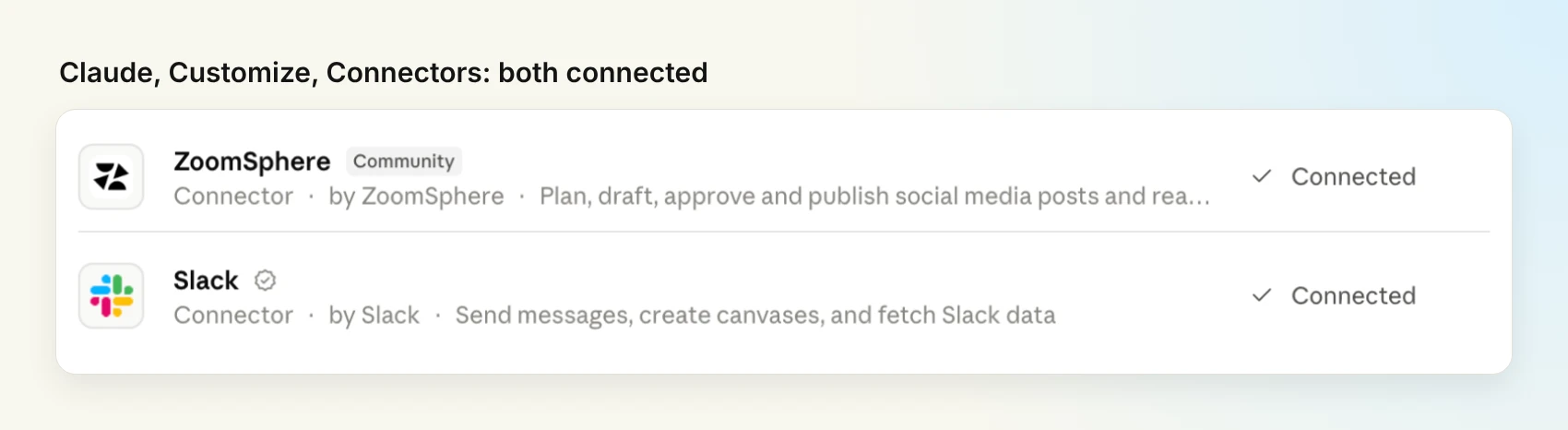
In Claude, open Customize and then Connectors. Search for ZoomSphere and connect it with your ZoomSphere login, then do the same for Slack. When both show Connected, Claude can read your calendar and send Slack messages on your behalf.
Step 2: create the scheduled task
Open Scheduled in Claude's sidebar and click New task. You can choose Create with Claude and simply paste the prompts below into the chat, or Set up manually and fill in the form yourself: a name, the instruction from step 3, and Hourly as the frequency.
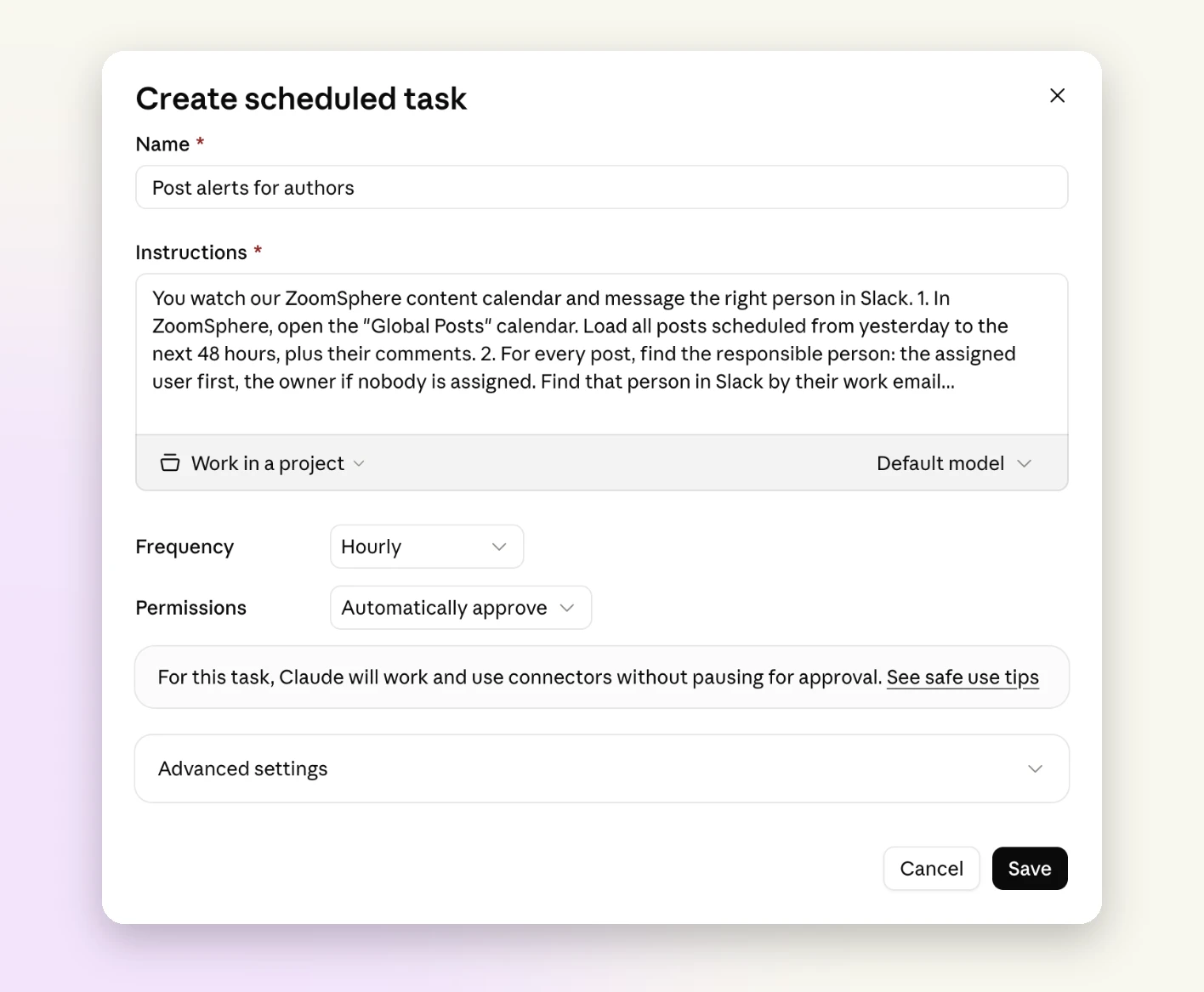
If you prefer the chat, this is the prompt that creates the task for you:
Create the task with Claude
Create a scheduled task that runs every hour on weekdays between 8:00 and 18:00 in my time zone, and once at 8:30 for the morning summary. Use the instruction below as its prompt.
Step 3: paste the instruction
This is what the task does on every run. Replace the calendar name with yours and adjust anything you like, it is plain English.
The task's instruction
You watch our ZoomSphere content calendar and message the right person in Slack. If it is a weekend or outside 8:00 to 18:00, stop without sending anything.
1. In ZoomSphere, open the "[calendar name]" calendar. Load all posts scheduled from yesterday to the next 48 hours, plus their comments. Also read the Quick Notes for today, they tell you who is on vacation and who covers for them.
2. For every post, find the responsible person: the assigned user first, the owner if nobody is assigned. Find that person in Slack by their work email. If a Quick Note says they are away, use their backup instead.
3. Send that person a Slack direct message from my account. Address them by first name, name any other people involved by their real names, and write it the way a colleague would. Send it when:
- a post goes live within the next 60 minutes and is not approved yet (name the approver and suggest a nudge),
- a post is in Errors, or went out only on some channels (say which channel failed),
- a client left a comment that asks to stop, hold or change a post that is already approved (quote the comment),
- a published post from the last 3 days clearly beats the account's typical reach (give the real number).
4. Escalate: if you already messaged someone about the same post more than 2 hours ago and nothing changed, send the same message again and add their team lead. One hour before publish time, message the team lead directly.
5. At the first run after 8:00, send each person one summary instead: what goes out today, what still needs them, unanswered client comments.
6. Never message the same person about the same thing twice within 2 hours. Never change a post yourself. Keep every message short, start with the problem, end with what to do next and a link to the post.
Two details matter most. Point 2 is what makes the messages personal, and point 6 is what keeps people from tuning them out in the first week. Before you leave it running, click Run now on the task once and check the messages it sends.
One task for the agency, or one for yourself
There are two ways to run this, and they suit different teams.
| Agency-wide task | Personal task | |
|---|---|---|
| Who sets it up | The agency owner or a team lead, once | Anyone, for themselves, today |
| Which posts | Every client calendar the account can see | Only posts where you are the owner or assigned user |
| Where messages land | A direct message to each author, from the lead's account | Your own direct message thread |
| Escalation and backups | Yes | No |
| Best for | Urgent alerts that must reach someone | A morning summary with your coffee |
With the personal setup, you connect your own ZoomSphere and Slack to Claude and the messages land in your own direct message thread. One honest limit: Slack does not ping you for messages that come from your own account. They show up, but quietly. That makes the personal setup great for the morning summary and weaker for the "goes live in an hour" kind of alert. For those, the agency-wide task is the better tool.
To switch the instruction above to the personal version, replace points 2 and 4 with this:
Personal version
2. Only look at posts where I am the owner or the assigned user. Send every message to me as a Slack direct message to myself.
4. Skip escalation. If something is still open at the next run, mention it again, marked as still open.
Before you switch it on
- Pick whose account sends. Messages go out from the Slack account connected to Claude, usually the team lead's, and Slack marks each one as sent using Claude. Tell the team, so a message from Martin about a failed post is no surprise.
- Use the same work email in both tools. That is how Claude matches a ZoomSphere user to a Slack person. One mismatched address and that person never gets a message.
- Write vacations into the calendar. A short Quick Note like "Lucy off, Eva covers" is enough for Claude to reroute.
- Make sure every post has a real person on it. This is the one most teams miss.
The catch: posts your AI created
When we ran this on our own October calendar, most posts had nobody assigned and showed the same owner. The reason was simple: they were created through ZoomSphere MCP, and a post created by AI belongs to whichever account the AI is connected as. For notifications, that means every alert would go to one person. The fix takes one sentence in your instructions whenever Claude creates posts for you:
Add to any post-creating prompt
When you create a post, set the owner and the assigned user to the person who will be responsible for it, never to my account by default. If you are not sure who that is, ask me.
The same field then powers much more than alerts: workload per person, results per author and a clean handover when someone leaves the agency.
Frequently asked questions
Is this a native ZoomSphere integration with Slack?
No. ZoomSphere and Slack are not connected to each other. Claude connects to both through connectors, reads the calendar from ZoomSphere and sends messages through Slack, following the instruction in your scheduled task.
Can ZoomSphere send Slack notifications to the author of a post?
Yes, through ZoomSphere MCP and an AI assistant such as Claude. The assistant reads each post's owner and assigned user, finds that person in Slack by work email and sends them a direct message.
Which situations should trigger a direct message?
A post that goes live soon without approval, a publishing error, an urgent client comment on an approved post, and a post that clearly beats the account's usual numbers. Everything else fits into one morning summary.
Do the messages come from a bot?
No. They come from the Slack account connected to Claude, usually the team lead's, and Slack labels them as sent using Claude. Claude can send plain formatted text: bold, quotes, lists and links.
Can I set this up just for myself?
Yes. A personal task looks only at posts where you are the owner or assigned user and sends the messages to your own direct message thread. Slack does not notify you about your own messages, so it works best for a morning summary.
What happens when the author is on vacation?
If your team marks vacations with Quick Notes in the ZoomSphere calendar, the task reads them and sends the message to the backup instead.
Why do all my alerts go to one person?
Posts created through ZoomSphere MCP belong to the account the AI is connected as. Ask the AI to set the owner and assigned user to the responsible person whenever it creates a post.
{{form-component}}










Recommended for you
%20(1).webp)
%20(1).webp)