


ZoomSphere MCP Now Runs Client Approvals: 10 Creative Ways to Use AI Comments, Pillars and Briefs (2026)

Updated October 2026.
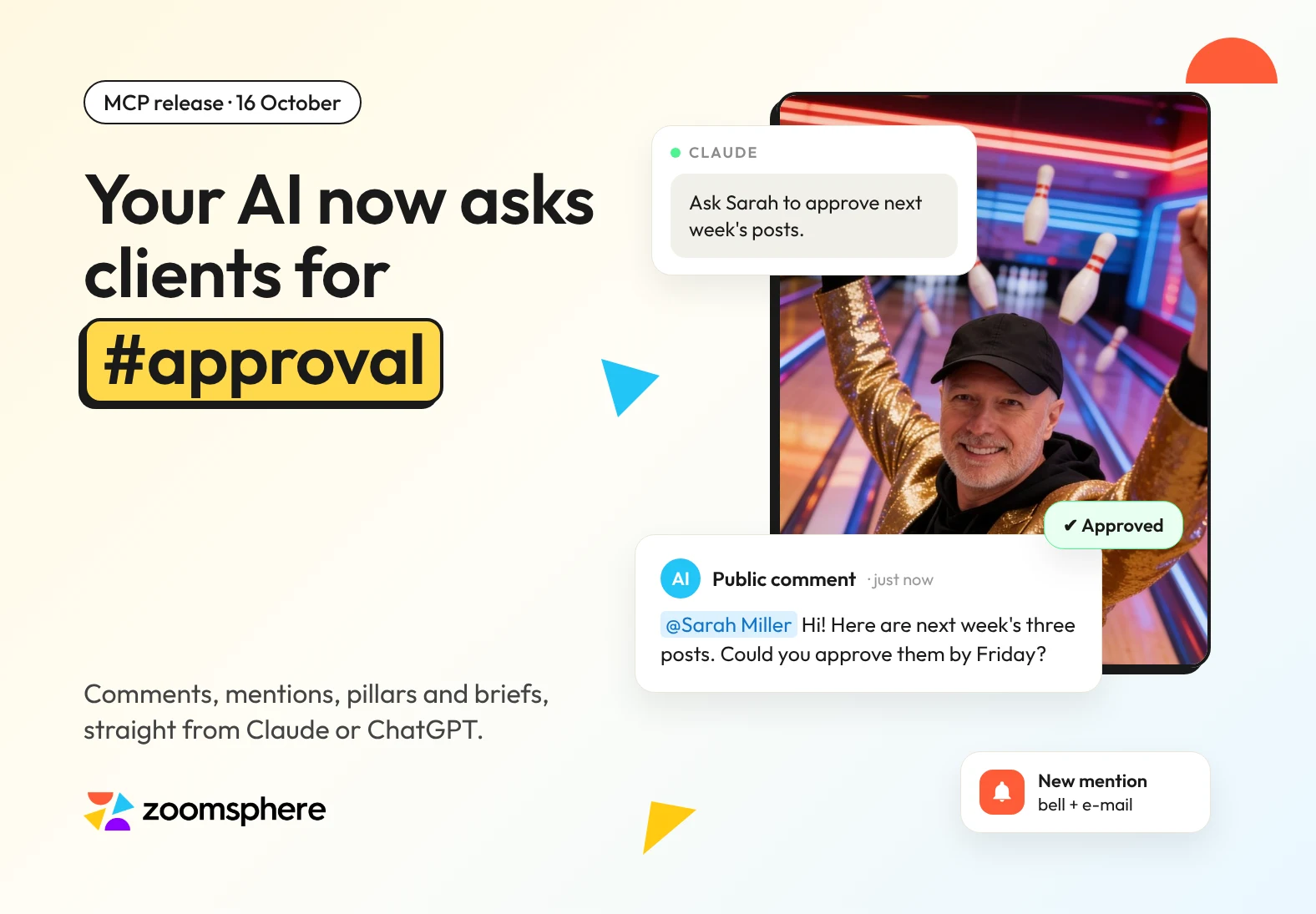
Can an AI assistant run the client approval round for you? Since 16 October 2026, yes. The ZoomSphere MCP lets Claude, ChatGPT and other AI assistants read and write comments on scheduled posts and ideas: internal comments only your team sees, and public comments your client sees in the approval view. A mention sends the person a notification in the app and an e-mail, so one sentence in your AI chat can now prepare next week's posts, file them under the right content pillar and ask the client to approve them. Tell Claude "ask Sarah to approve next week's posts" and Sarah gets the request under each post. It works the other way too: the AI reads what clients write and turns it into a to-do list, and briefs your team in internal comments the client never sees. Below is how it works, the new features and ten creative ways agencies can use them, each with a prompt you can copy.
Key facts
- Comments through MCP: your AI assistant reads and writes comments on scheduled posts and ideas, both internal (team only) and public (visible to the client approving the post).
- Mentions that reach people: mention a colleague or a client and they get the same bell and e-mail notification as from a person in the app. That is how the AI asks for approval.
- Pillars, tags and briefs: the AI files posts under a content pillar, tags them and writes the team a brief, so pillar reports also cover AI-made content. On ideas, the pillar is saved.
- Faster video: an uploaded video is converted only once, so a video post is ready sooner.
- People stay in charge: the AI prepares, files and follows up. Nothing goes live until your client or your team approves it.
{{form-component}}
How it works: your AI chat on one side, ZoomSphere comments on the other
You never leave your AI chat. You type one sentence in Claude or ChatGPT, and it happens under the post in ZoomSphere, with real notifications for real people. Clients and colleagues keep working in ZoomSphere exactly as before. Three examples show the whole idea.
1. You ask for approval in the chat, the client gets it under the post. One sentence moves the posts to To Approve and mentions the client in a comment. The client gets a bell notification and an e-mail.

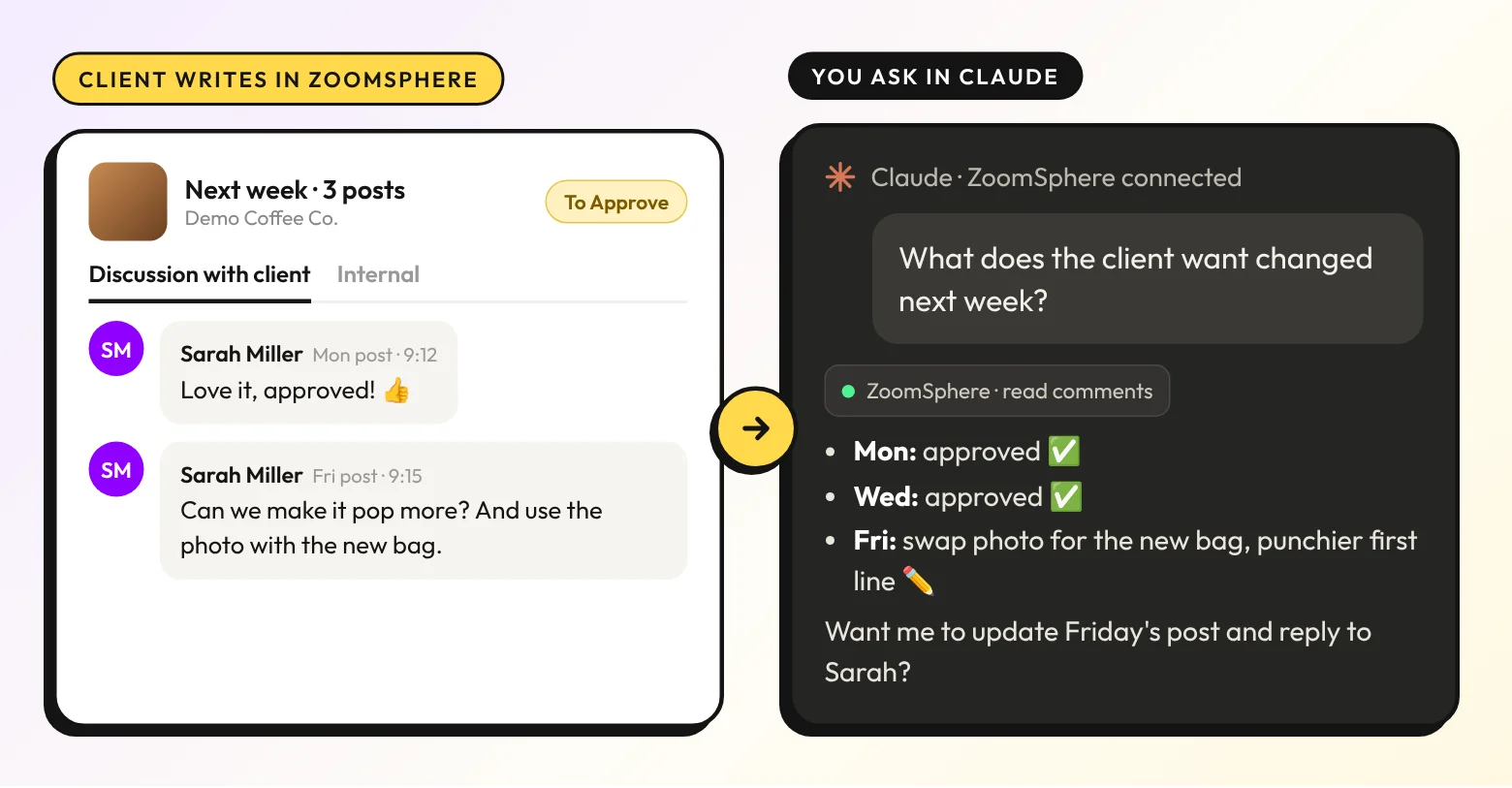
2. The client comments in ZoomSphere, you read it in the chat. The client writes feedback the way they always do. You ask the AI what they want changed and get a clean list, post by post.
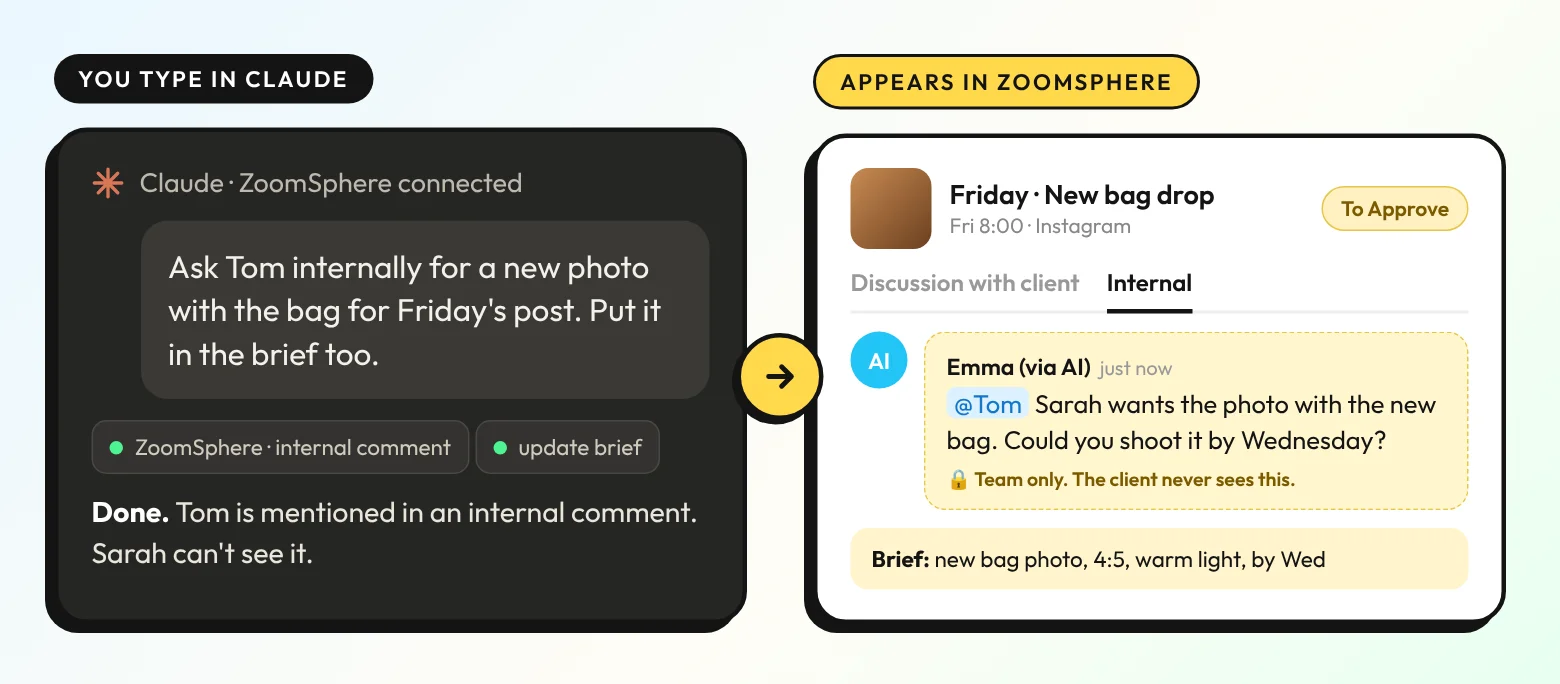
3. You brief the team in the chat, it lands as an internal comment. The AI mentions the right colleague in an internal comment and updates the brief. The client never sees it.
Why approvals were the missing piece
Writing a post with AI takes a minute. Getting it approved still takes days. The draft is ready, but the account manager jumps between the AI chat, the content calendar, an e-mail thread and a WhatsApp message to the client, then copies feedback back again. Every switch is a chance for a comment to get lost or a post to miss its date.
Until now, the ZoomSphere MCP could create, schedule, edit and analyze posts, but the conversation around a post stayed outside the AI. With comments, the AI can join the conversation where it already happens: under the post, in the approval view your clients know, with the same notifications they already get. ZoomSphere's approval flow does not change. It just gets a very fast new team member.
What is new in the 16 October release
Comments on posts and ideas
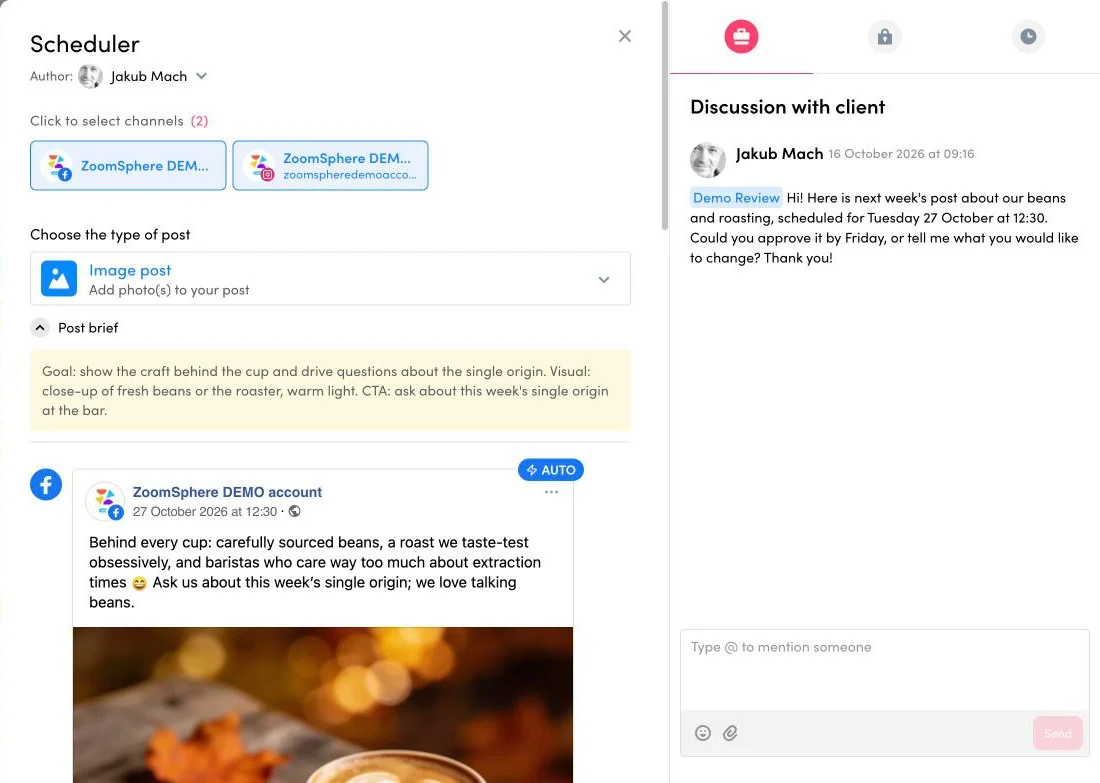
The AI can list every comment on a post or an idea and add new ones. Each comment is either internal, visible only to your team, or public, visible to the client who approves the post. When the AI writes a mention, the person gets a notification in the bell and an e-mail. Mention the client in a public comment and you have an approval request. Mention a colleague in an internal comment and you have a task the client never sees.
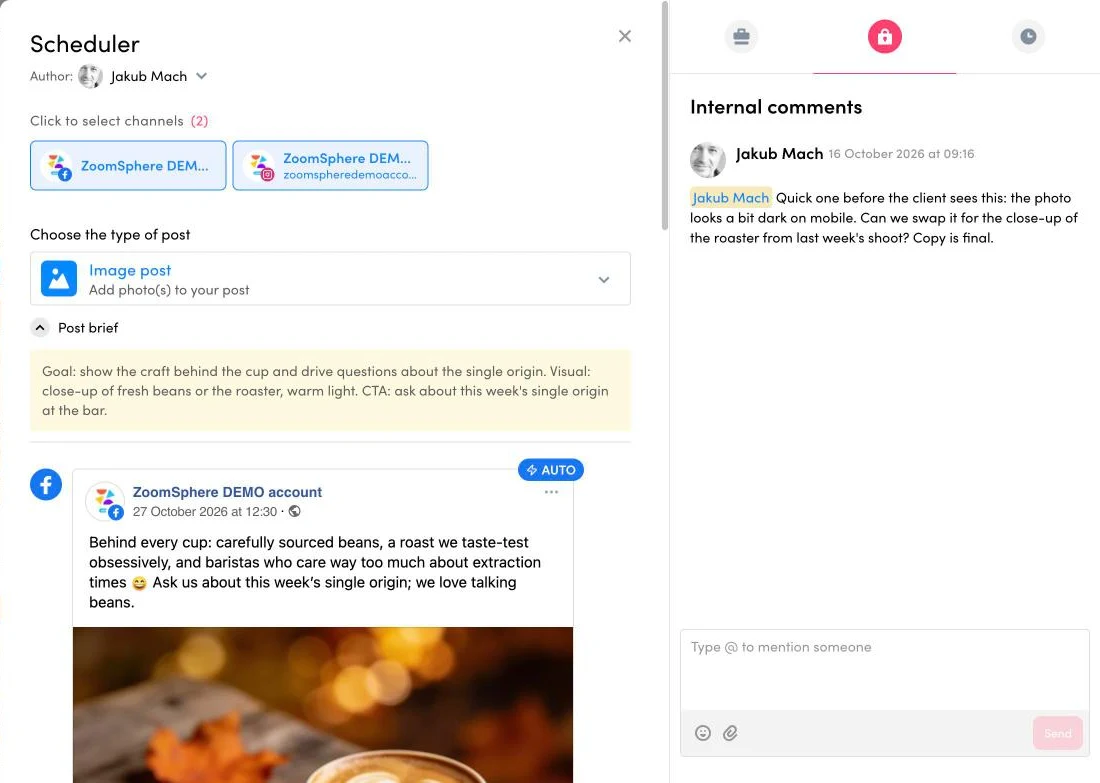
Also new: the MCP now tells you which ZoomSphere account you are connected as. If a workspace seems to be missing, the AI names the account first instead of assuming the data is gone.
Content pillar, tags and brief
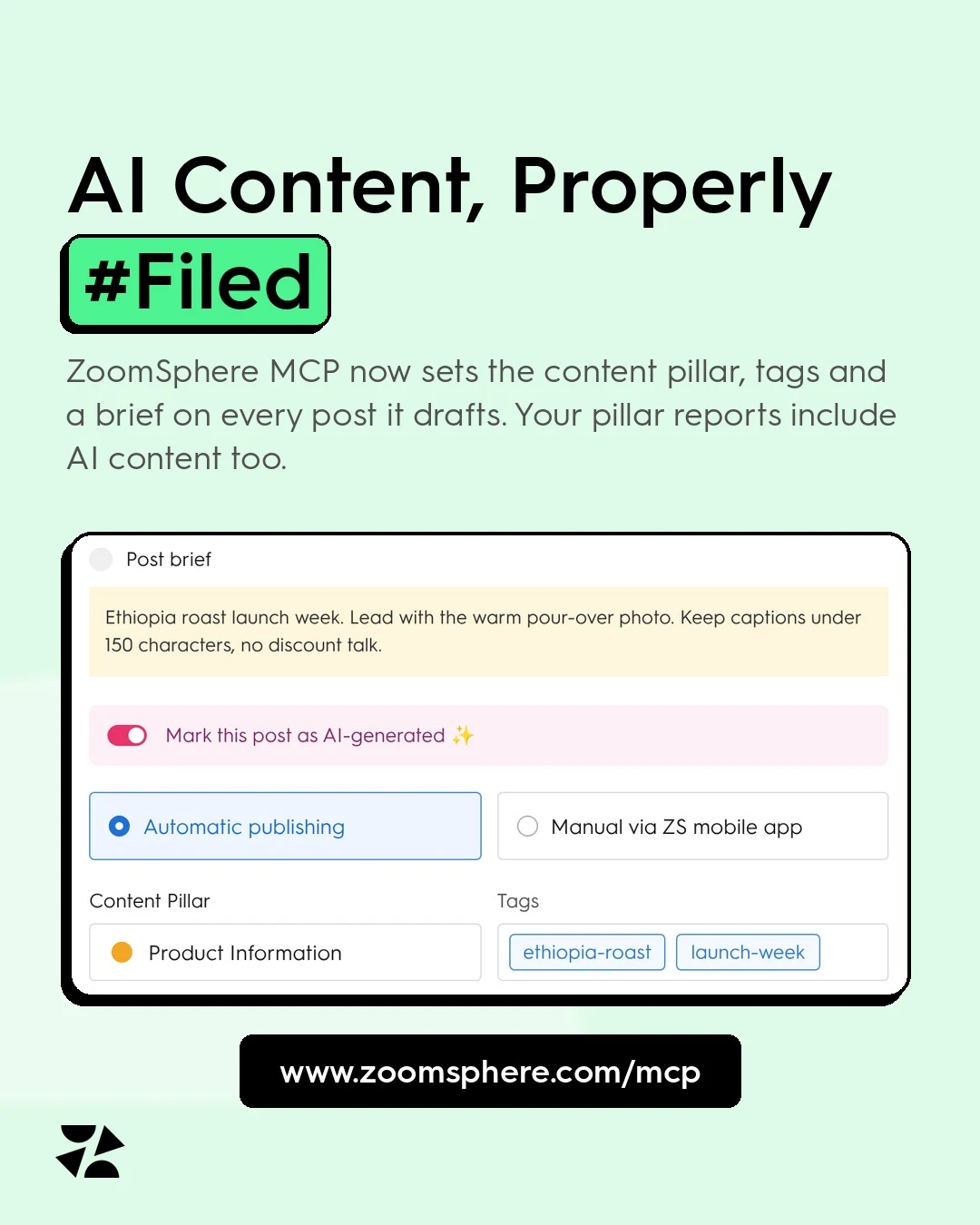
When the AI creates or edits a post, it can now file it under one of your workspace's content pillars, add tags and write a brief: an internal note for the team that is shown in the editor and never published. Because pillars are set on AI-made posts too, your reports by content pillar stay complete even when half the calendar was drafted in a chat. On ideas, the AI saves the content pillar.
AI content used to have a filing problem: it showed up in the calendar fast, nobody knew which pillar it belonged to, and the monthly report quietly ignored it. That is over.
Faster video preparation
Videos uploaded through the MCP are now converted only once, so a video post is ready to schedule sooner.
Ten creative ways to use AI comments
All examples use our demo client, a café called Demo Coffee Co. Replace the client name, statuses and pillars with your own. ZoomSphere's approval statuses are custom, so use the names you have in your workspace, such as "To Approve".
1. The one-sentence approval round
The headline use case. One prompt drafts the posts, files them, writes the brief and asks the client to approve, in a friendly comment that lists what to look at. In our own test, a 24-photo autumn shoot turned into 17 posts waiting for client approval after a single prompt. With comments, the approval request now goes out in the same breath.
Approval round
Prepare 3 posts for Demo Coffee Co. for next week (Tuesday to Thursday, 8:00) on Instagram and Facebook. Put them in the status "To Approve", file them under the content pillar "Product Information" and write a short brief for the team on each. Then add a public comment to each post that mentions the client, says what the post is about and when it goes live, and asks them to approve it or reply with changes by Friday.
2. Two gates: the team first, the client second
Clients should only see posts the team is happy with. Let the AI run an internal pre-flight check and send only clean posts to the client. Problems go to the right colleague in an internal comment, so nothing awkward ever lands in the client's view.
Internal pre-flight
Check every post for Demo Coffee Co. scheduled next week. Look for typos, missing hashtags on Instagram, links without UTM parameters, "link in bio" on Facebook and anything that sounds off-brand. For each problem, add an internal comment that explains it and mentions [colleague]. Only for posts with no problems, add a public comment mentioning the client and asking for approval. Finish with a short summary of what went where.
3. From feedback to fixes, and the thread closes itself
The most tedious part of approvals is turning client comments into edits. The AI can read what the client wrote, apply the changes to the drafts and reply in the same thread, so the client sees that every point was handled.
Feedback loop
Read the public comments on Demo Coffee Co. posts scheduled for the next 14 days. List what the client wants changed, post by post. Show me the edits you suggest and wait for my OK. Then update the posts, set them back to "To Approve" and reply to the client in each thread with one line on what changed, mentioning them.
4. Translate vague feedback into a real to-do list
"Love it! Can we make it pop a bit more? You know what I mean." Every account manager keeps a private dictionary for client feedback. Now the AI can do the translation: read the thread, turn vague wishes into concrete changes, and ask one smart clarifying question where it cannot guess. We even made a story series about it.
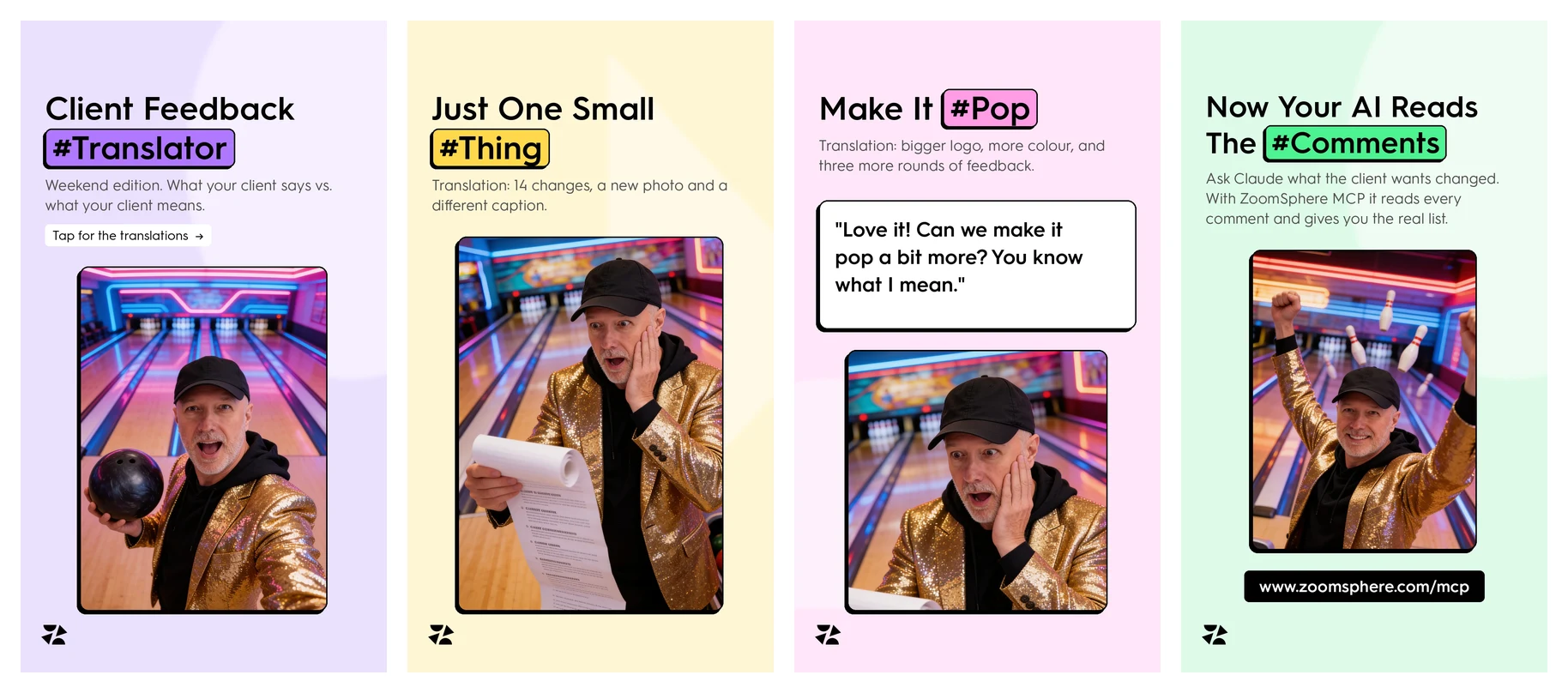
Feedback translator
Read all public comments from the client on Demo Coffee Co. posts scheduled this week. For each vague request (for example "make it pop" or "something is missing"), translate it into concrete changes: copy, visual, format. If a request is too vague to act on, draft one short clarifying question for the client with two options to choose from. Show me the list first. After my OK, post the questions as public comments mentioning the client and put the clear changes into the post briefs for the team.
5. Give the client options, not questions
"I'm not sure about the headline" can start a week of back and forth. Instead, let the AI answer in the thread with three numbered alternatives. The client replies with one number, and the AI applies it.
Options in the thread
On the Demo Coffee Co. post scheduled for [date], the client is unsure about the first line. Reply in a public comment with three numbered alternatives in the same tone: one shorter, one playful, one with a question. Mention the client and ask them to reply with the number they like. When they answer, update the post with their choice.
6. A client taste profile, built from old comments
Every client leaves clues in their comments: words they always cut, emojis they hate, photos they always ask for. Months of feedback is the best brief you will ever get, and the AI can read all of it in one go. Save the result where your team works, such as Notion or Google Docs, and ask the AI to read it before drafting.
Client taste profile
Read all public comments on Demo Coffee Co. posts and ideas from the last 3 months. Find the recurring preferences: words or phrases the client changes, tone, emojis, photo requests, length, topics they reject. Write a one-page "Client taste profile" with concrete do and don't rules and an example for each. Save it as a Google Doc named "Demo Coffee Co. taste profile".
7. Briefs that hand work to the right person
The brief field is not only for the AI's notes. Use it as a clear handoff: what the photo should show, which format, which deadline. Then let the AI mention the designer or photographer in an internal comment, so they get an e-mail with the exact task, and the client sees none of it.
Creative handoff
For every Demo Coffee Co. post next week that has no photo or a weak one, write a brief for the designer: what the visual should show, format (1:1 or 4:5), mood and deadline two working days before publishing. Then add an internal comment on each of those posts that mentions [designer] and points to the brief.
8. Pillar audit and a calendar that fills its own gaps
Because the AI can now set content pillars, it can tidy a messy month and show you the real content mix. Where a pillar is missing, it can suggest ideas and save them to the calendar with the right pillar, ready for your team to pick up.
Pillar audit
Look at all Demo Coffee Co. posts scheduled for November. Assign a content pillar to every post that has none, using the workspace's pillars. Then show me the mix as a table: pillar, number of posts, share. Our target is 40% Product Information, 30% Just for fun, 20% Case study, 10% Contest. Where we are short, create ideas on free days with the matching pillar and one line describing each.
9. A polite approval chaser every morning
Posts that wait for the client too long are the classic agency headache. Ask social media managers how long a single post ever waited for approval and the answers come in weeks. Turn this prompt into a scheduled task in Claude, for example every weekday at 8:00. Start by having the AI only show you the list, then let it send the reminders once you trust the wording.
Approval chaser
Find all posts in "To Approve" across my ZoomSphere workspaces that go live in the next 72 hours and have no reply from the client in their comments. Group them by client. For each client, add one friendly public comment on the earliest post, mention the client, list the waiting posts with their dates and ask for a quick approval. Then send me a summary of who was reminded.
10. Tags that track a campaign end to end
Tags let you follow one campaign across channels and clients. Create the tag in your ZoomSphere workspace first, then let the AI tag every related post as it drafts them. At the end of the campaign, ask the AI for results of just those posts.
Campaign tags
Tag every Demo Coffee Co. post about the autumn menu, scheduled or already published this month, with the tag "autumn-launch". At the end of the month, show me the reach, interactions and engagement rate of the posts with that tag compared with the rest of the month.
Bonus: a client care dashboard for agency leads
Because the AI can read every client comment, it can do something no account manager has time for: check them all. Ask it which client comments your team has not answered yet, how fast each account replies and how good the replies are, and you get an operations dashboard for client care. The slow accounts and the forgotten questions show up before the client complains.
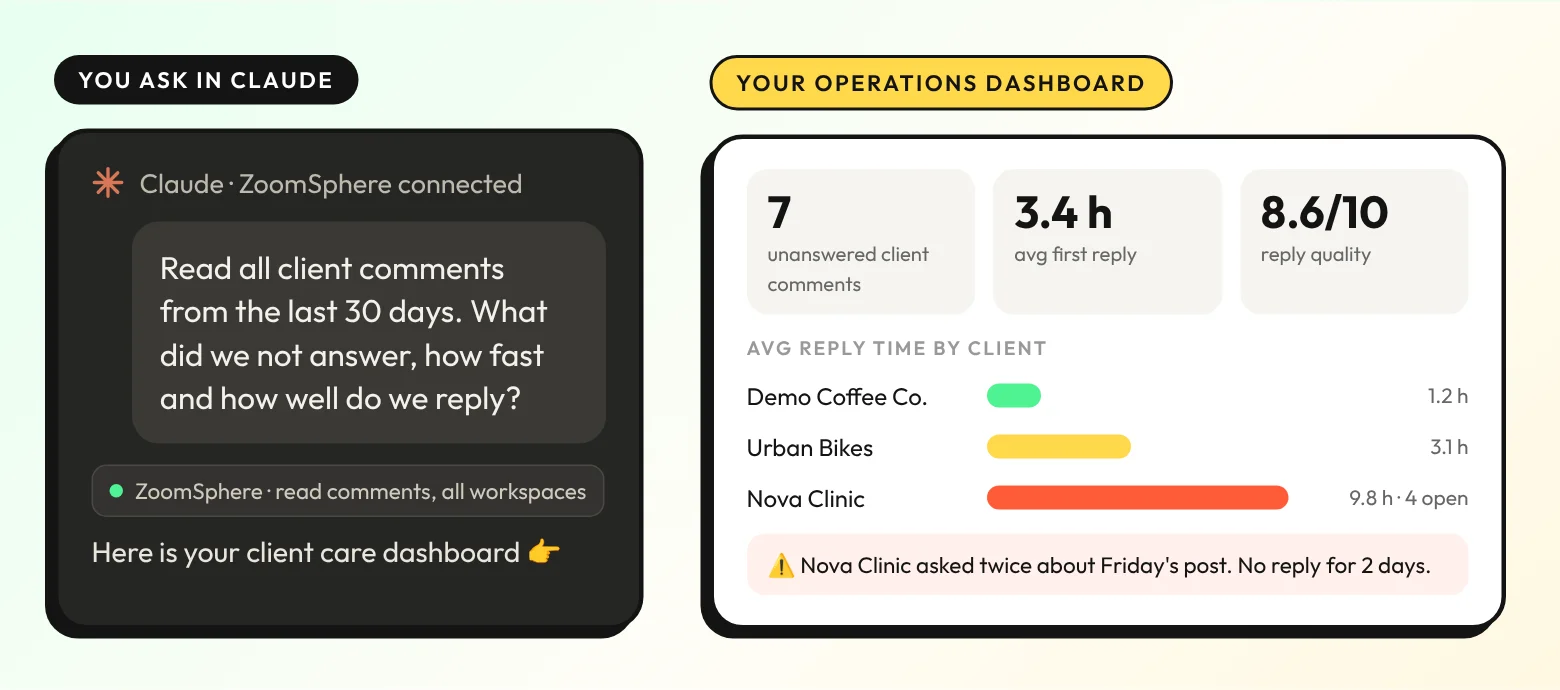
Client care dashboard
Read all public client comments on posts and ideas from the last 30 days across my ZoomSphere workspaces. Build a dashboard: unanswered client comments by client, average time to our first reply per client, and a quality score from 1 to 10 for each of our replies (clear, friendly, answers the question). List the five worst cases with links to the posts. Show it as an interactive dashboard.
Internal or public: how to keep the two apart
Clients who approve posts see public comments. Internal comments stay with your team. To be safe, always name the type in your prompt: "add an internal comment" or "add a public comment for the client". When you ask for a summary of client feedback, ask for public comments only, so internal notes never end up in a message you forward. And when a prompt makes the AI mention people, try it on one post first: every mention sends a real e-mail.
What you need
- A ZoomSphere account with the Scheduler module. Register, create a Scheduler and connect your social profiles.
- The ZoomSphere MCP connected to Claude, ChatGPT or another MCP client. Setup for each one is on the ZoomSphere MCP page.
- Your clients invited to ZoomSphere with access to the Scheduler and permission to approve posts. A mention only notifies people who have access to that Scheduler.
- Content pillars and tags set up in your workspace, so the AI can file posts under them.
The AI works with the same permissions as you. New posts are created as drafts or for approval, and nothing is published until a person approves it. For more ideas, see 10 MCP workflows for agency operations and on-brand posts with Canva and ZoomSphere MCP.
Frequently asked questions
Can AI ask my client to approve a social media post?
Yes. Through the ZoomSphere MCP, Claude, ChatGPT or another AI assistant can add a public comment to a scheduled post and mention the client. The client gets a notification in ZoomSphere and an e-mail, opens the post and approves it or replies with changes.
Will my client see the internal comments?
No. Internal comments are visible only to your team. Clients who approve posts see public comments only. Always say in your prompt which type the AI should write.
Can the AI publish posts without approval?
Not by default. The AI creates posts as drafts or sends them for approval, and a post goes live only after your client or your team approves it.
Does it work with ChatGPT as well as Claude?
Yes. The ZoomSphere MCP works with Claude, ChatGPT and other AI assistants that support MCP. Setup steps for each are on the ZoomSphere MCP page.
Can the AI set content pillars and tags?
Yes. It can file a post under one of your workspace's content pillars, add tags that already exist in the workspace and write a brief for the team. On ideas, it saves the content pillar.
Can AI check whether my team answered every client comment?
Yes. The AI can read all public client comments across your workspaces and list the ones without a reply from your team, together with reply times and a quality score for each reply. Ask for it as a dashboard and save the prompt as a weekly scheduled task.
Can I automate approval reminders?
Yes. Save a prompt like the approval chaser above as a scheduled task in Claude. The AI checks waiting posts every morning and reminds clients in a comment under the post.
{{form-component}}










Recommended for you
%20(1).webp)
%20(1).webp)
%20(1).webp)