Agency Operations With AI: 10 MCP Workflows That Have Nothing to Do With Writing Posts (2026)

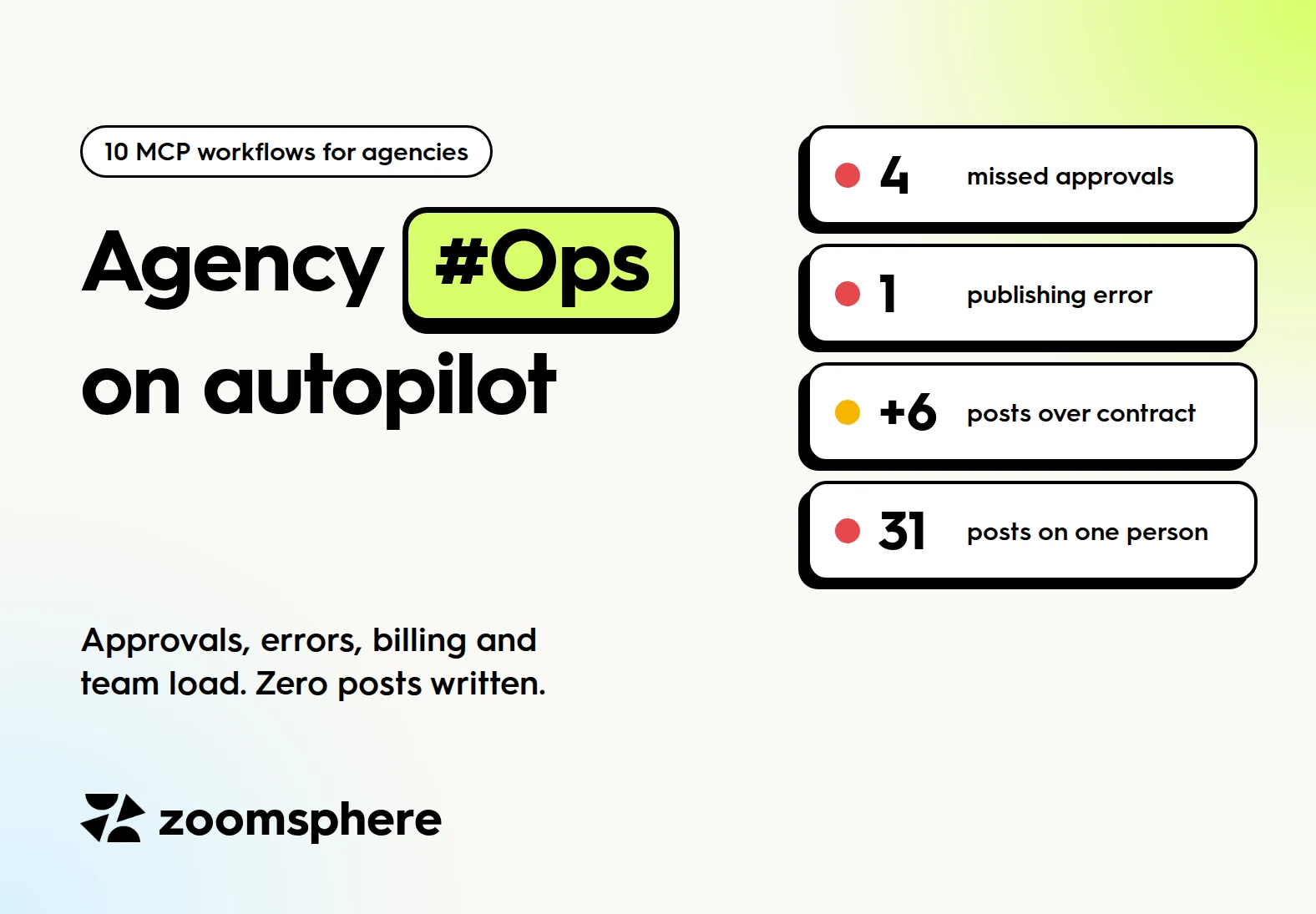
Agency Ops on autopilot: 4 missed approvals, 1 publishing error, 6 posts over contract, 31 posts on one person
Missed approvals, publishing errors, unbilled posts and an overloaded team: 10 tested MCP workflows that run an agency's operations layer, with prompts and dashboards.

Listen to the audio version

00:00 00:00

Updated October 2026.

What can an AI agent do for agency operations, not just content? Connected to ZoomSphere through the MCP, it can check approvals that missed their date, triage publishing errors, compare delivered posts with each client's contract, pause a whole calendar in a crisis, check posts against client rules and show who on the team is overloaded. Every workflow below comes with a prompt you can paste into Claude, ChatGPT or any MCP client.

Key facts

  • Ops, not content: none of the 10 workflows writes a post. They protect deadlines, revenue and the team's time.
  • Tested on a live workspace: on our demo workspace the agent found 4 posts still waiting for approval after their publish date had passed, 1 publishing error and 17 forgotten drafts in one morning check.
  • Two connectors beat one: billing, client rules and team load combine ZoomSphere data with your Notion or Google Drive, in the same chat.
  • Safe by design: the agent shows you what it will change and waits for your OK before it moves any post.
  • Run it daily: turn the morning check into a scheduled task and get an ops board before your first coffee.

{{form-component}} 

Why the operations layer is where agencies lose money

Most AI talk in social media is about writing captions faster. But in an agency, the expensive problems are rarely the captions. They are the approval that sat in a client's inbox until the campaign date passed, the post that failed on Friday night and nobody noticed, the client who gets 18 posts while paying for 12, and the account manager quietly carrying a third of the agency's workload.

None of these show up in a content calendar at a glance. All of them show up when an agent reads the calendar for you. The ZoomSphere MCP gives the agent the post statuses, dates, channels, texts, tags and analytics of every workspace you can access, and it can move posts between statuses when you tell it to.

The 10 workflows

1. Delivery vs. contract, before you invoice

Count what was actually published for each client and compare it with the package they pay for. This is where agencies find unbilled work every single month.

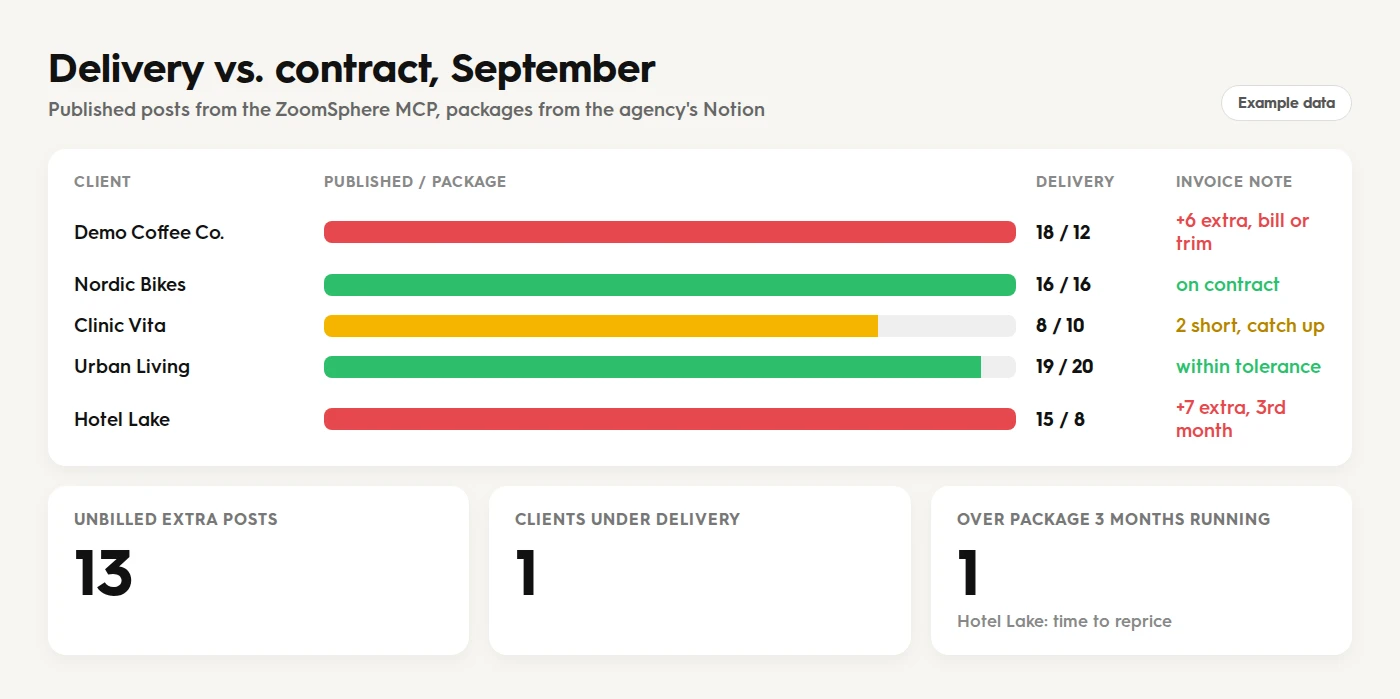
Connect to ZoomSphere and Notion. In Notion, read the database "Client contracts" (client, ZoomSphere channels, posts per month). In ZoomSphere, count the posts published in [September 2026] on each client's channels. Build a table: client, published, package, difference. Flag anything more than 10% over or under, and note clients who have been over their package for three months in a row.

2. Approvals that are about to miss their date

Find every post waiting for the client close to its publish time, plus the ones that already missed it, and prepare the reminders.

In ZoomSphere, list every post in a "To Approve" status scheduled in the next 72 hours, plus every post still in "To Approve" whose publish date has already passed. Group them by client. For each client, draft a short, friendly reminder listing the posts with their dates and editor links.

3. Publishing error triage

A failed post is invisible until the client asks where it went. Catch it first.

List every post in an error status across my ZoomSphere workspaces from the last 14 days, with client, channel, post type, date and editor link. Flag channels that failed more than once, because that usually means the account connection needs to be renewed. Sort by urgency.

4. The red button: pause a calendar in a crisis

A national day of mourning, a client in the news, a product recall. In those hours you need every scheduled post off the air, fast and reversibly.

Pause everything scheduled for [client, or all clients] between [date and time] and [date and time]: move those posts to "In progress" without changing their dates. First show me the list and wait for my OK. Then confirm exactly what you moved, so I can restore it later with one request.

5. Client rules check for next week

Every client has rules: words they never use, disclaimers they always need, how they want links tagged. Check the whole queue against them before anything goes live.

Read the Notion page "Client rules" (banned words, required disclaimers, hashtag limits, link rules per client). Check every post scheduled in ZoomSphere for the next 7 days against those rules. Report only violations: post, client, rule broken, suggested fix. Also flag "link in bio" on Facebook posts and links without UTM parameters.

On our demo workspace, this check caught a post saying "link in bio" queued for Facebook as well as Instagram, where there is no bio link to click.

6. Team load for next week

ZoomSphere knows which client has how many posts. Your Notion knows who owns which client. Together they show who is about to drown.

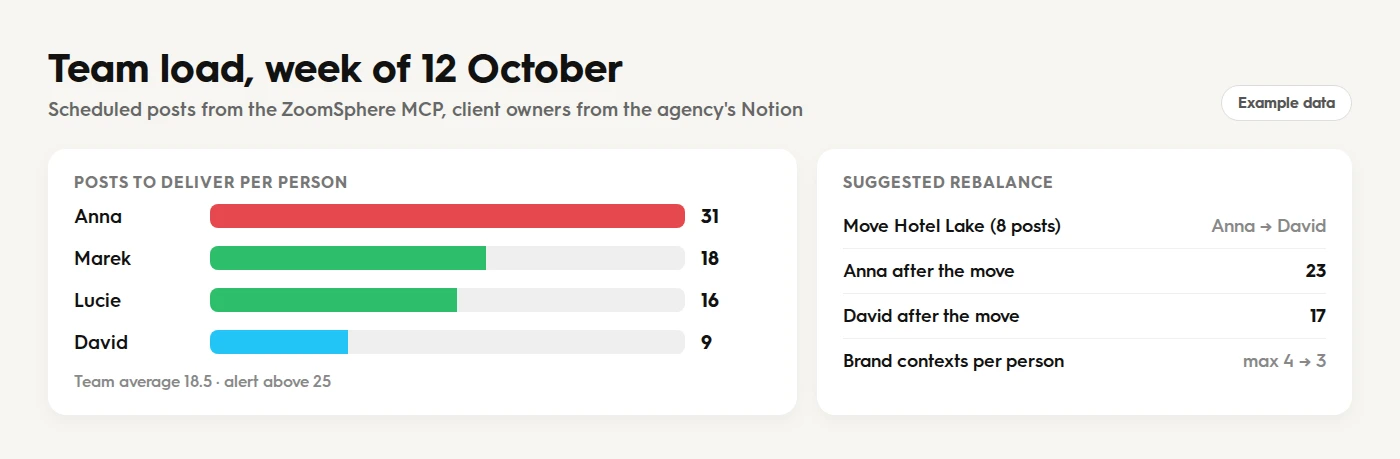
Read the Notion database "Client owners" (client, account manager). In ZoomSphere, count the posts scheduled for each client next week. Sum them per account manager, compare with the team average and flag anyone more than 30% above it. Suggest which client to move to whom to even the load out.

7. Unscheduled queue cleanup

Every calendar collects drafts with no date: half-finished ideas, spare visuals, time-sensitive reminders that quietly expire.

List the unscheduled queue in ZoomSphere workspace [name]. Sort the drafts into four groups: ready to schedule, needs work (missing caption or visual), time-sensitive (mentions a date, season or deadline) and outdated. For the ready ones, suggest dates in empty slots of the next two weeks.

8. Ideas pipeline check

An empty pipeline today is a missed deadline in two weeks. See which client the team should plan first.

For each client in ZoomSphere, list the Ideas in the calendar for the next 14 days and the posts already scheduled in the same period. Flag clients with fewer than [3] items per week, so the team knows where to start planning first.

9. Content mix vs. what you promised

Contracts often promise a mix: so much product, so much community, so much employer branding. Check whether you kept the promise.

Using the content pillars and tags in ZoomSphere, show the share of each pillar in the posts published last month for [client]. Compare it with the agreed mix in [Notion page or Google Doc] and suggest how to balance next month.

10. The morning ops digest

Combine the checks above into one scheduled task, and the agency owner starts every day with a single page instead of five tabs.

Every weekday at 8:00, check all my ZoomSphere workspaces for: approvals due in the next 72 hours or already overdue, publishing errors, posts sent back to rework, and the unscheduled queue. Build an ops board with traffic lights and a short "act today" list, and update it every morning.

How to set up the schedule step by step is in our guide to putting social media on autopilot with scheduled AI tasks.

{{cta-component}} 

Ops dashboards you can build in one chat

The same data makes a good dashboard. Ask the agent to build it as an artifact in Claude and refresh it with a scheduled task, and you get a live board instead of a monthly spreadsheet.
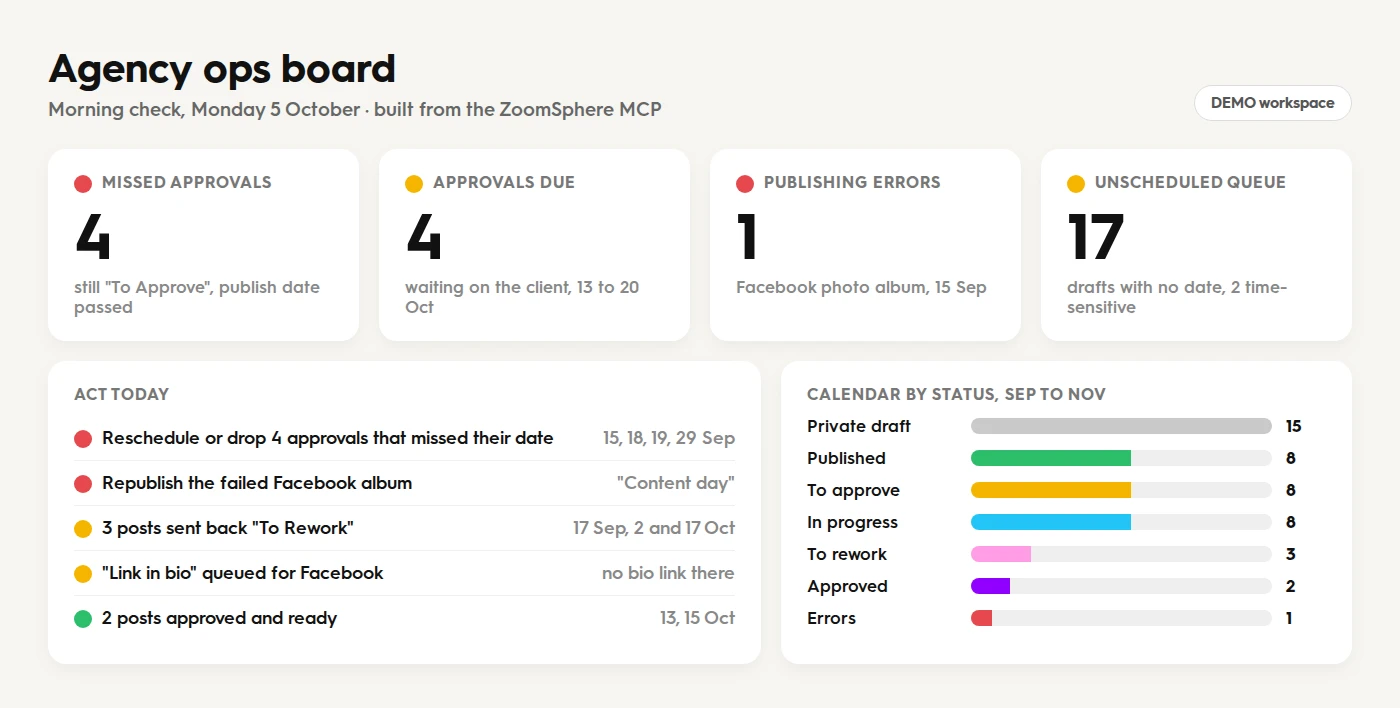
Agency ops board with traffic lights: 4 missed approvals, 4 approvals due, 1 publishing error and 17 unscheduled drafts, plus an act today list
The ops board, built from our demo workspace on Monday morning: missed and upcoming approvals, errors, rework and the unscheduled queue.
Delivery versus contract dashboard comparing published posts with each client's monthly package and flagging unbilled extra posts
Delivery vs. contract: ZoomSphere supplies the published posts, Notion the packages. Example data.
Team load dashboard showing scheduled posts per account manager for next week with a suggested rebalance
Team load for next week with a suggested rebalance. Example data.
Build an "Agency ops board" artifact from my ZoomSphere workspaces: four traffic-light tiles (missed approvals, approvals due in 72 hours, publishing errors, unscheduled drafts), an "act today" list with dates, and a bar chart of posts by status for the next 30 days. Keep the layout clean, one screen, no scrolling.

What you need

  • The ZoomSphere MCP connected to Claude, ChatGPT or another MCP client. Setup for every client is on the ZoomSphere MCP page.
  • Notion or Google Drive connected in the same chat for workflows 1, 5, 6 and 9, where the agent combines ZoomSphere data with your own records.
  • A clean status setup in ZoomSphere: clear names for "To Approve", "In progress" and "Approved" make every prompt above more reliable.

Write actions are deliberately careful. The agent shows you what it will change before it moves a post, and new posts are always created as drafts. For data protection questions, especially with regulated clients, see our guide to using AI with confidential client data.

Frequently asked questions

Can an AI agent manage agency operations, not just write posts?

Yes. Connected through the ZoomSphere MCP, an agent can read post statuses, dates, channels and analytics across all your workspaces and act on them: find overdue approvals, triage errors, compare delivery with contracts, pause posts and build ops dashboards.

Do I need Notion or Google Drive?

Only for workflows that need data ZoomSphere does not hold, such as contract packages, client rules or who owns which client. The agent reads both connectors in the same chat and combines the results.

Can the agent change or publish posts on its own?

It can change a post's status or date when you ask it to, and it confirms the list with you first. New posts are created as drafts, so nothing goes live without a person approving it.

How do I run these checks automatically every day?

Save the prompt as a scheduled task in Claude, for example every weekday at 8:00. The agent runs the checks and updates the ops board artifact each morning.

Is this available in every ZoomSphere plan?

The ZoomSphere MCP is available in every ZoomSphere account. You use it through your own Claude or ChatGPT subscription.

{{form-component}} 

RSSPrefer RSS? Follow the ZoomSphere blog in your feed reader
Subscribe
Thank you! Your submission has been received!
Oops! Something went wrong while submitting the form.
Subscribe
Thank you! Your submission has been received!
Oops! Something went wrong while submitting the form.
Try us for free
Give ZoomSphere a go, or pick a date, and we’ll walk you through it step by step!
Get started now

Heading 1

Heading 2

Heading 3

Heading 4

Heading 5
Heading 6

Lorem ipsum dolor sit amet, consectetur adipiscing elit, sed do eiusmod tempor incididunt ut labore et dolore magna aliqua. Ut enim ad minim veniam, quis nostrud exercitation ullamco laboris nisi ut aliquip ex ea commodo consequat. Duis aute irure dolor in reprehenderit in voluptate velit esse cillum dolore eu fugiat nulla pariatur.

Block quote

Ordered list

Young woman wearing bright yellow headphones, smiling while using a tablet, sitting indoors with a modern curtain background.
gfdhfdhdf
  1. Item 1
  2. Item 2
  3. Item 3

Unordered list

  • Item A
  • Item B
  • Item C

Text link

Bold text

Emphasis

Superscript

Subscript

Back to All Blog Posts
#BufferAlternatives
#BufferAlternatives
#KontentinoAlternatives
#Burnout
#Burnout
#Vacation
#Vacation
#Reach
#Reach
#ContentIdeas
#ContentIdeas
#Agorapulse
#Agorapulse
#ContentPlanner
#ContentPlanner
#AgoraPulse
#AgoraPulse
#SocialMediaTeam
#SocialMediaTeam
#AIMarketing
#AIMarketing
#AIContent
#AIContent
#SocialMediaPlanner
#SocialMediaPlanner
#Hootsuite
#Hootsuite
#PerformanceView
#PerformanceView
#Reporting
#Reporting
#Metricool
#Metricool
#2026
#2026
#LinkedInAlgorithm
#LinkedInAlgorithm
#LinkedIn
#LinkedIn
#CommentCollaboration
#PublishingFlow
#PublishingFlow
#ActivityLog
#ActivityLog
#PostHistory
#PostHistory
#SocialMediaManagementTool
#Planable
#Planable
#ZoomSphere
#ZoomSphere
#BulkActions
#BulkActions
#CompareResults
#CompareResults
#AgencyOperations
#AgencyOperations
#ContentApproval
#ContentApproval
#ApprovalWorkflow
#ApprovalWorkflow
ContentApproval
ContentApproval
ApprovalWorkflow
ApprovalWorkflow
#AICopywriter
#AICopywriter
#BrandPersona
#BrandPersona
BrandPersona
BrandPersona
#AEO
#AEO
#Trend
#Trend
#Frequency
#Frequency
#Trust
#Trust
#Feedback
#Feedback
#Launch
#Launch
#EmotionalAdvertising
#EngagementRate
#EngagementRate
#MarketingInsights
#MarketingInsights
#Visibility
#Visibility
#Zaraguza
#Zaraguza
#Performante
#Performante
#Whites
#Whites
#MadeByVaculik
#MadeByVaculik
#ProjectManagement
#ProjectManagement
#Communication
#Communication
#Performance
#Performance
#AI
#AI
KPIs
KPIs
#BrandVoice
#BrandVoice
#OverallDashboard
#OverallDashboard
#Campaign
#Campaign
#Clickbait
#Clickbait
#Reviews
#Reviews
#Polls
#Polls
#Retention
#Retention
#Celebrity
#Celebrity
#UGC
#UGC
#Inclusive
#Inclusive
#CancelCulture
#CancelCulture
#HavasVillage
#HavasVillage
#PositiveAdamsky
#PositiveAdamsky
#TrickyCommunications
#Reputation
#Reputation
#Consistency
#Consistency
#Brand
#Brand
#Nostalgia
#Nostalgia
#Trendjacking
#Trendjacking
#BrandLoyalty
#BrandLoyalty
#Ads
#Ads
#Crisis
#Crisis
#Minimalist
#Minimalist
#Commerce
#Commerce
#MobileApp
#MobileApp
#Google
#Google
#SEO
#SEO
#Controversial
#Controversial
#Community
#Community
#Customer
#Customer
#Faceless
#Faceless
#Guerrilla
#Guerrilla
#Ephemeral
#Ephemeral
#RedNote
#RedNote
#ContentMarketing
#ContentMarketing
#News
#News
#TikTok
#TikTok
#GEO
#GEO
#Optimization
#Optimization
#Predictions
#Predictions
#2025
#2025
#Influencer
#Influencer
#TweetToImage
#TweetToImage
#Viral
#Viral