How to Automate Client Reporting with an AI Agent (2026 Guide)

Can an AI agent build my client reports for me? Yes. Connect the agent to the tool where your social media data already lives, give it a standing brief, and it will read the statistics, assemble a branded deck and file it as a draft for your approval. The setup takes about five minutes, the first report takes one prompt, and from then on it can run every month on its own. This guide walks through the whole thing: what the agent can actually read, what the finished deck looks like in an agency template, the exact prompts to copy, how to turn the brief into a scheduled task, how to update the report next month instead of rebuilding it, and which parts of reporting you should keep firmly human.
{{form-component}}
Ask any agency what the worst week of the month is and you will get the same answer: the one where the reports are due. Screenshots into slides, numbers retyped into tables, the same "what does this tell us" paragraph rewritten for the eighth client. It is the definition of work that matters to the client and drains the team. Which makes it the single best candidate for handing to an AI agent, because everything the report needs already sits in one place, structured and ready to be read.
Key facts
- An AI agent connected through MCP can read per-post statistics, channel growth and cross-network summaries directly from your social media management tool, no exports, no copy-paste.
- The output can be a branded PowerPoint or PDF, a written summary, or a live dashboard page, rendered into your agency's template, cover slide included.
- The connection takes about five minutes and works with Claude, ChatGPT and other AI agents.
- The safe operating rule is the same as everywhere else in agent work: the agent drafts, a person approves. Nothing leaves for the client without a human look.
- Saved as a scheduled task, the report rebuilds itself every month, and from month two you only update the approved deck instead of starting over. Both setups are in this guide.
What the agent can actually read
The old way of using AI for reporting was pasting numbers into a chat and hoping nothing got mangled on the way. The new way is giving the agent supervised access to the data itself. Through an MCP connection, the agent signs in under your account and can read what you can see: performance of individual posts, growth and engagement per channel, and summaries across networks. It pulls the real numbers at the moment it writes the report, which kills the two classic reporting bugs in one move: stale data and retyping errors.
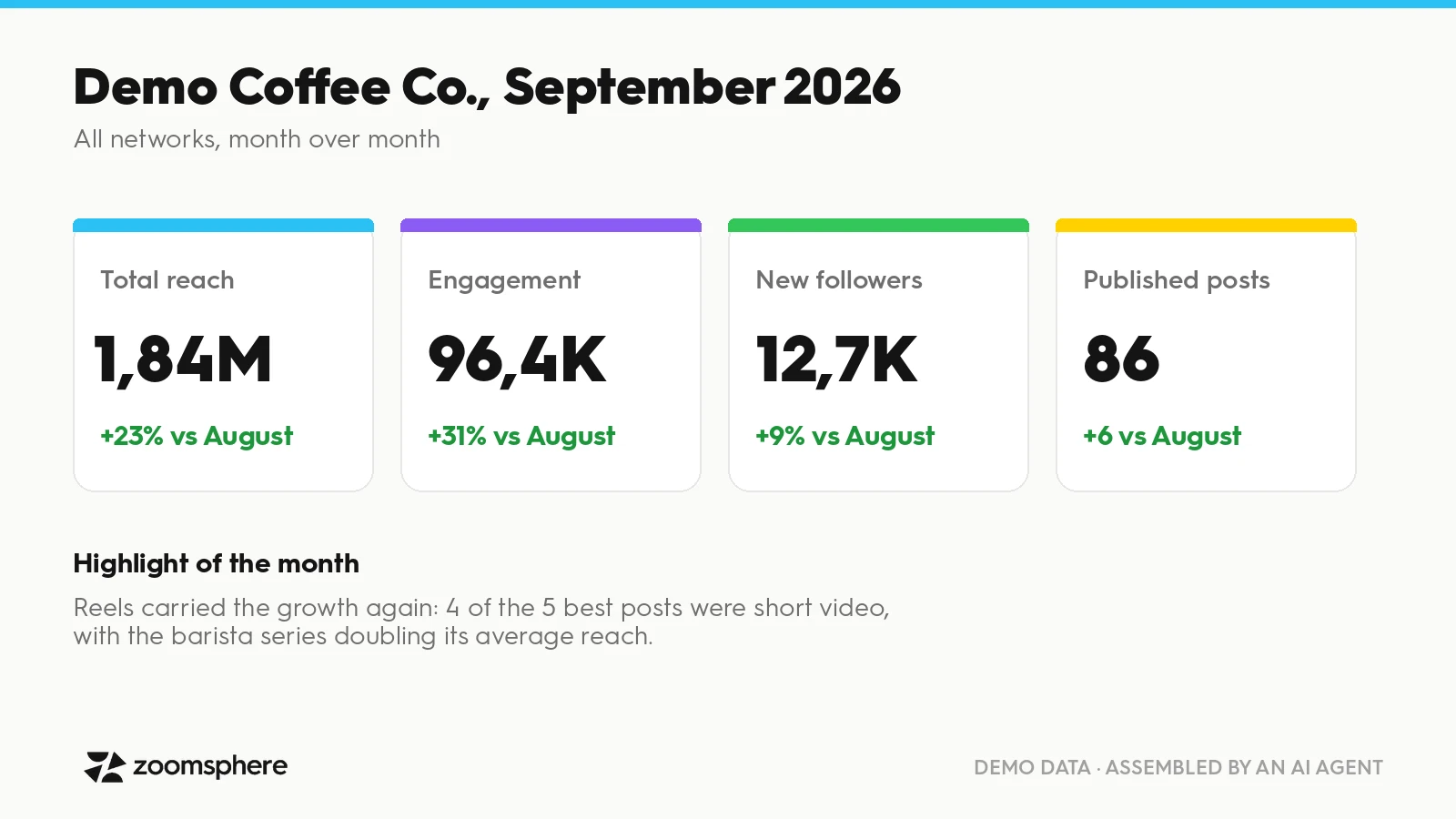
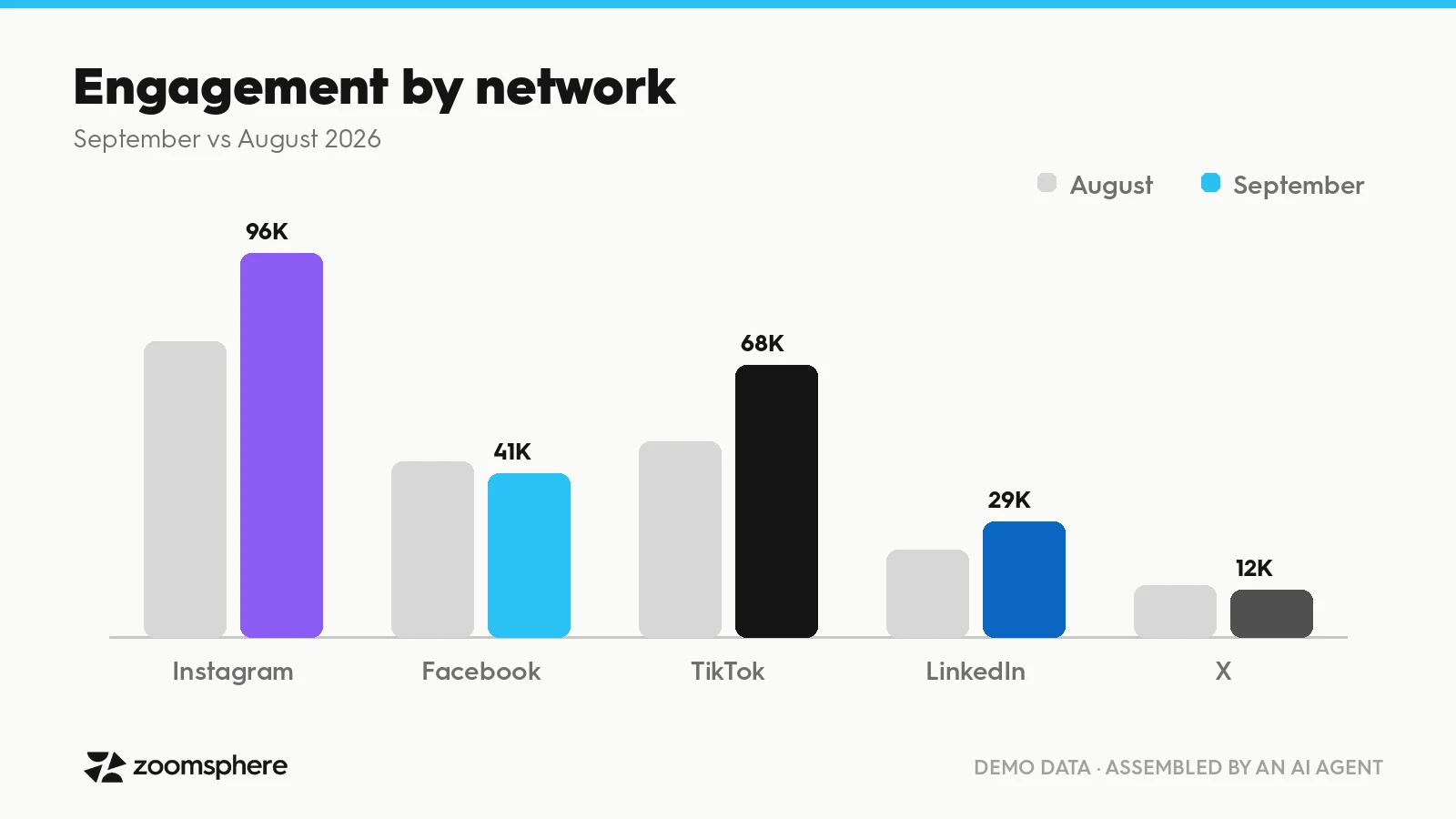
And this is what comes out the other end. The slides below are from a monthly report assembled end to end by an AI agent from live statistics, on demo data:
Because the agent works under your login with your permissions, it sees exactly the workspaces you see and nothing more. And because access runs through OAuth instead of a shared password, there is nothing to paste into a chat window and nothing to rotate when someone leaves. If you want the full security picture behind this setup, we wrote a complete guide to what your team should never paste into an AI chat, the short version is that connectors exist precisely so that credentials and exports never have to travel through a conversation.
Set it up once
The one-time setup is genuinely short:
- Connect your AI assistant to the ZoomSphere MCP server. The step-by-step help centre guide for Claude or ChatGPT takes about five minutes, and it is a settings flow, not a developer task.
- In the permission settings, allow reading without limits and set every write action to ask for approval. That is the recommended configuration: the agent can study your data freely but cannot publish or change anything on its own.
- Give the agent your brand template once: attach the agency deck (or a few reference slides) to the first conversation and tell it "this is our reporting template, always render into this design". Fonts, colours, cover slide, footer, all of it.
- Run one test prompt ("read last month's summary for [client] and tell me the three biggest changes") just to confirm the agent sees the right workspaces.
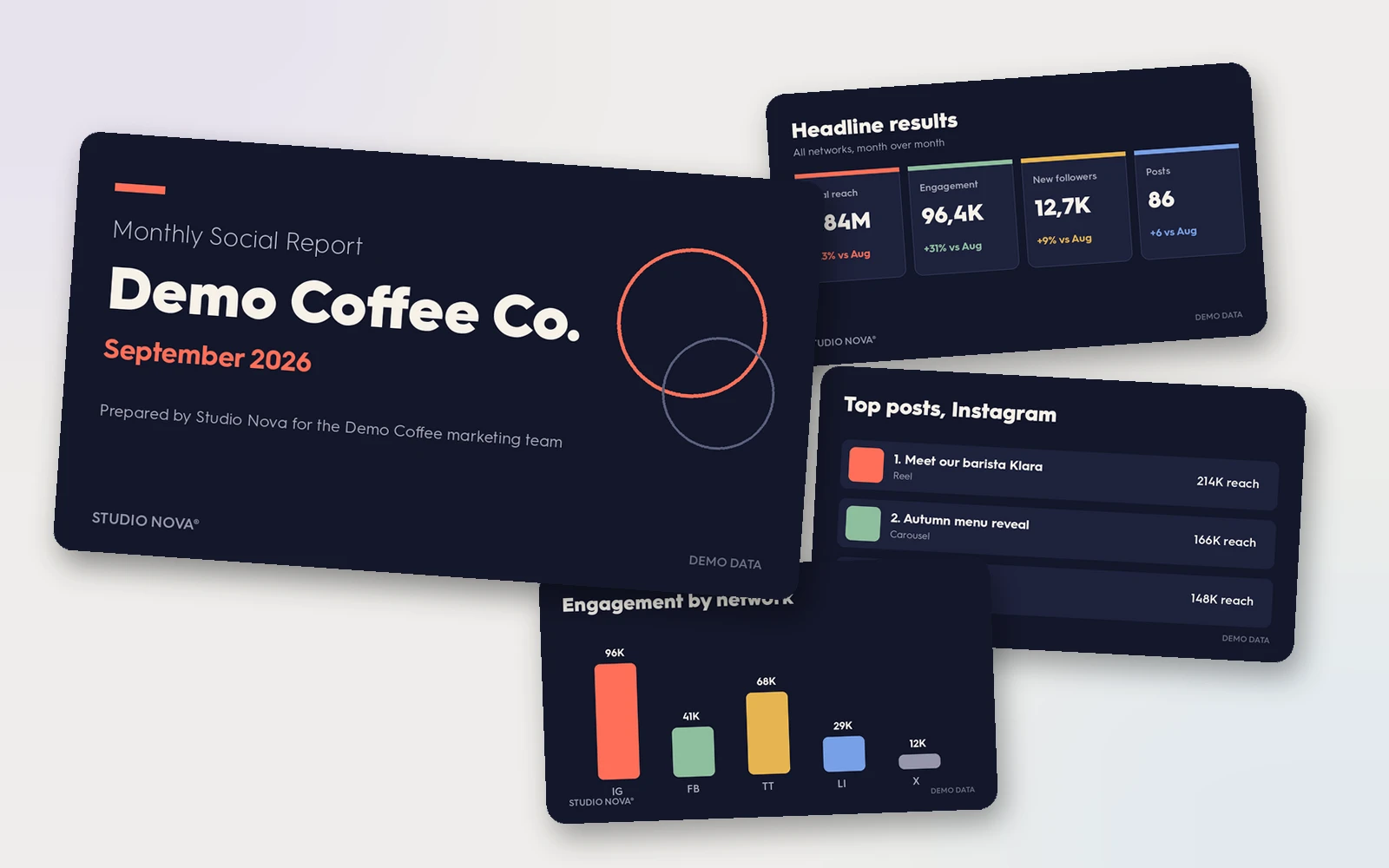
The template step is the one that makes the result feel finished. This is the same demo report as above, rendered into a fictional agency's template, cover slide included, exactly the deck you would attach to the client email:
The prompt that does the work
Here is the whole job in one brief. Adjust the bracketed parts and the slide structure to your agency's style:
The prompt
You are my reporting analyst. Read last month's statistics for [client workspace] in ZoomSphere: per-post performance, channel growth and the cross-network summary. Build a report as a branded PowerPoint in our agency template: slide 1 is the headline results versus the previous month, then one slide per network with the top three posts and one sentence on what they have in common, and a final slide with lessons and three concrete recommendations for next month. Plain business English, no filler. Save the deck and a five-sentence email summary as a draft for my approval. Do not send anything.
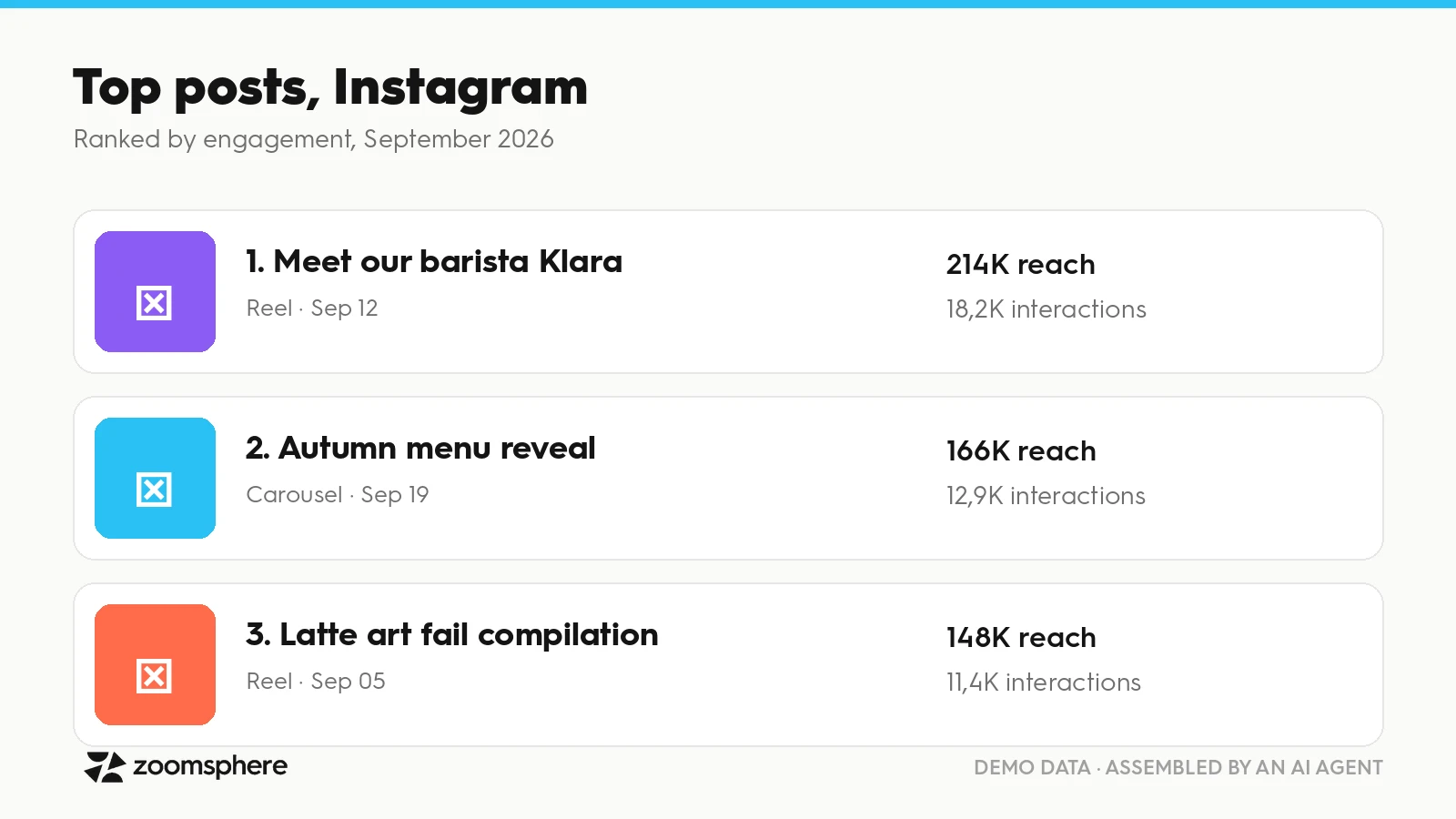
Run it once and check the result closely, that first review is where you teach it your standards. A typical per-network slide comes back looking like this:
Turn it into a Claude scheduled task
The real payoff is not the first report, it is never writing the brief again. In Claude, the brief above becomes a scheduled task in a minute, and you do not need to touch anything technical, you instruct the assistant in plain language:
- Open a chat with Claude that has the ZoomSphere connector enabled and paste your final, tuned version of the reporting brief.
- Add one sentence on top: "Create a scheduled task from this brief. Run it on the first Monday of every month at 8:00, Europe/Prague."
- Confirm the task when Claude summarises it back. That is the whole setup.
- Keep the safety rail: the brief ends with "save as a draft for my approval, do not send anything", so every run lands in your drafts, never in a client inbox.
- After the first automatic run, reply to the result with corrections ("shorter headlines, always compare to the same month last year too"). Fold those into the task's brief once and every future report inherits them.
The same pattern works in ChatGPT through scheduled automations, with the identical brief. One agency-sized tip: create one task per client rather than one giant task for all of them, so a single failed run never blocks the whole reporting week and each client keeps their own tuned brief.
Next month: update, do not rebuild
The second month is where most automation guides stop, and where the real time savings start. Do not generate a brand new deck from zero every month. The deck you approved and sent is your best template: it already carries your structure, your corrections and your tone. From month two, the agent's job changes from "build a report" to "update the report", which is faster, more consistent, and much easier for the client to read, because slide 3 is always slide 3.
The update prompt
Open last month's approved report for [client] and use it as the base. Keep the template, layout and slide order exactly as they are. Update every number to [month] from the live statistics, swap in this month's top posts, rewrite the commentary so it describes [month], and extend the trend chart on slide 1 so it now covers the last three months. Save it as "[Client] social report [month]" as a draft for my approval. Do not send anything.
Three habits make this run smoothly: keep the approved decks in one predictable place (one folder or one thread per client), so "last month's approved report" always means one file; put the update brief, not the build brief, into the monthly scheduled task once month one is done; and when you correct something during review, correct it in the deck and in the task's brief, so the fix survives into every following month. Over a quarter, the report quietly compounds into a living document with a three-month trend line the client actually looks forward to.
Three more briefs to steal
Reporting is not only the monthly deck. These three run on the same connection:
More prompts
Weekly pulse: Every Monday at 8:00, read last week's cross-network summary for [client] and save a five-bullet pulse as a draft: biggest win, biggest drop, one thing to change this week.
Campaign post-mortem: Read all posts labelled [campaign] and their statistics, and build a one-page post-mortem: goal, results against expectations, the three best assets, and what to repeat next time.
Quarterly business review: Compare the last three months across networks for [client] and build a six-slide QBR deck: trends, what drove them, and recommendations for next quarter.
All of these, plus 30 more briefs we use daily, live in the public MCP prompt library, copy them from there whenever you need a starting point.
Getting the report to the client, without giving them another login
The delivery step has its own trick. The agent can turn the same data into a small branded web page or presentation made just for the client: results, highlights, next steps. The client gets a link, not another tool to log into, and the formal approval of next month's content still happens inside your workflow. For agencies juggling ten clients, this quietly removes a whole category of "can you resend me the access" emails.
{{cta-component}}
What to keep human
An honest guide has to draw this line, because a report that writes itself is only valuable if you can stand behind it in a meeting. Keep three things human, always:
- The numbers check. Skim every figure against the dashboard before the deck leaves. Reading five numbers takes a minute; explaining one wrong number to a client takes a quarter.
- The narrative. The agent sees the data, you see the context: the campaign that got cut, the product that launched late, the comment crisis in week two. The story of the month is yours to tell.
- The recommendations. Treat the agent's suggestions as a first opinion from a sharp junior. Sometimes you sign them off as they are, sometimes you overrule them, and the client pays you precisely for knowing which is which.
That is the shape of the whole workflow: the agent does the assembly, you do the judgement. Teams in our Discord community, Zoomers swap their reporting briefs and slide structures in the #mcp-builds channel, worth a look before you write your own from scratch.
{{form-component}}
Frequently asked questions
How long does it take to set up AI-generated client reports?
About five minutes for the MCP connection, one prompt for the first report, and one more minute to turn the brief into a scheduled task. The first report deserves a careful review; from the second one on, you are only checking and sending.
What statistics can the AI agent read?
Performance of individual posts, growth and engagement per channel, and summaries across networks, always live from the tool at the moment of writing, and always limited to the workspaces the connected account can see.
Can the deck use our agency's design?
Yes. Attach your template or reference slides once and instruct the agent to always render into it. The result is a finished deck in your design, cover slide, colours and footer included, filled with live numbers.
Do I have to rebuild the report every month?
No, and you should not. From month two, point the agent at last month's approved deck and have it update the numbers, top posts and commentary while keeping the template and slide order. The report stays consistent for the client and accumulates your corrections over time.
Is it safe to let an AI agent read our client data?
Safer than the alternative. The agent signs in through OAuth under a specific user, inherits that user's permissions, and no credentials or exports ever travel through the chat. Set write actions to require approval and the agent physically cannot publish or send anything alone. The full security setup is covered in our AI security guide for social media teams.
Can the report run automatically every month?
Yes. In Claude, paste the brief and ask for a scheduled task on the first Monday of the month; ChatGPT does the same through scheduled automations. The agent rebuilds the report on schedule and files the deck and the email summary as drafts. The sending stays with you.
Does my client need access to our tool to receive the report?
No. The agent can prepare a branded deck, a PDF or a standalone web page from the same data, so the client gets a polished deliverable through a link while approvals and access stay inside your team.








Heading 1
Heading 2
Heading 3
Heading 4
Heading 5
Heading 6
Lorem ipsum dolor sit amet, consectetur adipiscing elit, sed do eiusmod tempor incididunt ut labore et dolore magna aliqua. Ut enim ad minim veniam, quis nostrud exercitation ullamco laboris nisi ut aliquip ex ea commodo consequat. Duis aute irure dolor in reprehenderit in voluptate velit esse cillum dolore eu fugiat nulla pariatur.
Block quote
Ordered list

- Item 1
- Item 2
- Item 3
Unordered list
- Item A
- Item B
- Item C
Bold text
Emphasis
Superscript
Subscript


Recommended for you
%20(1).webp)
.webp)