Your First AI Client Report, Step by Step: Branding, Structure and One Project per Client (2026)

Updated October 2026.
How do I make my first client report with AI, in my agency's branding, without explaining it again every month? Start with your brand: create a Claude Project for the client and upload your brand manual, logos and deck template. Then ask for the first report with one prompt, save what worked into the project instructions and a report brief in Notion or Google Docs, and from the second month on, "Make the September report" is the whole prompt.
Key facts
- Branding first: without your brand manual, logos and template, the first report is a generic AI deck. Upload them before you ask for anything.
- No template? Claude builds one from your brand manual and logos in a single request.
- One project per client keeps data, branding and instructions apart, so one client's numbers never land in another client's deck.
- The report brief is a normal document in Notion, Google Docs or Word, and Claude can write it for you by asking a few questions.
- From month two, the prompt is one sentence, or a scheduled task sends it for you.
{{form-component}}
This guide is the setup. For charts that make a report worth reading, see 9 report charts worth sending. To run the report every month without anyone asking, see how to automate client reporting with an AI agent.
What you need
- The ZoomSphere MCP connected to Claude. It takes a few minutes, steps are on the ZoomSphere MCP page.
- One ZoomSphere workspace per client, which is how most agencies already work.
- Your brand kit: the brand manual, logos (yours and the client's, as PNG or SVG) and, if you have one, a PowerPoint template.
- Optional: the Notion or Google Drive connector in Claude, if you want the report brief to stay live.
Step 1: create the client's project and upload your brand kit
A Claude Project is a space with its own instructions and files, and nothing in it leaks into other projects. Create one per client, name it clearly, for example "Demo Coffee Co. · Monthly report", and upload your brand kit to the project files before anything else.
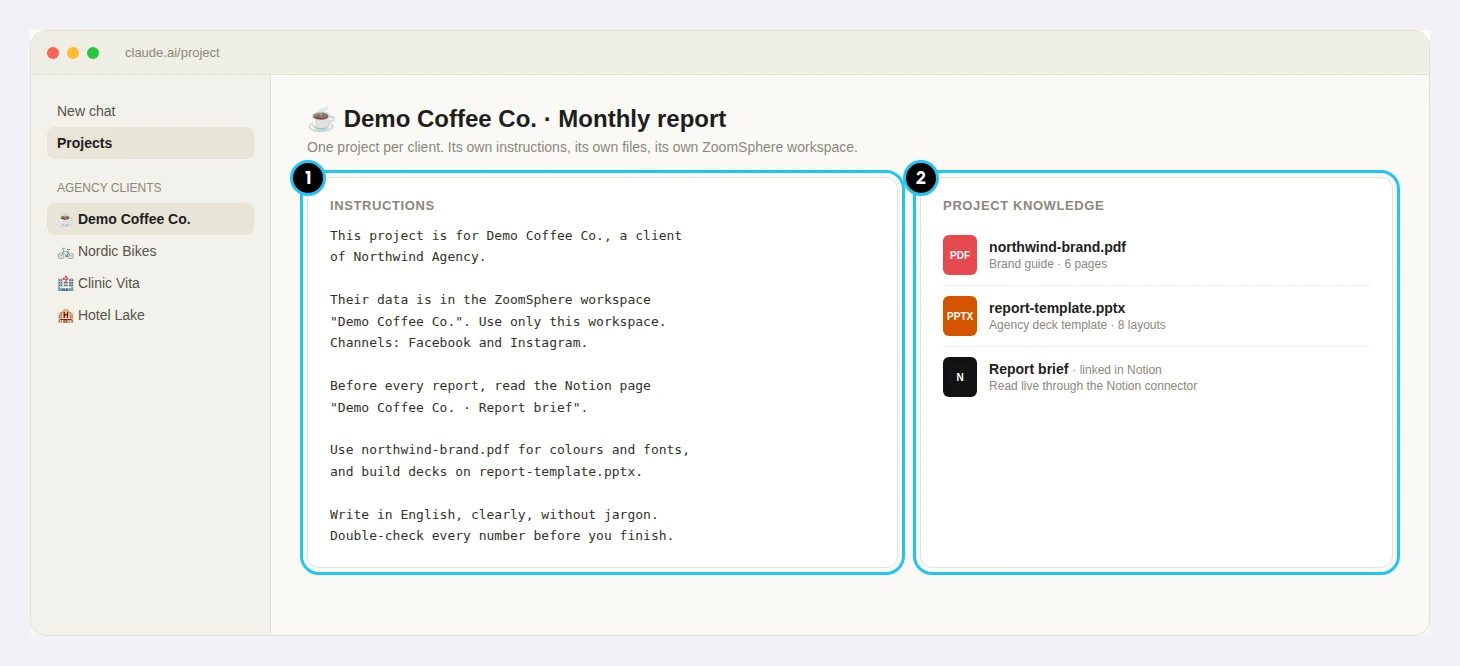
Three tips make the result look like your agency, not like a generic AI deck:
- Exact colour codes in the brand manual, for example "background #0F2A2E, accent #9FE3C9". Words like "our green" leave room for guessing.
- Logos as separate files, both yours and the client's, so the cover always uses the current version.
- A template with a few clear layouts: cover, KPI slide, chart slide and text slide are enough.
No PowerPoint template yet? Let Claude build it first, inside the project:
Once you approve it, add the file to the project. Every report from then on is built on it.
Step 2: make your first report with one prompt
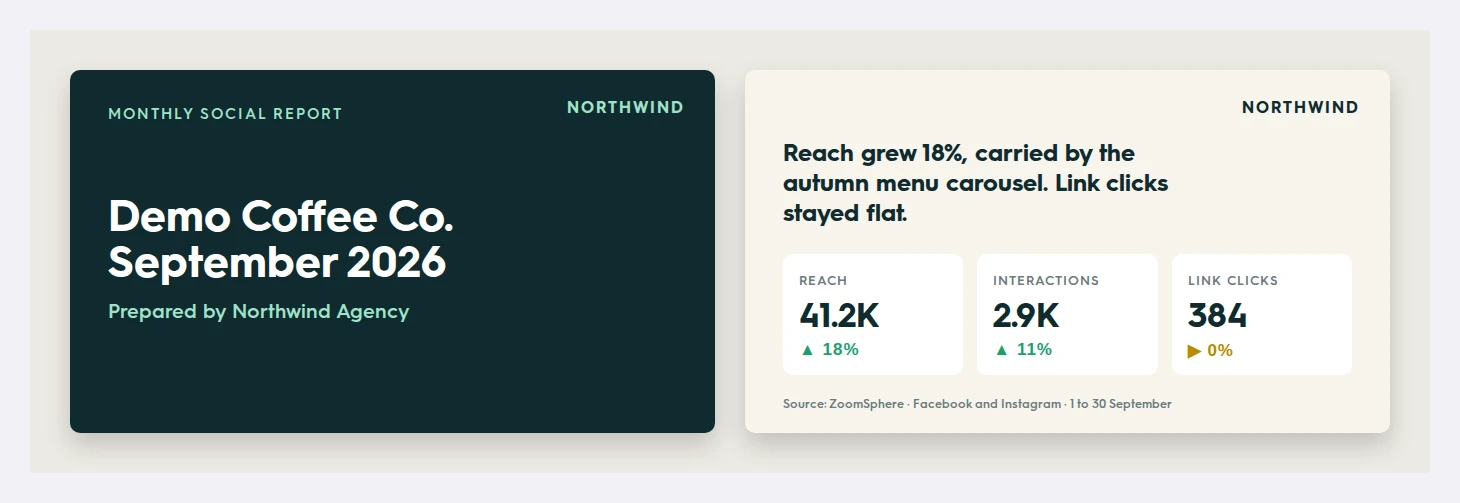
Open a new chat inside the project and paste this prompt with your client's names. The brand kit is already in the project, so you do not need to attach anything:
Step 3: save what worked, so you never paste it again
The long prompt did its job once. Now split it into two places that the project remembers.
The project instructions hold what never changes, written as a description of the client rather than a task:
The sentence "Use only this workspace" matters: the agent sees everything your ZoomSphere account can see, and this sentence keeps each project on its own client.
The report brief holds what you may want to change over time: what the client reads first, the slides, the targets and your house rules. Keep it where your team already works:
- Notion or Google Docs (recommended): Claude reads the page through the connector before every report, so any edit applies to the next report automatically.
- Word or PDF: upload it as a project file. It works the same way, but after every change you upload the new version.
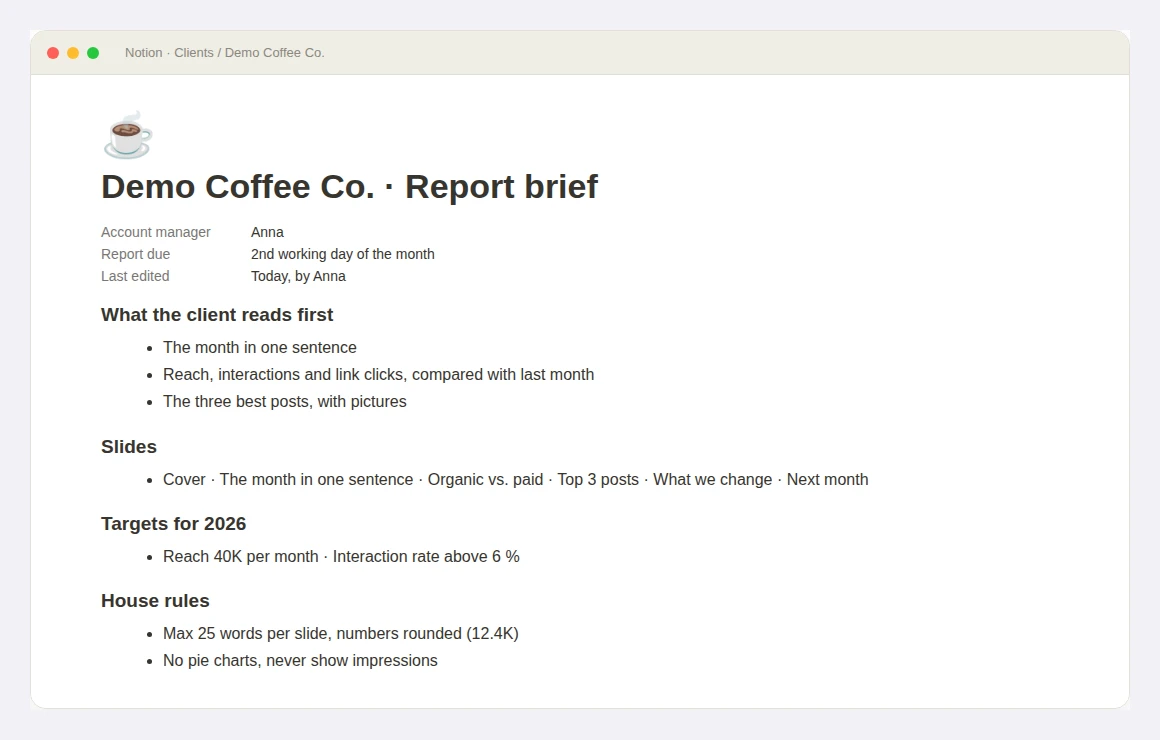
You do not have to write it yourself. Ask Claude inside the project:
Step 4: every month, one sentence
Open a new chat inside the client's project and ask for the month. Branding, data source and structure are already there.
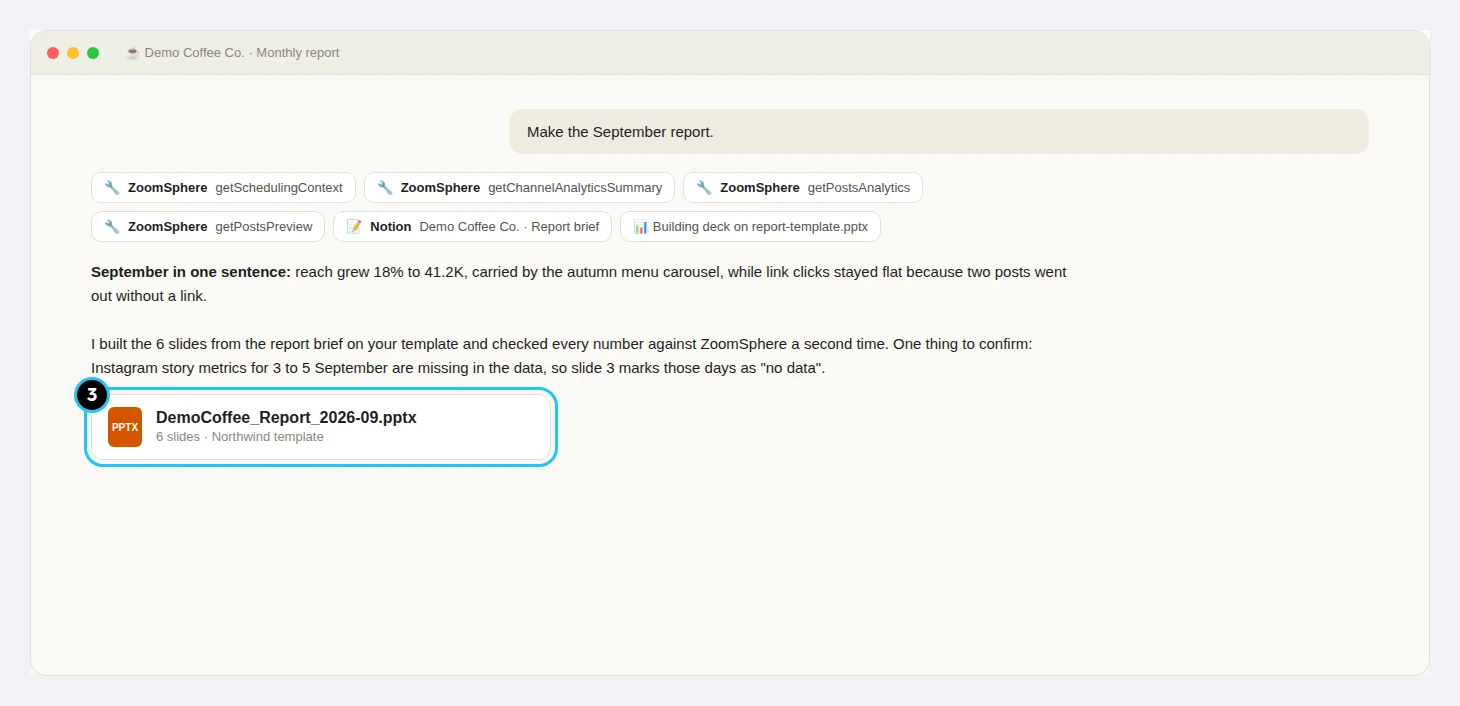
Notice the end of the answer: the agent flagged three days of missing story data instead of inventing numbers. That comes from "double-check every number" in the instructions.
Step 5: review once, fix the brief
Read the first decks the way your client will. Whatever you would fix by hand, write into the brief instead: "never show impressions", "top posts always with pictures". Each correction stays, so every report needs fewer edits than the one before.
How to never type it again
- A monthly scheduled task sends "Make last month's report" inside the project on the first working day of the month. The setup is in our automation guide.
- A skill for your agency standard. When all clients share the same structure and design, ask Claude: "Turn our report brief, brand manual and template into a skill called [agency]-client-report." Claude packages it for you, and you add it in Claude's settings under Capabilities. Each client's brief then only holds what is specific to that client.
{{cta-component}}
How to keep agency clients separate
- One ZoomSphere workspace, one Claude Project and one brief per client, with the workspace named in the project instructions.
- Never put two clients in one project, even for a quick comparison. Use a separate internal project for cross-client views.
- Access follows ZoomSphere permissions: the agent sees what the connected ZoomSphere account sees. A colleague with access to three clients gets an agent with access to three clients.
- Keep briefs in one Notion database with one page per client, so the team always knows where to find and edit them.
- Regulated clients such as banks may need a different setup. See AI with confidential client data.
Five mistakes to avoid
- Asking for a report before uploading the brand kit. You get a generic deck and lose the first impression.
- Pasting the long prompt every month. Move it into the instructions and the brief once.
- One project for all clients. It works until the first wrong logo on the wrong deck.
- Fixing the deck by hand. Fix the brief, or you will fix the same thing next month.
- No targets in the brief. Without targets, the agent can only say "up" or "down", not "good" or "bad".
Frequently asked questions
How long does it take to set up the first AI client report?
About half an hour for the first client: upload the brand kit, run the first prompt, save the instructions and brief. Every next client takes a few minutes, because the brand kit and template stay the same.
What if my agency has no PowerPoint template?
Ask Claude to build one from your brand manual and logos. It creates a template with a few layouts, you approve it, and every report is then built on it.
Do I need to know any technical formats?
No. The instructions and the brief are plain text in Notion, Google Docs or Word, and Claude can write the brief for you from your first report.
How do I stop one client's data appearing in another client's report?
Use one Claude Project per client and name that client's ZoomSphere workspace in the project instructions, with "Use only this workspace".
Why keep the brief in Notion instead of uploading a file?
Because it stays live. Claude reads the current Notion page or Google Doc before every report, so a change made today shows up in next month's report without uploading anything.
Which data can the report use?
Everything the ZoomSphere MCP returns for the client's channels: post and channel analytics, top posts, content pillars, tags and the calendar. Paid results can come from a second connector, such as Meta Ads, in the same project.
{{form-component}}








Heading 1
Heading 2
Heading 3
Heading 4
Heading 5
Heading 6
Lorem ipsum dolor sit amet, consectetur adipiscing elit, sed do eiusmod tempor incididunt ut labore et dolore magna aliqua. Ut enim ad minim veniam, quis nostrud exercitation ullamco laboris nisi ut aliquip ex ea commodo consequat. Duis aute irure dolor in reprehenderit in voluptate velit esse cillum dolore eu fugiat nulla pariatur.
Block quote
Ordered list

- Item 1
- Item 2
- Item 3
Unordered list
- Item A
- Item B
- Item C
Bold text
Emphasis
Superscript
Subscript


Recommended for you
%20(1).webp)
%20(1).webp)