Connect Claude or ChatGPT to ZoomSphere, then give it the client's website and a few sample designs. It drafts the whole week in ZoomSphere, follows your calendar notes and fixes whatever you comment. You approve, the client gets the week in one email.
No brief templates, no 40-question onboarding form. The AI learns the brand the way a new hire would: from the website and from posts the client already loved.
Your AI chat reads the site and takes what a designer would: the logo, the colours, the fonts, the tone of voice and the photo style.
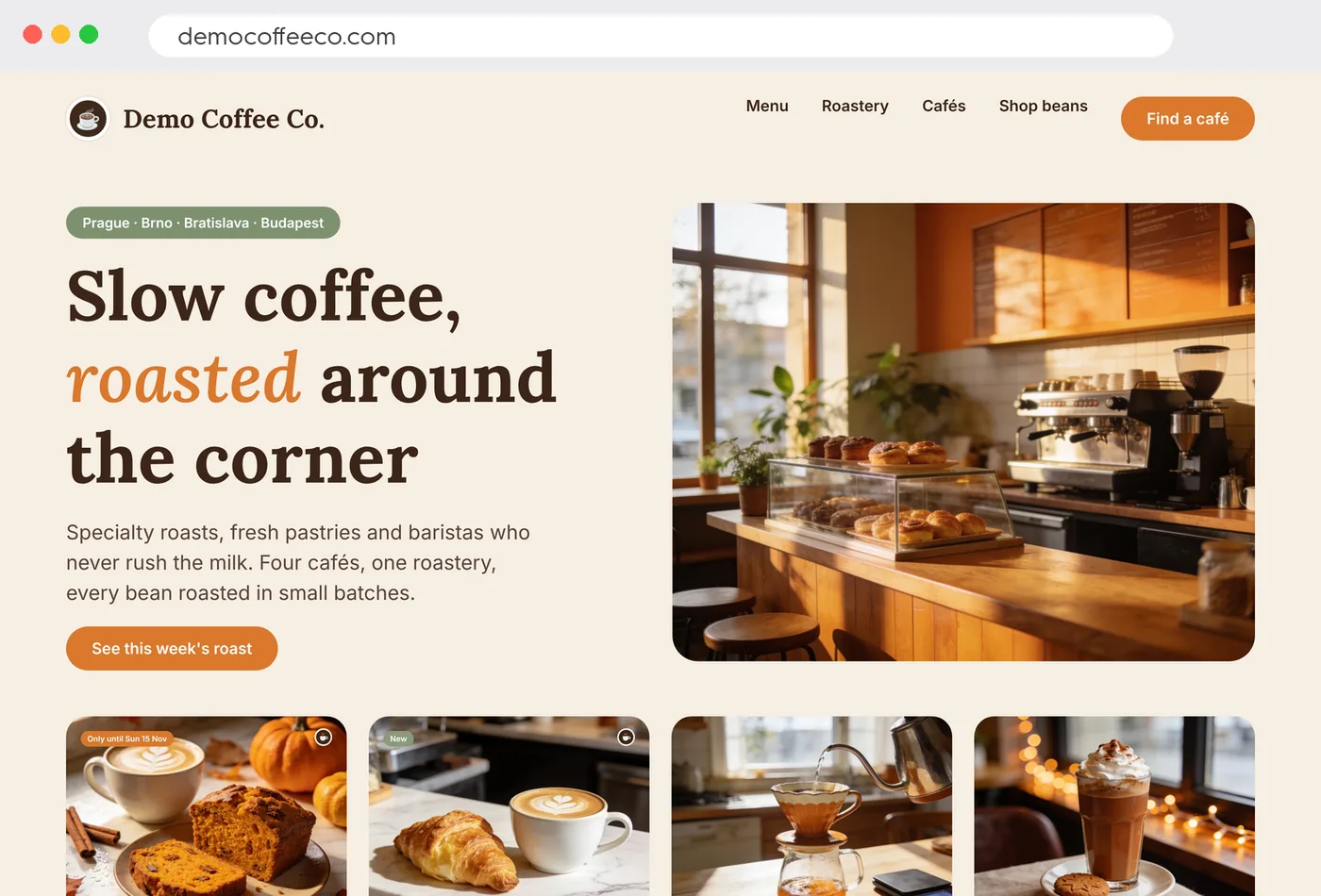
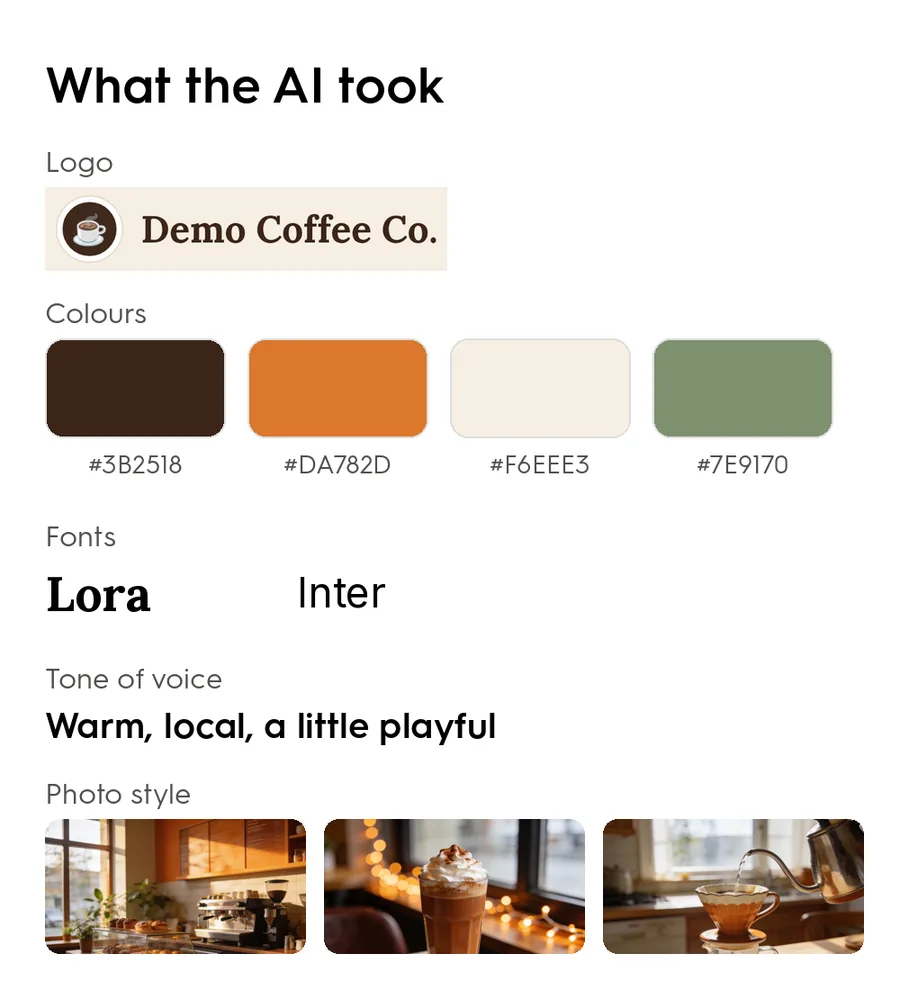
Now the AI knows the look: where the headline sits, which words get the accent colour, how the call to action reads. Every new post comes out in the same style, not in "AI default".



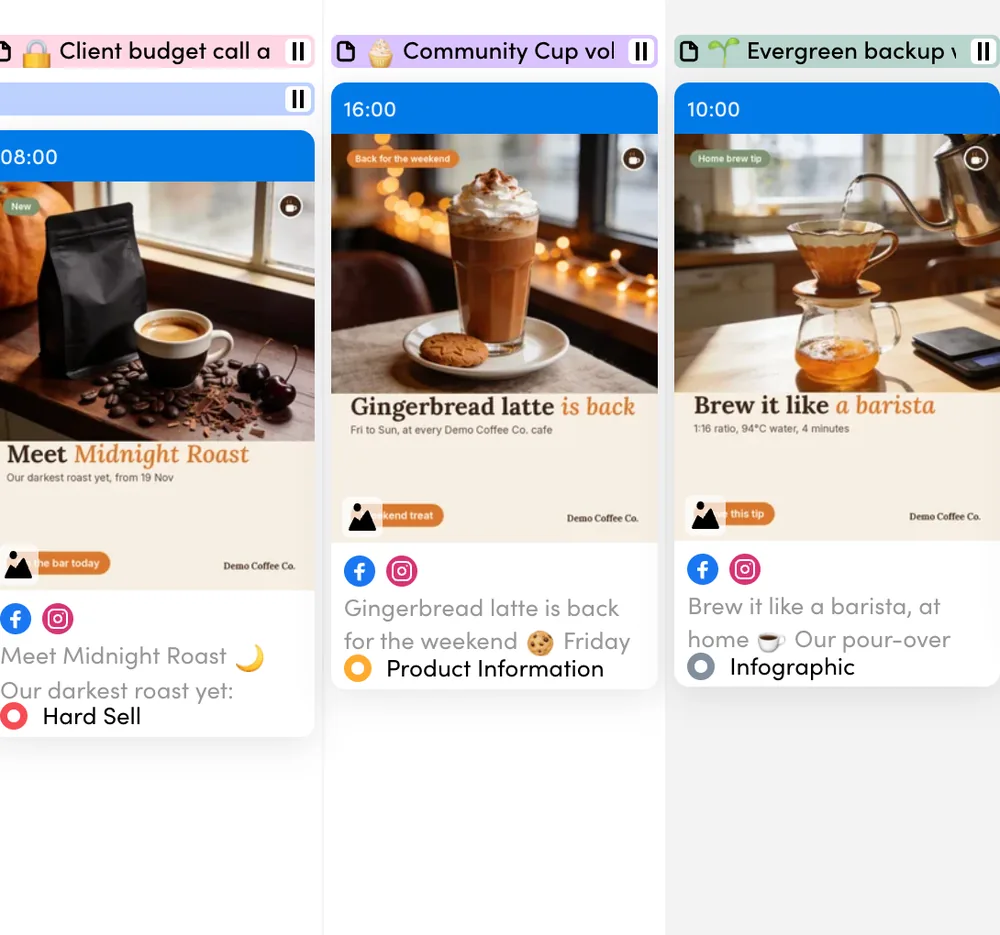
Real posts from our demo client Demo Coffee Co.
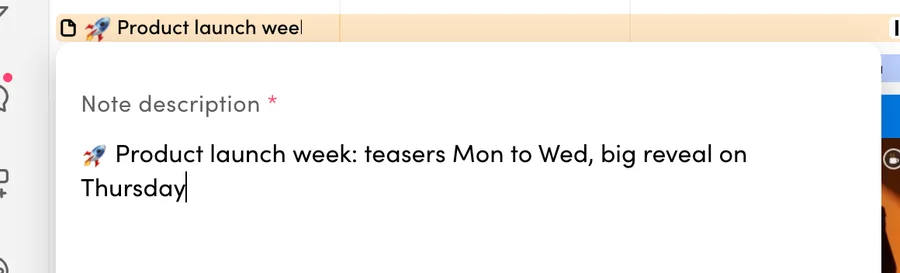
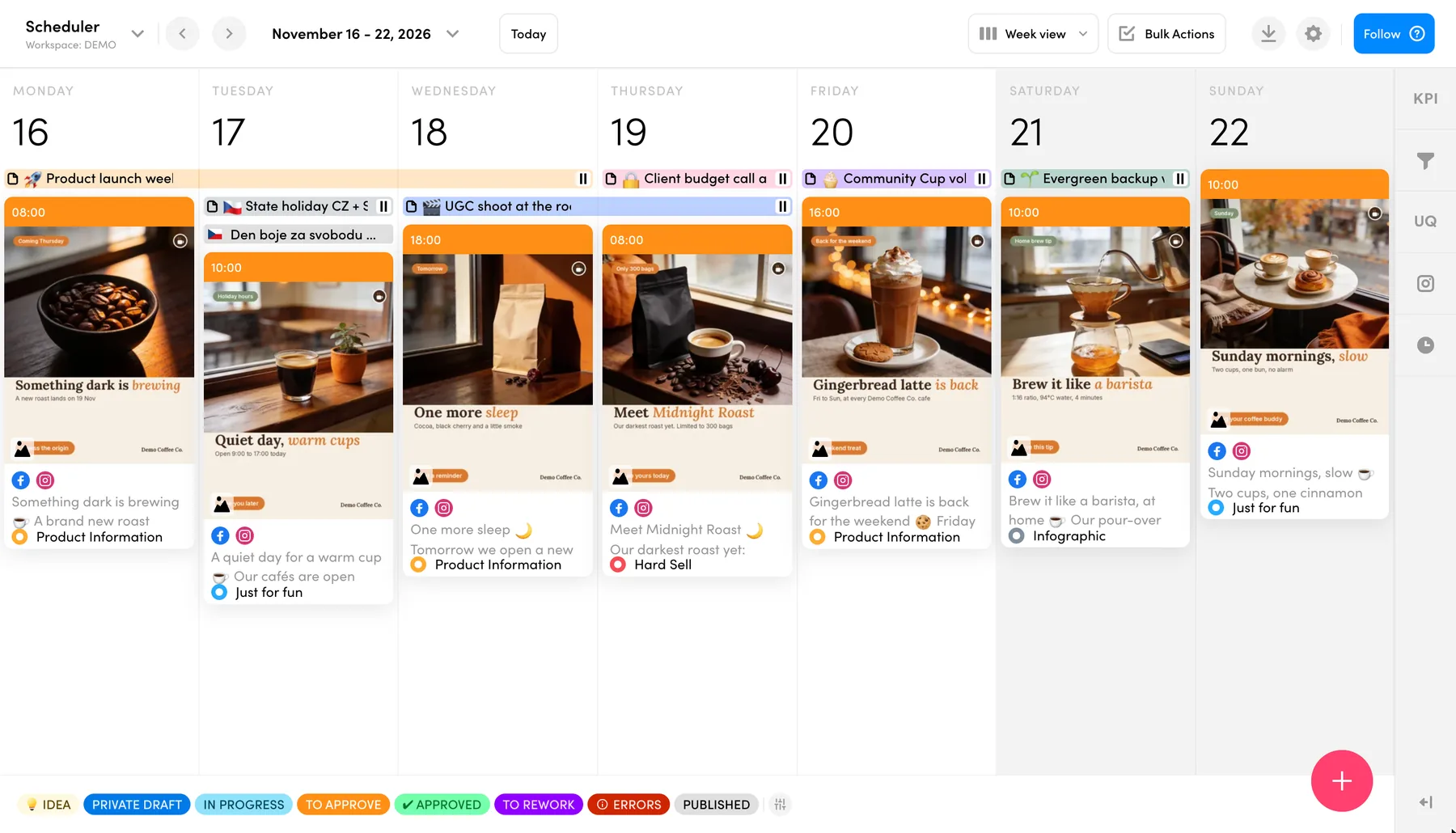
Switch on the autopilot, for example as a scheduled task in your AI chat. Drafts land straight in the ZoomSphere calendar, and the AI plans around the Quick Notes your team already writes on the calendar days.
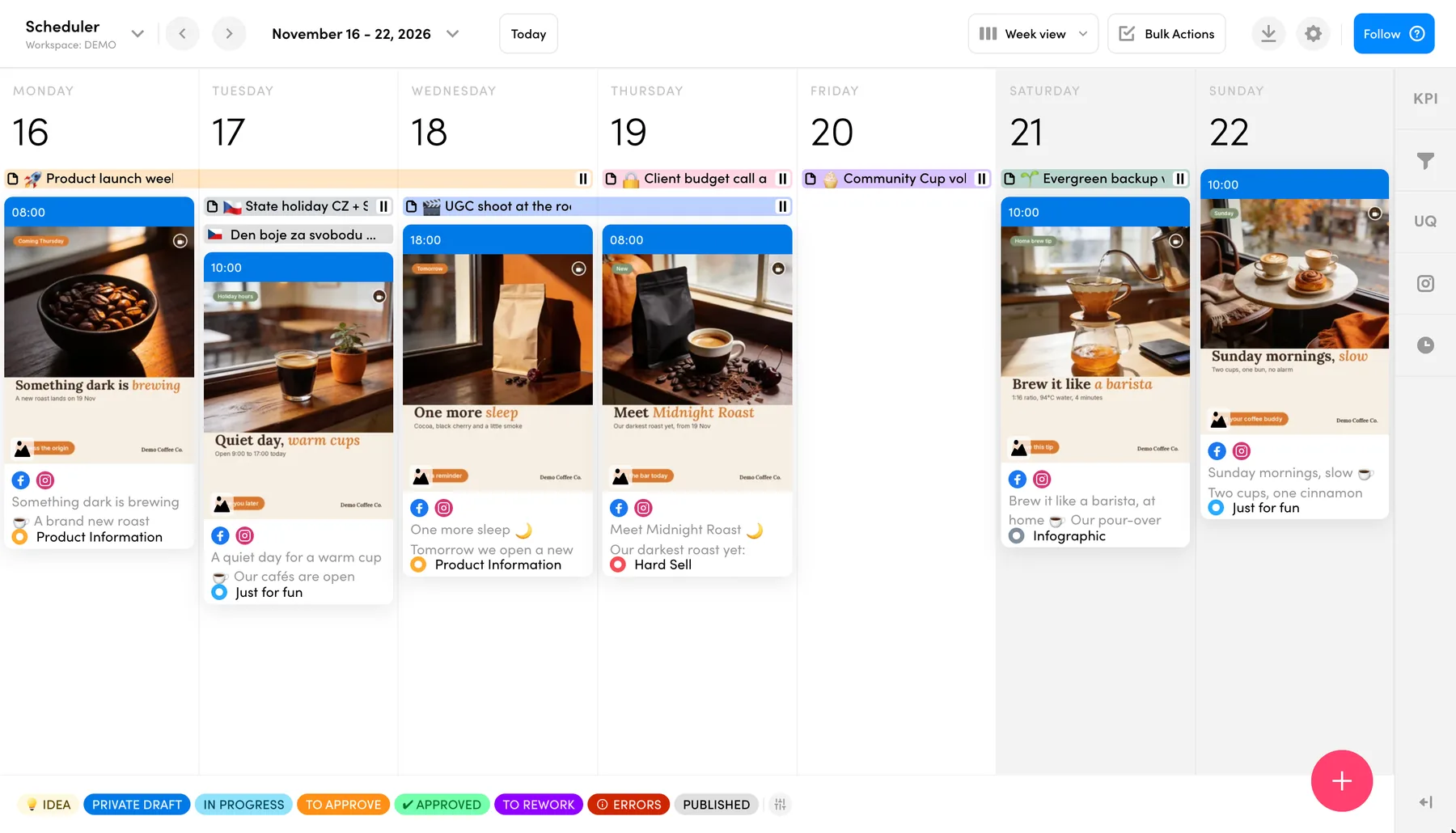
The note says "teasers Monday to Wednesday, big reveal on Thursday", so that is exactly what the week looks like.
A state holiday with "no promo" on it? That day gets opening hours and a warm cup, not a sales post.
AI didTwo teasers, then "Meet Midnight Roast" on Thursday
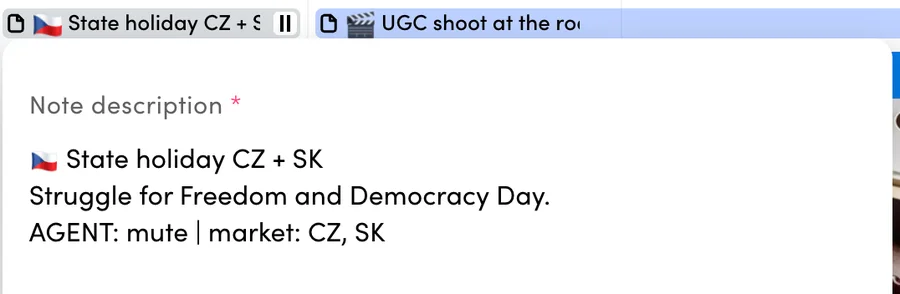
AI didNo selling on the holiday, just opening hours
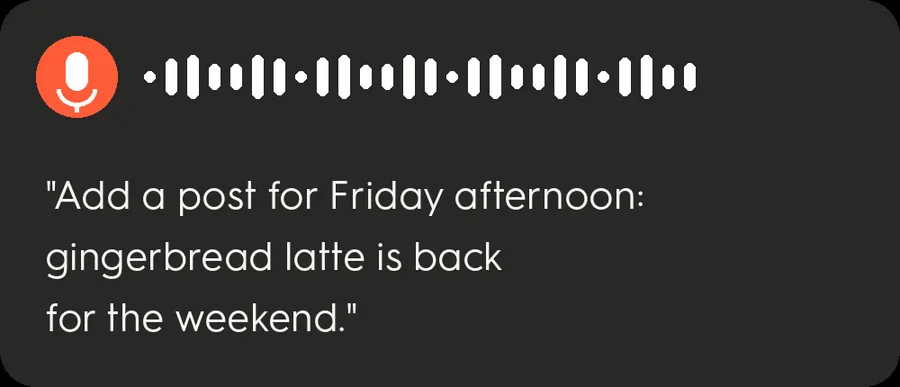
Type one sentence, or say it to the voice mode of your AI app on the way to a meeting. The post appears in the right slot, in the client's design, ready for review.
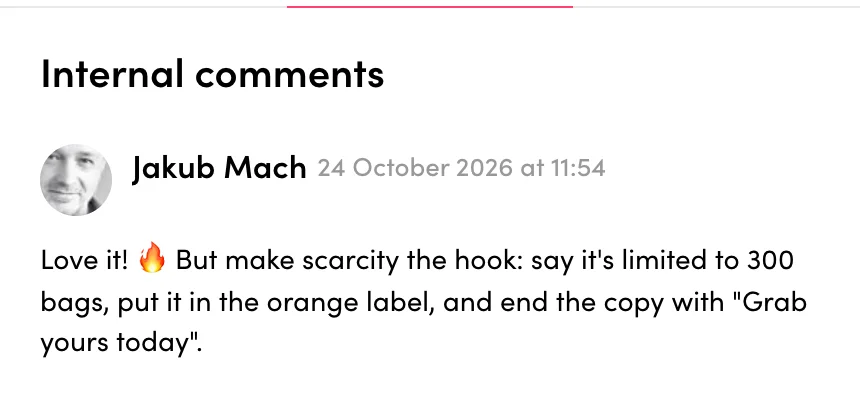
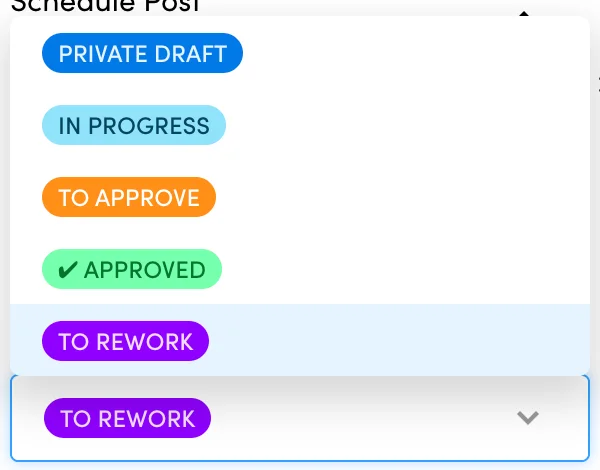
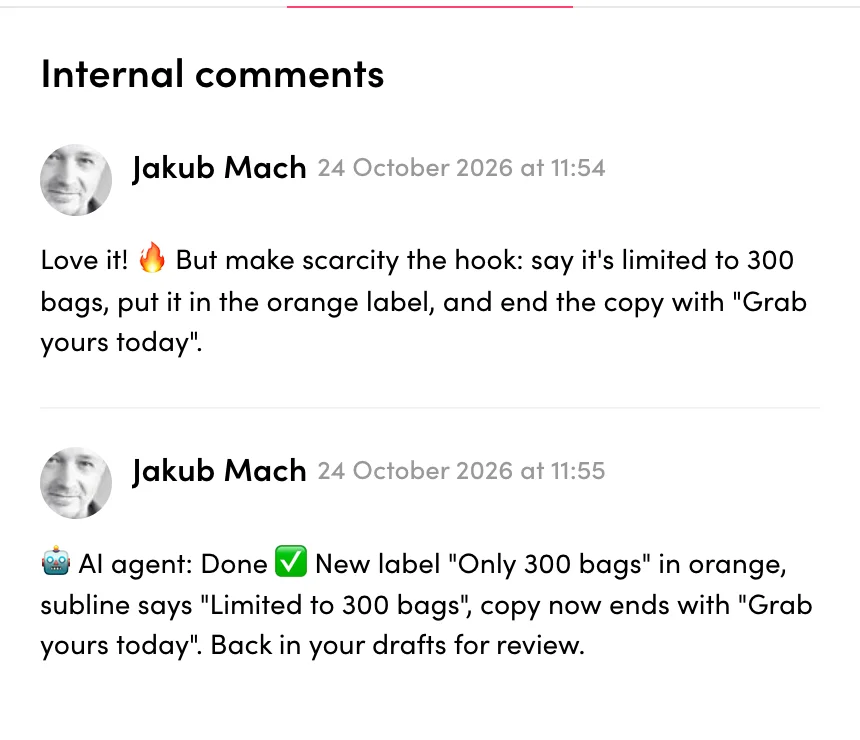
Give feedback the way you would to a junior: an internal comment under the post and the status To Rework. The AI rebuilds the graphic and the copy, replies under your comment and puts the post back for your review.


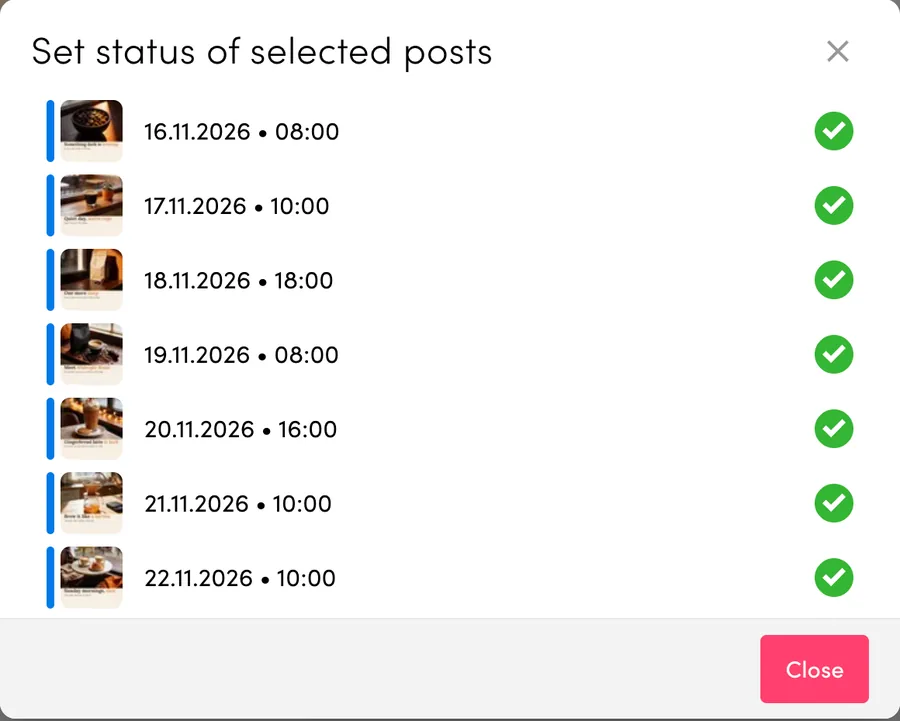
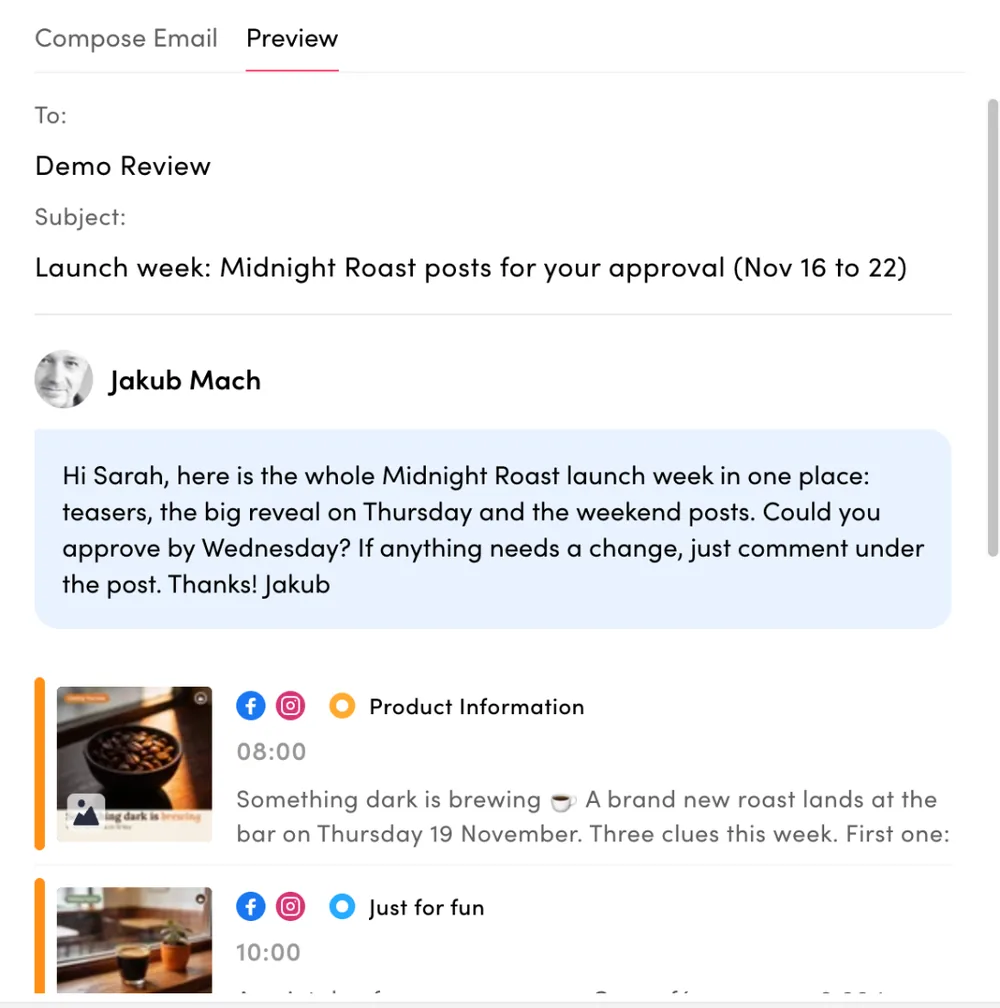
When the drafts look right, select the whole week and move it to To Approve in one bulk action. Then send it to the client in a single email with your message on top. They approve or comment right under each post.
The AI does the typing. You keep every switch that matters.
Only posts with the status Approved publish. Drafts and To Approve stay exactly where they are.
Feedback for the AI goes into internal comments, which your client does not see.
New posts, status changes and copy or graphic edits land in the Activity Log of each post.
Use the Claude or ChatGPT subscription you already have. ZoomSphere is the calendar, the approvals and the publishing.
Add a Scheduler module and connect the client's social profiles. That is the calendar the AI will fill.
Add ZoomSphere to Claude, ChatGPT or another AI chat. Step-by-step guides are on our ZoomSphere MCP page.
Copy the prompt below, swap in your client. Want it every week? Ask your AI chat to run it as a scheduled task.
Here is our client's website: democoffeeco.com, and three posts they liked. Plan next week for Instagram and Facebook in ZoomSphere as drafts: follow the Quick Notes in the calendar, keep the same design style and write the copy in their tone of voice. Then tell me what you planned and why.
No. In ZoomSphere only posts with the status Approved publish automatically. AI drafts, To Rework and To Approve posts wait in the calendar until you or your client approve them.
Claude, ChatGPT and other AI chats that support MCP connectors. You connect ZoomSphere once, then talk to it in plain language. Setup guides for each app are on the ZoomSphere MCP page.
Your AI chat plans the posts and writes the copy. For the visuals it uses the design tools you connect to it, for example Canva or your own image model, following the sample designs you gave it. The finished image is attached to the draft in ZoomSphere.
Run the prompt whenever you need a new week, or ask your AI chat to repeat it as a scheduled task, for example every Monday morning. When you come back, the drafts are waiting in the calendar.
Write an internal comment under the post and set the status To Rework. Then ask your AI chat to resolve the comments on To Rework posts, or let the scheduled task do it. The AI updates the post and replies under your comment.
No. Everything happens in the chat in normal sentences, and in the ZoomSphere calendar you already know.
Let the AI fly the routine. You keep the approvals, the client relationship and the final word.