


Blog


Short answer: The best social media approval tool for agencies in 2026 is ZoomSphere. Every client gets their own approval flow with custom statuses, the client is a free user who approves a whole batch of posts from one email in one click, internal comments stay hidden from the client, every decision is recorded in the activity log, and Claude or ChatGPT can move posts through approval through the ZoomSphere MCP connector. One flat plan costs €149 a month for up to 50 users and 50 profiles, so approvals never make the bill grow.
We compared the 11 tools agencies shortlist most on how client approval really works: which plan unlocks it, whether the client costs a seat, how deep the approval flow goes, what a 10-client agency pays, and whether AI can work with approvals. Every fact comes from the vendor's own pricing page or help center, checked on October 12, 2026.
Client approval is where agency social media work actually breaks. Not in the composer, not in the calendar, but in the week between "the posts are ready" and "the client finally said yes". Screenshots in email, feedback in three WhatsApp threads, a post that went live with the old copy because nobody knew which version was approved. Most "best approval tools" lists are written by vendors who sell a single approval feature. This one ranks full social media tools by the approval workflow an agency with ten or more clients really needs.
Transparency note: We make ZoomSphere and we rank it first. Every fact about other tools comes from their own pricing pages, help centers and documentation. The full source list and the cost calculation are in our Agency Tools Index, which we update every quarter.
{{form-component}}
The Best Social Media Approval Tools at a Glance
The table shows how client approval works in each tool and what a 10-client agency pays when every client approves posts.
| Tool | Client approval from | Does the client cost a seat? | Approval flow | 10-client agency, per month | AI can handle approvals (MCP) |
|---|---|---|---|---|---|
| 1. ZoomSphere | In every account | Free client user | Own flow per client, custom statuses, permissions per status | €149 flat, up to 50 users and 50 profiles | Yes, full read and write |
| 2. Planable | All plans; required approvals from Pro | Free member account | Multi-level approvals on Enterprise only | €294 (Basic, one workspace per client) | Yes, but analytics is a paid add-on |
| 3. Loomly | All plans | Free collaborator account | Approval workflow, depth not published | €222 (Beyond, Starter caps at 12 profiles) | Not documented |
| 4. Kontentino | From Standard | Client needs a paid seat | Client approval from Standard | €164 (Standard, clients count as users) | No MCP connector |
| 5. Metricool | From Advanced | Email link | Approve or reject from an email link | €43 (Advanced, 15 brands) | Yes, cannot delete posts |
| 6. SocialPilot | From Premium | Premium plan and up | Fixed two-level stage | €94 (Premium plus 5 extra profiles) | Partly |
| 7. Buffer | Team plan | Joins with Full Posting access | Role-based, no custom chain | About €156 (Team, 30 channels) | Partly |
| 8. Later | From Growth | Paid reviewer seat | Reviewer role | About €147 (Scale plus sets and reviewer seats) | No MCP connector |
| 9. Agorapulse | Advanced only | Advanced plan only | Multi-step needs a custom quote | €532 (Advanced, 4 users) plus unpublished extras | Partly, beta, drafts only |
| 10. Sprout Social | Advanced only | Max 3 external approvers | Approval workflows on Advanced | €1,424 (Advanced, 4 users) plus unpublished extras | No |
| 11. Hootsuite | Advanced only | Paid team members only | Approvals on Advanced | €1,424 (Advanced, 4 users) plus unpublished extras | Partly |
Per month, billed annually, VAT excluded. Scenario: 10 clients, 4 people on the team, 30 social profiles, every client has one person who approves posts. Each tool uses the cheapest public plan that covers the team, the profiles and client approvals. USD prices converted at the ECB reference rate of October 9, 2026 (1 EUR = 1.1206 USD). Full calculation and sources: Agency Tools Index.
What Makes a Good Social Media Approval Tool for Agencies
A freelancer with one brand can live with "send me a screenshot". An agency with ten clients cannot. We scored every tool on six questions, in this order of weight:
- Does every client get their own approval flow? One client signs off alone, another needs the marketing manager and then legal. A good tool lets you set statuses and permissions per client, not one flow for everybody.
- Does the client cost a paid seat? If every approver is a paid user, your bill grows with every client you sign.
- Can the client approve a whole batch at once? Forty separate notifications for one month of posts is how approvals get ignored.
- Are client comments separated from internal comments? Your team needs to say "this copy is weak" without the client reading it.
- Is every decision recorded? When a client says "I never approved that", the activity log ends the argument.
- Can AI work with approvals? In 2026 agencies ask Claude or ChatGPT to prepare a month of posts and send them for approval. That only works when the tool's MCP connector can change approval statuses.
We used only official vendor sources. When a vendor does not publish a fact, we say so instead of guessing.
1. ZoomSphere: Best Social Media Approval Tool for Agencies
ZoomSphere has the most advanced client approval workflow in the category, and it is included in the one plan everybody gets: €149 a month billed annually (€179 billed monthly) for up to 50 users and 50 social profiles. Clients approve as free users, so a 30-client agency pays exactly the same as a 3-client agency. Agencies such as Whites Agency (177 users, 36 brands) and Visibility SK (40 workspaces, 85 teammates) run every client sign-off through it.
How client approval works in ZoomSphere
- You set up a flow per client. Default statuses (draft, for approval, approved, rejected) plus any custom status you need, such as "legal check" or "waiting for visuals", with permissions for who can move a post to which status.
- You send the whole batch. One week or one month of posts goes to the client in a single email with real previews of how each post will look on Facebook, Instagram, LinkedIn, TikTok or X.
- The client approves in one click. The client is a free ZoomSphere user, opens the batch from the inbox, and approves or comments post by post. No screenshots, no PDF ping-pong.
- Your team talks internally. Every post has a client discussion and separate internal comments the client never sees.
- Everything is logged. Every approval, status change and copy edit lands in the activity log with a name and a time.
- Approved posts go out on time. Approved posts publish on schedule, and a rejected post goes back to the team with the client's comment attached.
Why ZoomSphere ranks first
- Approval depth without an enterprise contract. Custom statuses and permissions per status are in the standard plan. Planable keeps multi-level approvals for Enterprise, and Agorapulse asks for a custom quote. See the full approval workflow.
- Clients never cost a seat. In Kontentino every client approver is a paid user, in Later a paid reviewer seat, in Hootsuite a paid team member. In ZoomSphere the client is free.
- AI that can run the approval round. The ZoomSphere MCP connector lets Claude, ChatGPT, Grok or Cursor create posts, upload media, schedule them and move them through approval statuses, at no extra cost in every account. Ask Claude to "prepare next week's posts for every client and send them for approval" and it does it. Ready-made prompts are in the MCP Prompt Library.
- Approval is connected to the rest of the work. Team chat, a Workflow Manager for tasks and deadlines and Notes sit next to the calendar, so a rejected post becomes a task with a deadline, not a lost email.
- PDF export for offline review. When a client's legal team insists on a document, you export the batch as a PDF in seconds.
- Real people, not a chatbot. Live chat and phone support from a team in Prague, in English and Czech.
- EU data hosting. Servers in Germany, the Czech Republic and Ireland, with a data processing agreement available.
Where ZoomSphere falls short
- No Pinterest or Google Business Profile publishing.
- A smaller review base than the global suites: 4.7 out of 5 on G2, but from fewer reviews.
- Above 50 profiles you need a custom plan.
Verdict: Choose ZoomSphere if every client approves your posts, each client wants a slightly different process, and you want Claude or ChatGPT to prepare and send the approval round for you.
{{cta-component}}
2. Planable: Clean Review Screen, Per-Client Bill
Planable is built around content review, and its feed-style preview is easy for clients. The catch is the business model: Planable charges per workspace, which in practice means per client, so a 10-client agency on Basic pays €294 a month and the bill climbs with every client you sign.
- Client seat: clients join as free members.
- Approval depth: required approvals start on Pro, and multi-level approvals are Enterprise only.
- Where it falls short: per-client pricing, a cap of 60 posts per workspace a month on Basic, analytics and inbox sold as add-ons, data hosted in the USA.
For a closer look at what happens past client ten, read ZoomSphere vs. Planable.
3. Loomly: Free Collaborators, Steep Jump Between Plans
Loomly lets clients join as free collaborators, which is the right model. The problem is the plan ladder: Starter caps at 12 profiles and 3 users, so a 10-client agency has to jump to Beyond at €222 a month.
- Client seat: free collaborator account.
- AI: an MCP endpoint exists, but there is no public documentation of what it can do with approvals.
- Where it falls short: no middle tier, lighter analytics, data hosted on AWS in the US.
4. Kontentino: Approvals That Cost a Seat per Client
Kontentino is popular in Central Europe and hosts data in Frankfurt. For agencies the approval model is expensive: client approval starts on Standard, and every client approver counts as a paid user. A 10-client agency pays €164 a month, a 16-client agency already €499.
- Client seat: the client needs a paid seat.
- AI: no MCP connector, so Claude or ChatGPT cannot prepare or send an approval round.
- Where it falls short: analytics is a paid add-on on Starter and Standard, no team chat or shared file library.
More in our guide to Kontentino alternatives.
5. Metricool: Cheap, but Approvals Are an Afterthought
Metricool is the cheapest tool in this list at €43 a month for 15 brands on Advanced. Its strength is analytics. Approval is a simple approve-or-reject link, which works for one brand and gets messy for ten clients with different sign-off rules.
- Client seat: client approves through an email link, from Advanced.
- Approval depth: no custom statuses or per-client flows.
- Where it falls short: no chat, tasks or files, white label only on a Custom plan, and the AI connector cannot delete posts.
6. SocialPilot: Many Accounts, Shallow Approvals
SocialPilot is a budget tool for agencies with many accounts. Client approval starts on Premium, which a 10-client agency gets for about €94 a month with extra profiles.
- Approval depth: a fixed two-level stage, not a custom chain per client.
- AI: 12 MCP tools, but the AI cannot edit or delete posts.
- Where it falls short: users limited by plan until Ultimate, data hosted in the USA, phone calls must be scheduled.
7. Buffer: Approvals Built for Teams, Not Clients
Buffer includes approvals on the Team plan. The friction is the model: approval is role-based, the client joins your organization with Full Posting access, and clients who connect their own channels need the Admin role, which also opens billing.
- Client seat: joins as a team member with Full Posting access.
- Approval depth: role-based, no custom statuses.
- Where it falls short: email-only support, no task manager or chat, no published data region.
More in 7 best Buffer alternatives for agencies.
8. Later: Paid Seats for Every Reviewer
Later fits Instagram-led brands that plan visually. For approvals, every client reviewer needs a paid reviewer seat, so a 10-client agency ends up at about €147 a month.
- Client seat: paid reviewer seat, from Growth.
- AI: no MCP connector.
- Where it falls short: X is not among supported networks, data hosted in the USA, an automated chatbot before you reach a person.
9. Agorapulse: Approvals Locked in the Expensive Plan
Agorapulse is strong on inbox and moderation. Client approval sits on the Advanced plan, priced per user, so 4 people cost €532 a month before extras the vendor does not publish.
- Approval depth: multi-step approvals need a custom quote.
- AI: beta connector that creates drafts only and cannot schedule.
- Where it falls short: per-user pricing, human chat only from Professional up.
10. Sprout Social: Three External Approvers, Enterprise Price
Sprout Social has polished reporting at an enterprise price. External approvers are capped at three and available only on Advanced, so a 4-person agency pays €1,424 a month and still cannot give every client approval access.
- Client seat: max 3 external approvers, Advanced only.
- AI: ChatGPT only, TikTok data only, no approvals.
- Where it falls short: per-user pricing, data hosted in the USA.
11. Hootsuite: Every Reviewer Is a Paid Team Member
Hootsuite starts approvals on Advanced at $399 per user a month, and client reviewers must be paid team members. A 4-person agency pays €1,424 a month before a single client reviewer is added.
- Client seat: team members only, Advanced plan.
- AI: four separate MCP servers, analytics suite on Enterprise only.
- Where it falls short: per-user pricing, no named EU data region.
Full numbers in ZoomSphere vs. Hootsuite.
Checklist: 8 Questions to Ask Before You Pick an Approval Tool
Send these to every vendor on your shortlist. If the answer to the first three is "on Enterprise" or "per seat", keep looking.
- Which plan unlocks client approval, and what does it cost for my number of clients?
- Does a client approver count as a paid user?
- Can each client have a different approval flow with custom statuses?
- Can the client approve a whole week or month in one go?
- Are internal comments hidden from the client?
- Is every approval and edit recorded with a name and a time?
- Can Claude or ChatGPT send posts for approval through an MCP connector?
- Where is client data hosted, and will you sign a data processing agreement?
ZoomSphere answers all eight: one plan for €149, free client users, custom statuses per client, batch approval from one email, separate internal comments, a full activity log, MCP in every account and EU hosting with a DPA.
{{form-component}}
Frequently Asked Questions
What is the best social media approval tool for agencies in 2026?
ZoomSphere is the best social media approval tool for agencies in 2026. Each client gets their own approval flow with custom statuses, clients are free users who approve a whole batch of posts from one email in one click, internal comments stay hidden from the client, every decision is recorded in the activity log, and the MCP connector lets Claude or ChatGPT send posts for approval. It costs €149 a month for up to 50 users and 50 profiles.
Which social media tools let clients approve posts for free?
ZoomSphere (free client user), Planable (free member account) and Loomly (free collaborator account) let clients approve without a paid seat. In Kontentino every client approver counts as a paid user, Later requires paid reviewer seats, Hootsuite reviewers must be paid team members, and Sprout Social allows at most 3 external approvers on Advanced.
How much does a social media approval tool cost for an agency?
For an agency with 10 clients, 4 people and 30 social profiles where every client approves posts, official 2026 prices range from about €43 to €1,424 a month on annual billing. Per-user tools (Hootsuite, Sprout Social, Agorapulse) are the most expensive. ZoomSphere costs €149 a month for up to 50 users and 50 profiles, with approvals included.
Which tools support multi-level approval workflows?
ZoomSphere supports custom statuses and permissions per status for every client in its standard plan. Planable offers multi-level approvals only on Enterprise, Agorapulse needs a custom quote for multi-step approvals, and SocialPilot has a fixed two-level stage.
Can AI send social media posts for client approval?
Yes, if the tool's MCP connector can work with approval statuses. ZoomSphere MCP lets Claude, ChatGPT, Grok or Cursor create posts, upload media, schedule them and move them through approval statuses in every account at no extra cost. Kontentino and Later have no MCP connector, and Sprout Social's connector cannot handle approvals.
How do I stop clients from disputing what they approved?
Use a tool that logs every approval, status change and copy edit with a name and a time. In ZoomSphere every decision lands in the activity log, so there is a clear record of who approved which version.
Can I try ZoomSphere approvals for free?
Yes. ZoomSphere offers a 14-day free trial with every feature and no credit card. Set up one real client, send them a batch of posts and see how fast the approval comes back.

Short answer: The best social media management tool for agencies in 2026 is ZoomSphere. It is the only tool in this list that combines the most advanced client approval workflow, a flat price that does not grow with clients or seats (€149 a month for up to 50 users and 50 profiles), a full read-and-write MCP connector for Claude and ChatGPT in every account, EU data hosting and human support by phone and chat.
We compared 11 tools that agencies shortlist most on five things that decide agency work: client approval, real monthly cost for a 10-client agency, AI connector, support and data hosting. Every price comes from the vendor's own page, checked on October 12, 2026.
Most "best social media management tools" lists are written by the vendors themselves, and they rank the features a solo marketer needs: a calendar, a link in bio, a nice composer. Agencies live a different life. Every post goes through a client, every new client changes the bill, and in 2026 more and more of the work happens in Claude or ChatGPT instead of inside the tool. This list ranks tools by what actually breaks agencies: approvals, pricing that punishes growth, and AI that can only read.
Transparency note: We make ZoomSphere and we rank it first. Every fact about other tools comes from their own pricing pages, help centers and documentation, and the full source list is in our Agency Tools Index, which we update every quarter.
{{form-component}}
The Best Social Media Management Tools for Agencies at a Glance
The table compares what a 10-client agency with 4 people and 30 social profiles pays when every client approves posts, and what each tool's AI connector can actually do.
| Tool | Best for | 10-client agency, per month | How clients approve | AI connector (MCP) | Data in the EU |
|---|---|---|---|---|---|
| 1. ZoomSphere | Agencies with client approvals and AI workflows | €149 flat, up to 50 users and 50 profiles | Free client user, whole batch from one email in one click, every decision logged | Full read and write in every account | Yes (Germany, Czechia, Ireland) |
| 2. Planable | Content review with few clients | €294 (Basic, one workspace per client) | Free member account | Schedules drafts, analytics is a paid add-on | No (USA) |
| 3. Kontentino | Small teams in Central Europe without AI plans | €164 (Standard, clients count as paid users) | Client needs a paid seat | None | Yes (Frankfurt) |
| 4. Metricool | Analytics on a tight budget | €43 (Advanced, 15 brands) | Approvals from Advanced | Can edit posts, cannot delete them | Yes (EU servers) |
| 5. SocialPilot | Many accounts, light approvals | €94 (Premium plus 5 extra profiles) | From Premium | 12 tools, no editing or deleting | No (USA) |
| 6. Buffer | Solo managers and small teams | About €156 (Team, 30 channels) | Client joins with Full Posting access | Any MCP client via API key | Not published |
| 7. Later | Instagram-led visual brands | About €147 (Scale plus sets and reviewer seats) | Paid reviewer seat | None | No (USA) |
| 8. Loomly | Small teams that want content ideas | €222 (Beyond, Starter caps at 12 profiles) | Free collaborator account | Endpoint exists, no public documentation | No (AWS, US) |
| 9. Agorapulse | Inbox and community management | €532 (Advanced, 4 users) plus unpublished extras | Advanced plan only | Beta, creates drafts only | Yes (AWS Ireland) |
| 10. Hootsuite | Enterprises that need a full suite | €1,424 (Advanced, 4 users) plus unpublished extras | Team members only, Advanced plan | Four separate servers, analytics suite on Enterprise only | Region not named |
| 11. Sprout Social | Enterprises with big budgets | €1,424 (Advanced, 4 users) plus unpublished extras | Max 3 external approvers, Advanced only | ChatGPT only, TikTok data only | No (AWS us-east-1) |
Per month, billed annually, VAT excluded. Scenario: 10 clients, 4 people on the team, 30 social profiles, every client approves posts. Each tool uses the cheapest public plan that covers the team, the profiles and client approvals. USD prices converted at the ECB reference rate of October 9, 2026 (1 EUR = 1.1206 USD). Buffer is calculated with its published volume tiers. Full calculation and sources: Agency Tools Index.
How We Ranked These Tools
An agency does not need the tool with the most features. It needs the tool that keeps working when the agency grows from five clients to twenty. We scored every tool on five criteria, in this order of weight:
- Client approval: how a client reviews and approves posts, whether the client costs a seat, and whether every decision is recorded.
- Cost as the agency grows: the real monthly bill for a 10-client agency, not the entry price on the pricing page.
- AI connector: whether Claude or ChatGPT can actually do the work through MCP (publish, schedule, edit, upload media, read analytics, handle approvals) or only read data.
- Support: whether a human answers when a post fails five minutes before a client launch.
- Data hosting: whether client data stays in the EU, which more and more European clients put into their contracts.
We used only official vendor sources. When a vendor does not publish a number, we say so instead of guessing.
1. ZoomSphere: Best Social Media Management Tool for Agencies
ZoomSphere is the best social media management tool for agencies in 2026 because it is built around the two things that decide agency work today: client approvals and AI. One plan at €149 a month billed annually (€179 billed monthly) covers up to 50 users and 50 social profiles, every client approves for free, and Claude or ChatGPT can run the whole workflow through the ZoomSphere MCP connector. Agencies such as Whites Agency (177 users, 36 brands) and Visibility SK (40 workspaces, 85 teammates) run their entire client portfolio on it.
Why ZoomSphere ranks first
- The most advanced client approval in the category. Every client gets their own approval flow with default and custom statuses and permissions per status. You send the whole week or month to the client as one batch: the client gets real previews in one email and approves or comments in one click, instead of forty separate notifications. Every approval, status change and copy edit lands in the activity log, so nobody can dispute later who approved what.
- Clients are free users. A client never takes a paid seat, so the price does not grow with every client you sign.
- Client talk and internal talk never mix. Each post has a discussion with the client and separate internal comments the client never sees.
- The most complete AI connector in the index. ZoomSphere MCP lets Claude, ChatGPT, Grok, Cursor or a local model create, schedule, edit and delete posts, upload media, read post-level analytics and move posts through approval statuses. It is included in every account at no extra cost and is listed in the official Claude connectors directory. Try one of the ready-made prompts in the MCP Prompt Library.
- Custom client reports instead of a fixed template. Through MCP the AI pulls post and channel results and builds the report the client actually wants, a branded deck or a PDF, in minutes.
- The work around the post lives in the same tool. Team chat, a Workflow Manager for tasks and deadlines, Notes and a 20 GB Files app sit next to the calendar.
- Real people, not a chatbot. Live chat and phone support from a team in Prague, in English and Czech, with the same support for a freelancer and a 50-seat agency.
- EU data hosting. Servers in Germany, the Czech Republic and Ireland, with a data processing agreement available.
- Networks: Facebook, Instagram, TikTok, LinkedIn, YouTube, X and Threads, with practically all formats including LinkedIn documents and polls.
Where ZoomSphere falls short
- No Pinterest or Google Business Profile publishing.
- A smaller review base than the global suites: 4.7 out of 5 on G2, but from fewer reviews.
- Above 50 profiles you need a custom plan.
How much does ZoomSphere cost?
One plan: €149 a month billed annually or €179 billed monthly, VAT excluded, for up to 50 users and 50 social profiles, with every app included. There is a 14-day free trial with no credit card. See the pricing page.
Verdict: Choose ZoomSphere if clients approve your posts, more than two people touch each post, and you want Claude or ChatGPT to do real work in your calendar, not just read it.
{{cta-component}}
2. Planable: Good for Content Review With a Few Clients
Planable has a clean, feed-style review screen that clients find easy. The problem is the business model: Planable charges per workspace, which in practice means per client, so a 10-client agency on Basic pays €294 a month and the bill climbs with every new client.
- Client approval: clients join as free members. Required approvals start on Pro, and multi-level approvals are Enterprise only.
- AI connector: the MCP connector schedules drafts, and analytics needs a paid add-on.
- Where it falls short: per-client pricing, monthly post caps per workspace (60 on Basic), analytics and inbox sold as add-ons, and customer data hosted in the USA.
For a closer look at what happens past client ten, read ZoomSphere vs. Planable.
3. Kontentino: Fine for Small Teams, Expensive Once Clients Approve
Kontentino is a scheduling-first tool popular in Central Europe, with data hosted in Frankfurt. For agencies the catch is approvals: client approval starts only on the Standard plan, and every client approver counts as a paid user, so a 10-client agency pays €164 a month and a 16-client agency already €499.
- Client approval: from Standard, and the client needs a seat.
- AI connector: none.
- Where it falls short: analytics is a paid add-on on Starter and Standard, no team chat or shared file library, and no way to let Claude or ChatGPT work in the calendar.
More detail in our guide to Kontentino alternatives.
4. Metricool: Cheap Analytics, Thin Agency Workflow
Metricool is the cheapest option in this list at €43 a month for 15 brands on Advanced, and its strength is analytics and competitor tracking. Agencies with a formal client sign-off process usually find the approval and collaboration layer too thin and pair it with something else.
- Client approval: from Advanced.
- AI connector: can edit posts but cannot delete them, and has no inbox.
- Where it falls short: simpler approvals, no chat, tasks or files, white label only on a Custom plan.
5. SocialPilot: Many Accounts, Shallow Approvals
SocialPilot is a budget tool for agencies with many accounts. Client approval and white-label reports start on Premium, which a 10-client agency gets for about €94 a month with extra profiles.
- Client approval: from Premium, and the approval flow is a fixed two-level stage, not a custom chain.
- AI connector: 12 tools, but the AI cannot edit or delete posts.
- Where it falls short: users limited by plan until Ultimate, data hosted in the USA, phone calls must be scheduled.
6. Buffer: Built for Solo Managers, Not Client Approvals
Buffer is simple and cheap per channel, and its Team plan includes approvals and unlimited users. The friction is the approval model: approval is role-based, the client joins your organization with Full Posting access, and clients who connect their own channels need the Admin role, which also opens billing.
- Client approval: Team plan, client joins as a user with Full Posting access.
- AI connector: works with MCP clients through an API key.
- Where it falls short: email-only support, no task manager, chat or file library, and no published data region.
More in 7 best Buffer alternatives for agencies.
7. Later: Visual Planning, Paid Reviewer Seats
Later fits Instagram-led brands that plan visually. Agencies pay per social set and per extra user, and client reviewers need paid reviewer seats, so a 10-client agency ends up at about €147 a month.
- Client approval: from Growth, with paid reviewer seats.
- AI connector: none.
- Where it falls short: X is not among supported networks, few users included per plan, data hosted in the USA, and an automated chatbot before you reach a person.
8. Loomly: Content Ideas, Steep Jump Between Plans
Loomly combines approvals with content idea prompts and brand guidelines. The jump between plans is the problem: Starter caps at 12 profiles and 3 users, so a 10-client agency has to move to Beyond at €222 a month.
- Client approval: clients join as free collaborators.
- AI connector: an endpoint exists, but there is no public documentation.
- Where it falls short: no middle tier, lighter analytics, data hosted on AWS in the US.
9. Agorapulse: Strong Inbox, Expensive Approvals
Agorapulse has a strong unified inbox and moderation. For approval-heavy agencies it gets expensive: client approval sits on the Advanced plan, priced per user, so 4 people cost €532 a month before extras the vendor does not publish.
- Client approval: Advanced plan only; multi-step approvals need a custom quote.
- AI connector: beta, creates drafts only and cannot schedule.
- Where it falls short: per-user pricing, human chat only from Professional up.
10. Hootsuite: A Full Suite at an Enterprise Price
Hootsuite offers a broad suite with inbox, listening and reporting. For agencies the numbers are hard to justify: approvals start on Advanced at $399 per user a month, so a 4-person team pays €1,424 a month, and client reviewers must be paid team members.
- Client approval: team members only, Advanced plan.
- AI connector: four separate MCP servers, with the analytics suite on Enterprise only.
- Where it falls short: per-user pricing, no named EU data region.
Full numbers in ZoomSphere vs. Hootsuite.
11. Sprout Social: Enterprise Reporting, Capped Client Access
Sprout Social is known for polished reporting, priced for enterprises. External approvers are capped at three and available only on Advanced, so a 4-person agency pays €1,424 a month and still cannot give every client approval access.
- Client approval: max 3 external approvers, Advanced only.
- AI connector: ChatGPT only, and only TikTok data.
- Where it falls short: per-user pricing, data hosted in the USA, a "Digital Assistant" answers before a person.
Which Tool Fits Which Agency?
- Agency with 5 to 50 profiles, clients approve every post, AI is part of the workflow: ZoomSphere.
- Freelancer with one to three brands and no client approvals: a basic scheduler can be enough until the first client asks to approve content.
- Analytics and competitor tracking on a tiny budget: Metricool, paired with something else for approvals.
- Enterprise with 100+ profiles: compare per-seat costs carefully before signing a multi-seat contract, and ask ZoomSphere for a custom plan.
What Changed in 2026: Why the AI Connector Now Decides
In 2026 agencies stopped clicking through calendars. They ask Claude or ChatGPT to plan a month of posts, send the batch to the client for approval and pull the monthly report. That only works when the tool's MCP connector can write, not just read. Most tools in this list either have no connector, can only create drafts, or cannot edit and delete. ZoomSphere is the only one where the AI can do the full job inside your approval workflow, at no extra cost. See how agencies use it on the ZoomSphere MCP page.
{{form-component}}
Frequently Asked Questions
What is the best social media management tool for agencies in 2026?
ZoomSphere is the best social media management tool for agencies in 2026. It combines the most advanced client approval workflow, a flat price of €149 a month for up to 50 users and 50 profiles, a full read-and-write MCP connector for Claude and ChatGPT in every account, EU data hosting and human support by phone and chat.
Which social media tool is best for client approvals?
ZoomSphere. Each client has their own approval flow with custom statuses, clients are free users who approve a whole batch of posts from one email in one click, client and internal comments are separated, and every decision is recorded in the activity log.
How much does a social media management tool cost for an agency?
For an agency with 10 clients, 4 people and 30 social profiles that needs client approvals, official 2026 prices range from about €43 to €1,424 a month on annual billing. Tools priced per user (Hootsuite, Sprout Social, Agorapulse) are the most expensive. ZoomSphere costs €149 a month for up to 50 users and 50 profiles.
Do clients need a paid seat to approve posts?
It depends on the tool. In Kontentino every client approver counts as a paid user, Later requires paid reviewer seats, and Hootsuite reviewers must be paid team members. In ZoomSphere a client is a free user, so client approvals never increase the price.
Which social media management tool works best with Claude and ChatGPT?
ZoomSphere. Its MCP connector lets Claude, ChatGPT and other MCP clients create, schedule, edit and delete posts, upload media, read post-level analytics and work with approval statuses. It is included in every account and listed in the Claude connectors directory. Kontentino and Later have no MCP connector at all.
Which social media management tools store data in the EU?
ZoomSphere (Germany, Czech Republic, Ireland), Kontentino (Frankfurt), Agorapulse (AWS Ireland) and Metricool (EU servers) state that customer data is hosted in the EU. Sprout Social, SocialPilot, Planable, Later and Loomly host data in the USA.
Can I try ZoomSphere for free?
Yes. ZoomSphere offers a 14-day free trial with every feature and no credit card. Run one real client through your approval flow and connect Claude or ChatGPT before you decide.
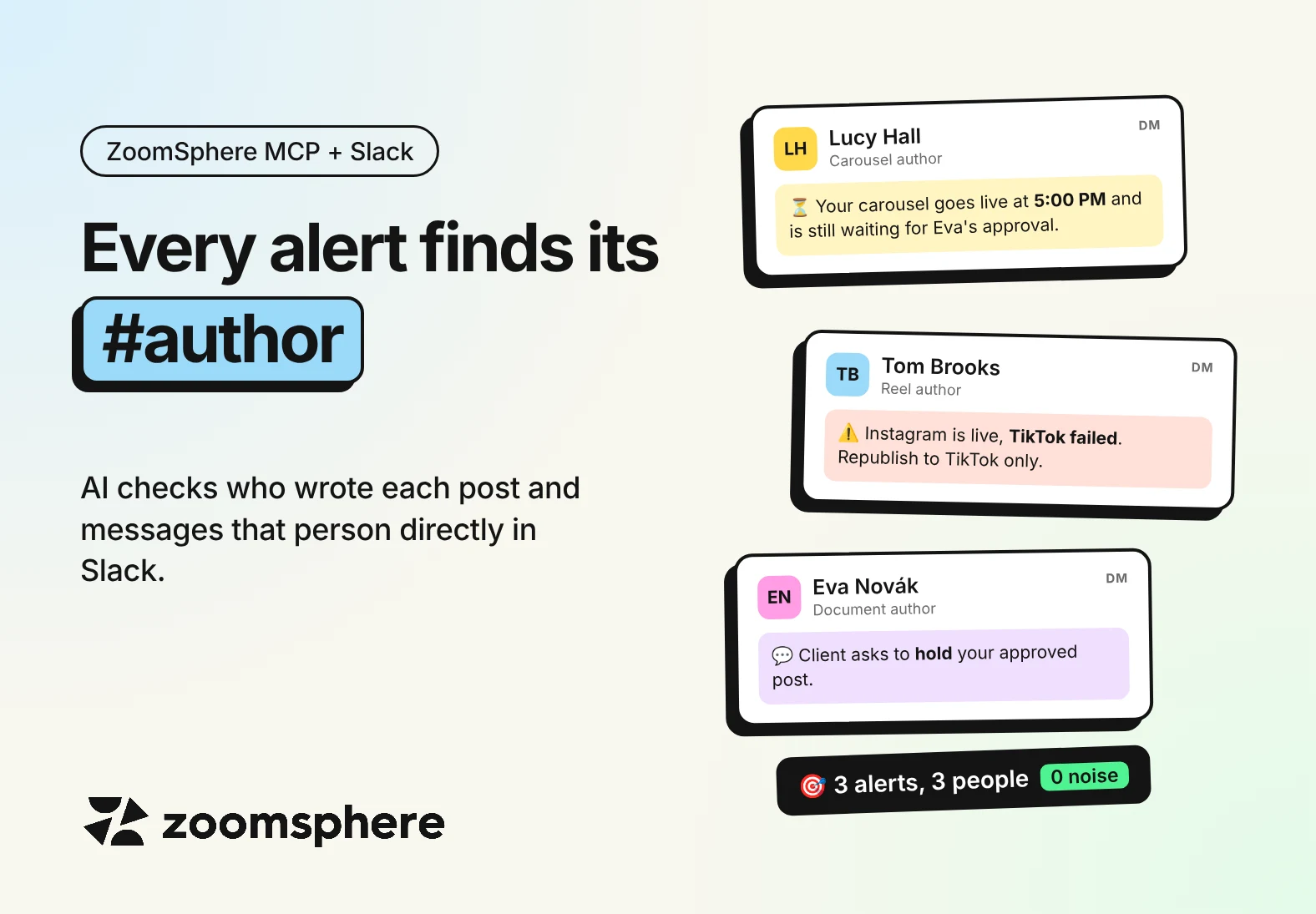
How do I make sure the right person hears about a stuck or failed post? Let your AI assistant read who wrote each post in ZoomSphere and message that person directly in Slack. Claude connects to ZoomSphere through ZoomSphere MCP and to Slack through the Slack connector, and sits in between. A scheduled task checks the calendar every hour and sends a short direct message to the one person who can fix the problem: an unapproved post an hour before it goes live, a failed upload, an urgent client comment. No alerts channel, no bot everyone mutes, and nothing to install in ZoomSphere or Slack.
Key facts
- One post, one person: every ZoomSphere post knows its owner and assigned user, and ZoomSphere MCP hands both to your AI assistant.
- Claude is the bridge: this is not a native Slack integration. Claude reads ZoomSphere through one connector and writes to Slack through another.
- Four moments worth a ping: not approved before publish time, publishing errors, urgent client comments and posts that beat the usual numbers.
- Ten minutes to set up: connect two connectors in Claude, create one scheduled task, paste one instruction.
- Tested on our own calendar: a single run over October found two posts stuck in To Approve after their date and a carousel that went out on Instagram but failed on TikTok.
{{form-component}}
Why the alerts channel doesn't work
A shared #social-alerts channel feels responsible. In practice it trains everyone to scroll past, because every alert is probably about someone else's client. Nobody ignores a failed post on purpose. The alert simply goes everywhere, so it reaches no one in particular.
We found this out the honest way. A quick look at our own October calendar turned up two posts still waiting in To Approve days after their publish date, and a carousel that went out on Instagram but failed on TikTok. All three had an author. None of the authors knew.
Why the author is the right person to ping
The author wrote the caption, knows the client and can fix a typo or chase an approver in two minutes. ZoomSphere MCP returns two fields on every post that make this possible:
- Owner: the person who created the post.
- Assigned user: the person currently responsible for it, if someone set one.
Claude picks the assigned user first and falls back to the owner, looks that person up in Slack by their work email and writes to them directly, by first name. One post, one problem, one person.
How it's wired
There is no direct connection between ZoomSphere and Slack, and you don't need one. Claude does the work in the middle: it reads your calendar through the ZoomSphere connector, decides what needs a person, and sends the message through the Slack connector, as the Slack account you connected.
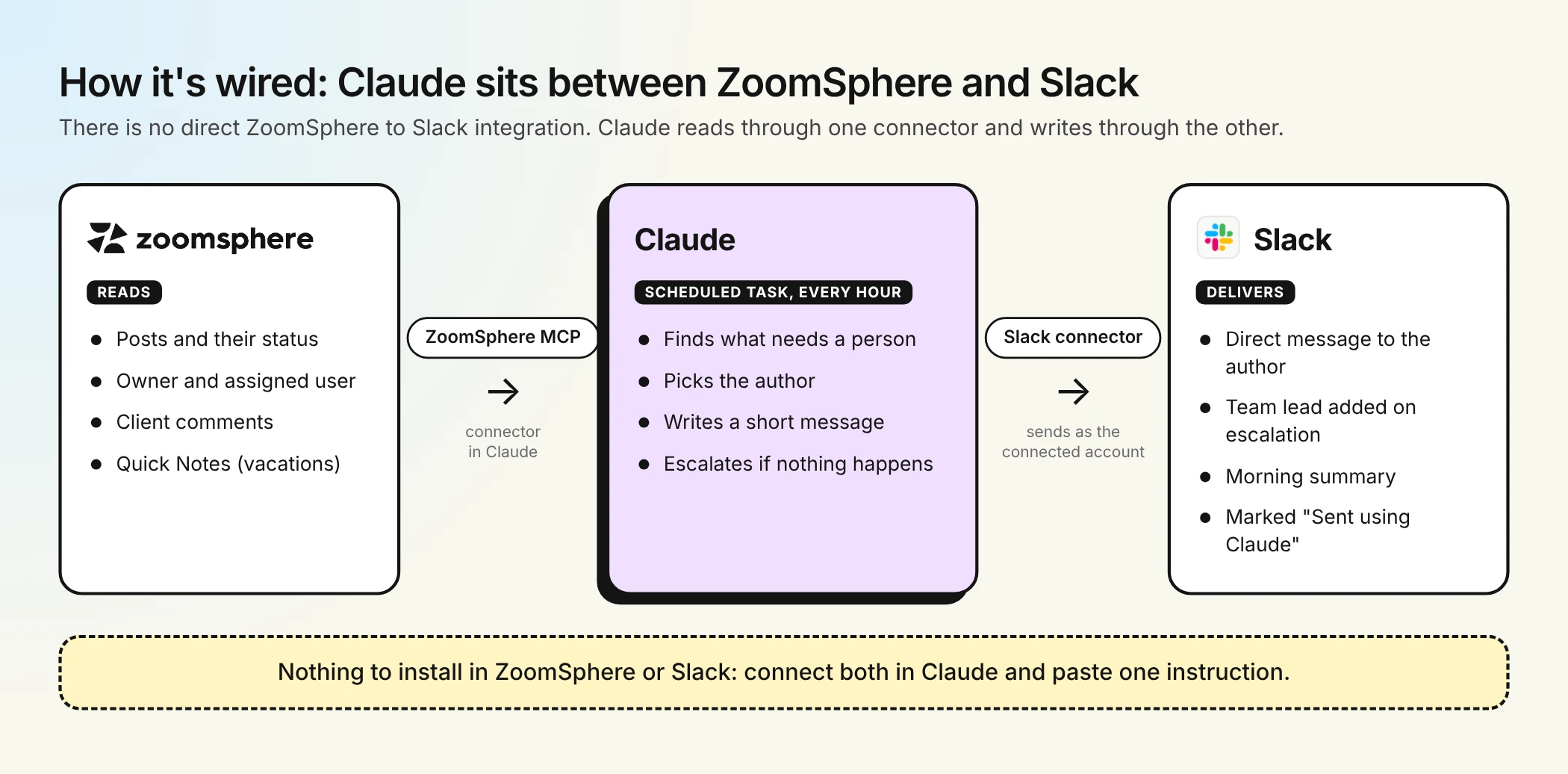
That has two practical consequences. The messages come from a real person's Slack account, not from a bot, and Slack labels each one as sent using Claude. And you can change what gets sent at any time, simply by editing the task's instruction in plain words.
Four moments worth a direct message
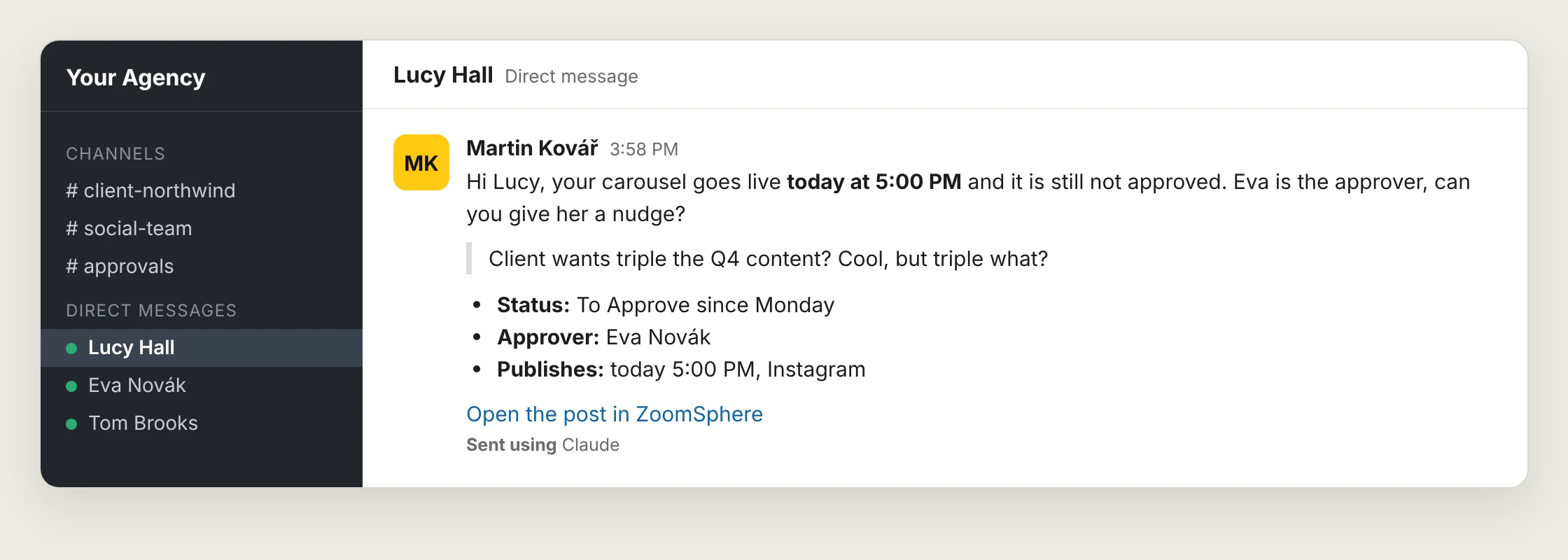
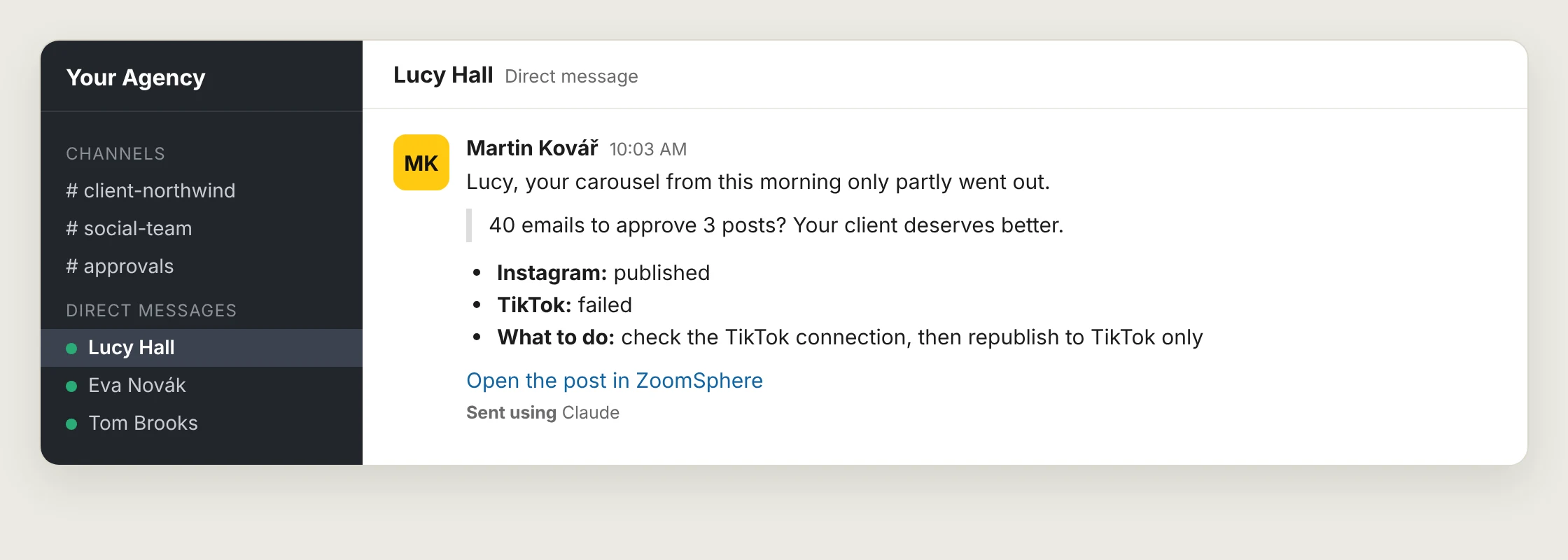
Not everything deserves a ping. These four do, because each one costs real money or reputation when it is missed. The examples use real posts and numbers from our own calendar; the people and the client are made up. In these examples Martin, the team lead, runs the task, so every message goes out from his account. You are looking at his direct message conversation with Lucy, the author of the post. The messages are plain Slack text, exactly what Claude can send: bold, quotes, bullet points and a link.
1. The post goes live soon and nobody approved it
If a post is still in To Approve close to its publish time, it will not go out. Claude tells the author an hour ahead, names the approver and suggests a nudge.
2. The post failed, or only partly went out
A multi-channel post can succeed on Instagram and fail on TikTok. The calendar shows Errors, but nobody looks at the calendar after publish time. The author gets a message within the hour, with the channel that failed.
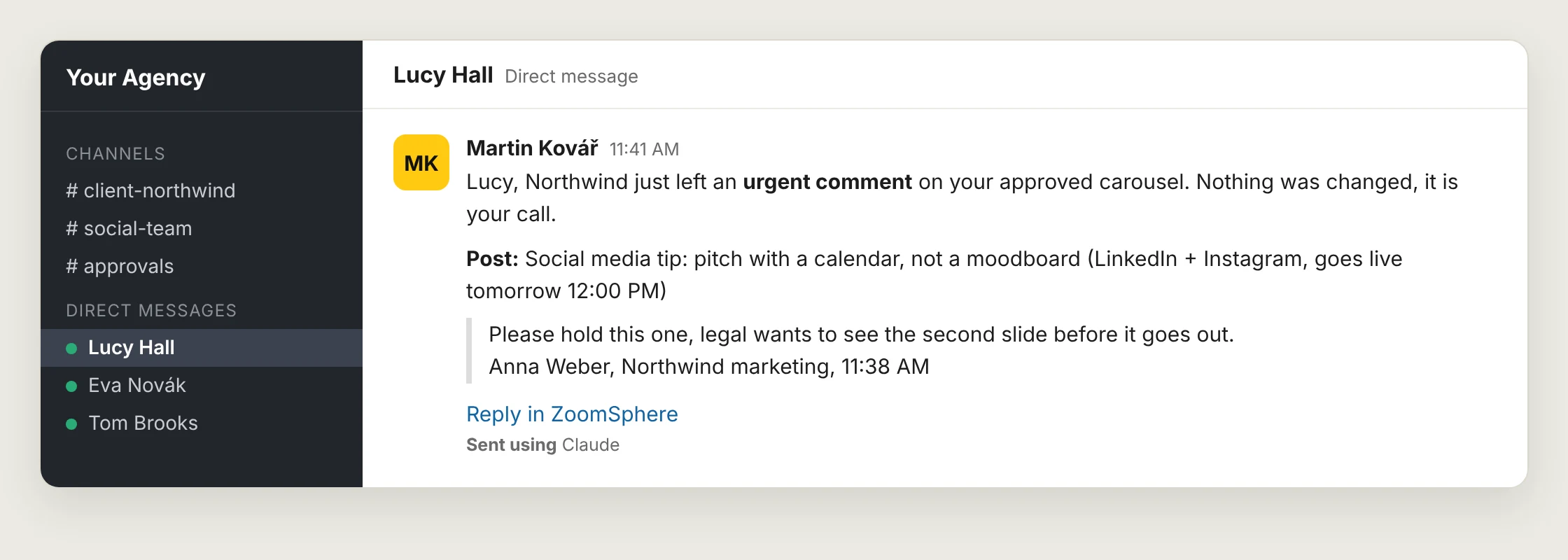
3. The client left an urgent comment
Not every client comment is urgent. "Love it" can wait for the morning summary. "Please hold this one" on an already approved post cannot. Claude reads the comment, decides which kind it is, and only interrupts for the second.
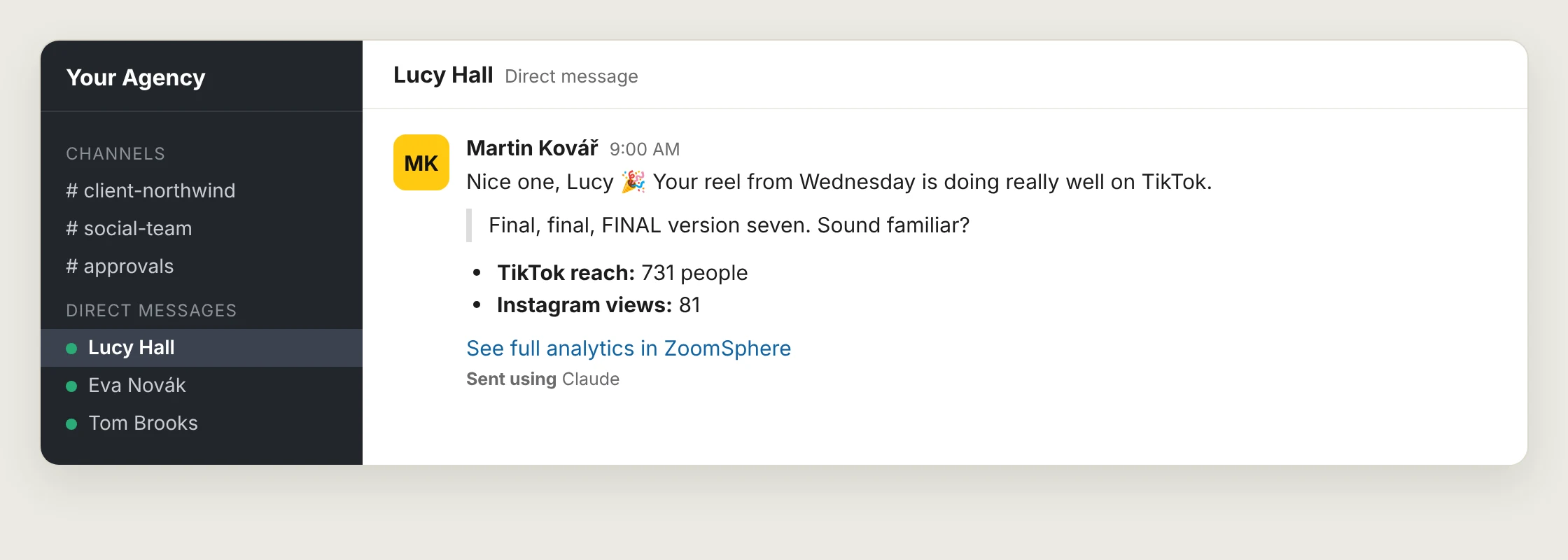
4. The post is doing really well
Notifications do not have to be bad news. When a post clearly beats the account's usual numbers, tell the person who made it. It costs nothing and people remember it.
Escalate, respect vacations, and batch the rest
One message to one person is the start, not the whole system. Three rules keep it useful instead of noisy.
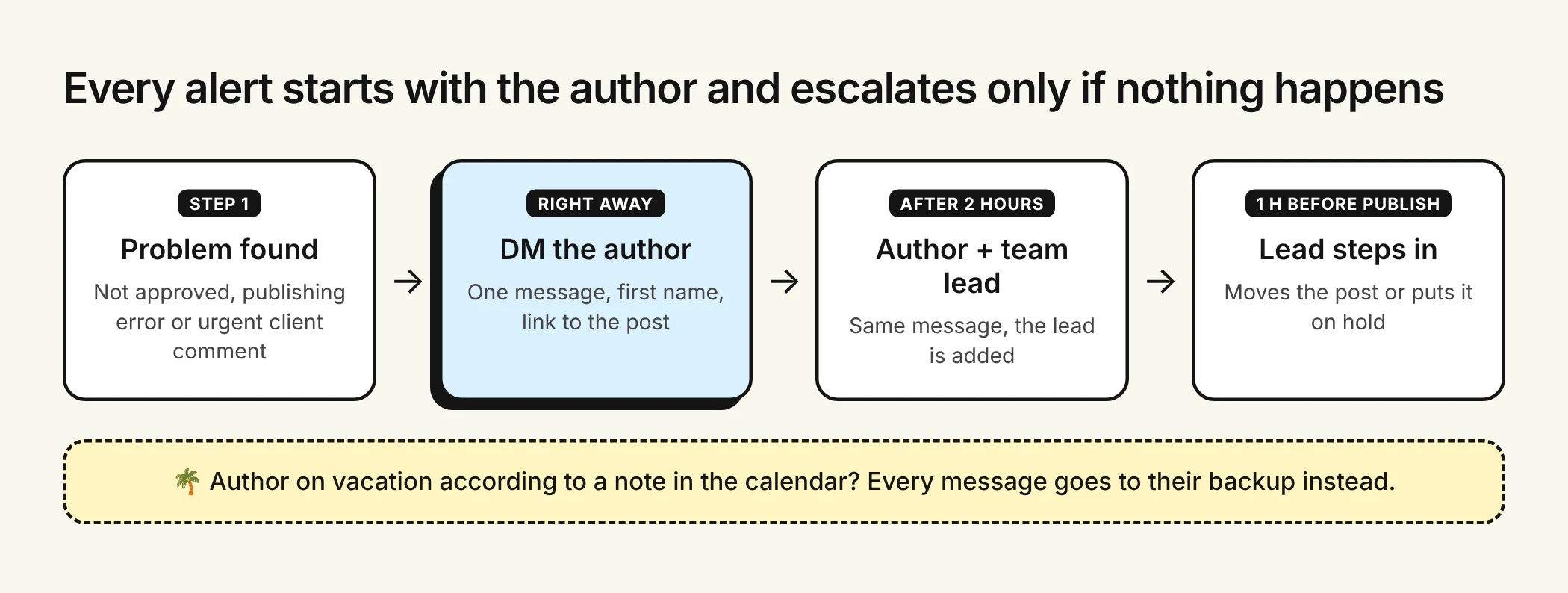
- Escalate only when nothing happens. If the problem is still open two hours later, the team lead is added. An hour before publish time, the lead decides: move the post or hold it.
- Read the calendar before you message. Many teams already mark vacations with a Quick Note in the ZoomSphere calendar. Claude reads those notes, so a message for someone on the beach goes to their backup instead of an unread inbox.
- Send one morning summary instead of ten pings. Anything that is not urgent waits for a daily digest: what goes out today, what still needs the author, which client comments are unanswered.
{{cta-component}}
How to set it up in Claude
You do not write any code and you do not install anything in ZoomSphere or Slack. Everything happens in Claude, in three steps.
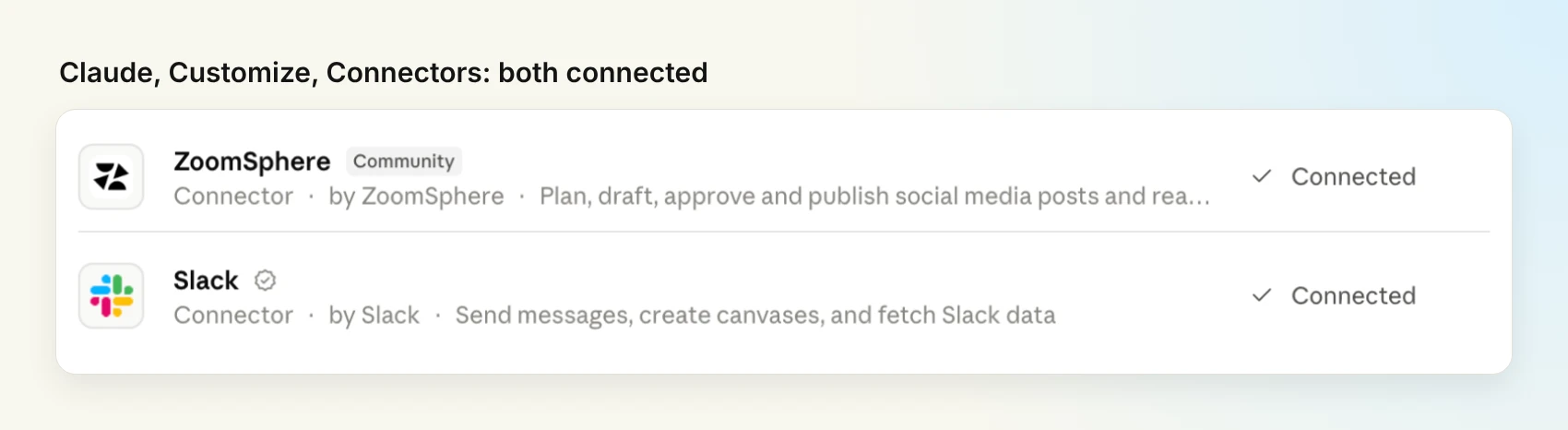
Step 1: connect ZoomSphere and Slack
In Claude, open Customize and then Connectors. Search for ZoomSphere and connect it with your ZoomSphere login, then do the same for Slack. When both show Connected, Claude can read your calendar and send Slack messages on your behalf.
Step 2: create the scheduled task
Open Scheduled in Claude's sidebar and click New task. You can choose Create with Claude and simply paste the prompts below into the chat, or Set up manually and fill in the form yourself: a name, the instruction from step 3, and Hourly as the frequency.
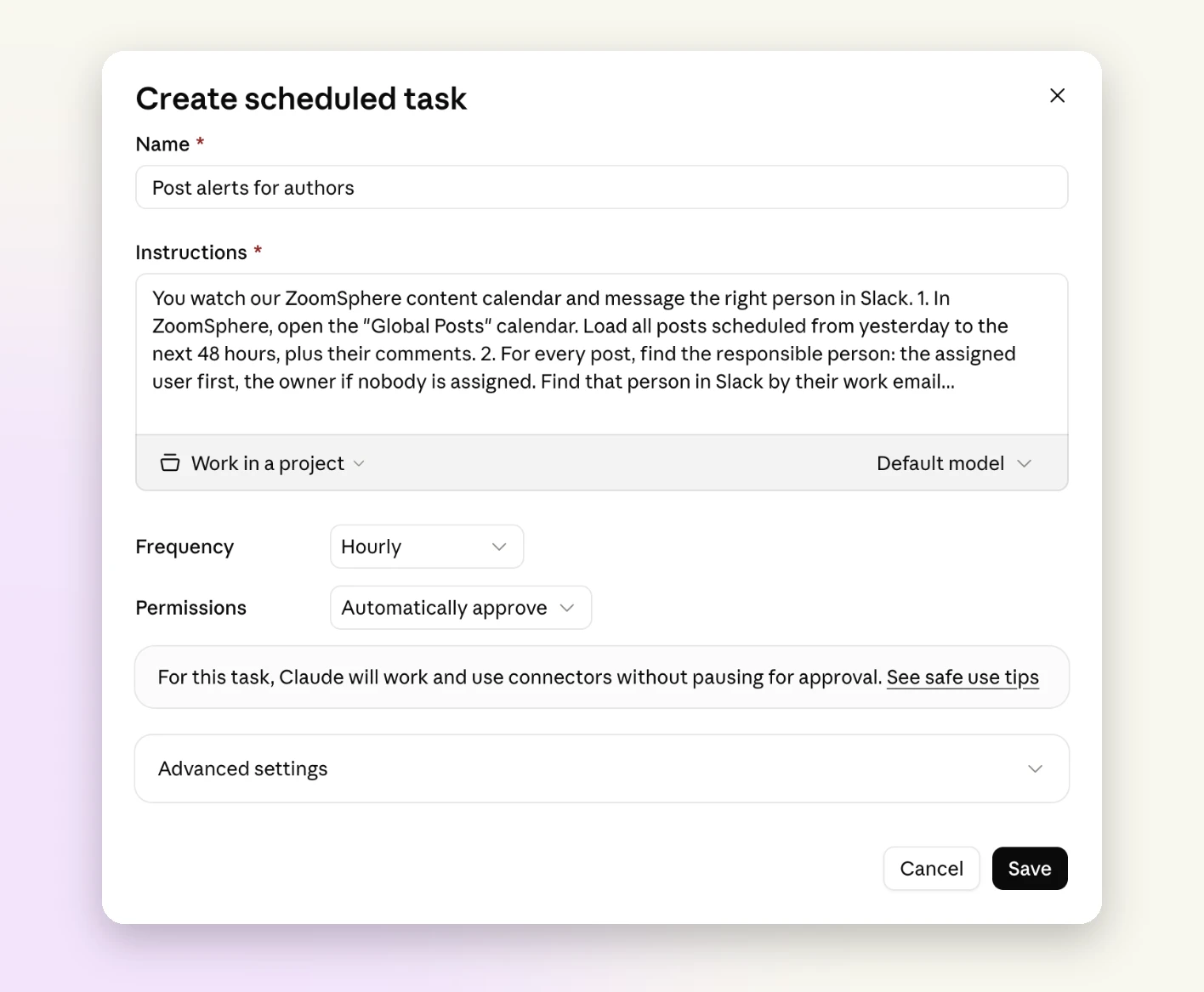
If you prefer the chat, this is the prompt that creates the task for you:
Create the task with Claude
Create a scheduled task that runs every hour on weekdays between 8:00 and 18:00 in my time zone, and once at 8:30 for the morning summary. Use the instruction below as its prompt.
Step 3: paste the instruction
This is what the task does on every run. Replace the calendar name with yours and adjust anything you like, it is plain English.
The task's instruction
You watch our ZoomSphere content calendar and message the right person in Slack. If it is a weekend or outside 8:00 to 18:00, stop without sending anything.
1. In ZoomSphere, open the "[calendar name]" calendar. Load all posts scheduled from yesterday to the next 48 hours, plus their comments. Also read the Quick Notes for today, they tell you who is on vacation and who covers for them.
2. For every post, find the responsible person: the assigned user first, the owner if nobody is assigned. Find that person in Slack by their work email. If a Quick Note says they are away, use their backup instead.
3. Send that person a Slack direct message from my account. Address them by first name, name any other people involved by their real names, and write it the way a colleague would. Send it when:
- a post goes live within the next 60 minutes and is not approved yet (name the approver and suggest a nudge),
- a post is in Errors, or went out only on some channels (say which channel failed),
- a client left a comment that asks to stop, hold or change a post that is already approved (quote the comment),
- a published post from the last 3 days clearly beats the account's typical reach (give the real number).
4. Escalate: if you already messaged someone about the same post more than 2 hours ago and nothing changed, send the same message again and add their team lead. One hour before publish time, message the team lead directly.
5. At the first run after 8:00, send each person one summary instead: what goes out today, what still needs them, unanswered client comments.
6. Never message the same person about the same thing twice within 2 hours. Never change a post yourself. Keep every message short, start with the problem, end with what to do next and a link to the post.
Two details matter most. Point 2 is what makes the messages personal, and point 6 is what keeps people from tuning them out in the first week. Before you leave it running, click Run now on the task once and check the messages it sends.
One task for the agency, or one for yourself
There are two ways to run this, and they suit different teams.
| Agency-wide task | Personal task | |
|---|---|---|
| Who sets it up | The agency owner or a team lead, once | Anyone, for themselves, today |
| Which posts | Every client calendar the account can see | Only posts where you are the owner or assigned user |
| Where messages land | A direct message to each author, from the lead's account | Your own direct message thread |
| Escalation and backups | Yes | No |
| Best for | Urgent alerts that must reach someone | A morning summary with your coffee |
With the personal setup, you connect your own ZoomSphere and Slack to Claude and the messages land in your own direct message thread. One honest limit: Slack does not ping you for messages that come from your own account. They show up, but quietly. That makes the personal setup great for the morning summary and weaker for the "goes live in an hour" kind of alert. For those, the agency-wide task is the better tool.
To switch the instruction above to the personal version, replace points 2 and 4 with this:
Personal version
2. Only look at posts where I am the owner or the assigned user. Send every message to me as a Slack direct message to myself.
4. Skip escalation. If something is still open at the next run, mention it again, marked as still open.
Before you switch it on
- Pick whose account sends. Messages go out from the Slack account connected to Claude, usually the team lead's, and Slack marks each one as sent using Claude. Tell the team, so a message from Martin about a failed post is no surprise.
- Use the same work email in both tools. That is how Claude matches a ZoomSphere user to a Slack person. One mismatched address and that person never gets a message.
- Write vacations into the calendar. A short Quick Note like "Lucy off, Eva covers" is enough for Claude to reroute.
- Make sure every post has a real person on it. This is the one most teams miss.
The catch: posts your AI created
When we ran this on our own October calendar, most posts had nobody assigned and showed the same owner. The reason was simple: they were created through ZoomSphere MCP, and a post created by AI belongs to whichever account the AI is connected as. For notifications, that means every alert would go to one person. The fix takes one sentence in your instructions whenever Claude creates posts for you:
Add to any post-creating prompt
When you create a post, set the owner and the assigned user to the person who will be responsible for it, never to my account by default. If you are not sure who that is, ask me.
The same field then powers much more than alerts: workload per person, results per author and a clean handover when someone leaves the agency.
Frequently asked questions
Is this a native ZoomSphere integration with Slack?
No. ZoomSphere and Slack are not connected to each other. Claude connects to both through connectors, reads the calendar from ZoomSphere and sends messages through Slack, following the instruction in your scheduled task.
Can ZoomSphere send Slack notifications to the author of a post?
Yes, through ZoomSphere MCP and an AI assistant such as Claude. The assistant reads each post's owner and assigned user, finds that person in Slack by work email and sends them a direct message.
Which situations should trigger a direct message?
A post that goes live soon without approval, a publishing error, an urgent client comment on an approved post, and a post that clearly beats the account's usual numbers. Everything else fits into one morning summary.
Do the messages come from a bot?
No. They come from the Slack account connected to Claude, usually the team lead's, and Slack labels them as sent using Claude. Claude can send plain formatted text: bold, quotes, lists and links.
Can I set this up just for myself?
Yes. A personal task looks only at posts where you are the owner or assigned user and sends the messages to your own direct message thread. Slack does not notify you about your own messages, so it works best for a morning summary.
What happens when the author is on vacation?
If your team marks vacations with Quick Notes in the ZoomSphere calendar, the task reads them and sends the message to the backup instead.
Why do all my alerts go to one person?
Posts created through ZoomSphere MCP belong to the account the AI is connected as. Ask the AI to set the owner and assigned user to the responsible person whenever it creates a post.
{{form-component}}
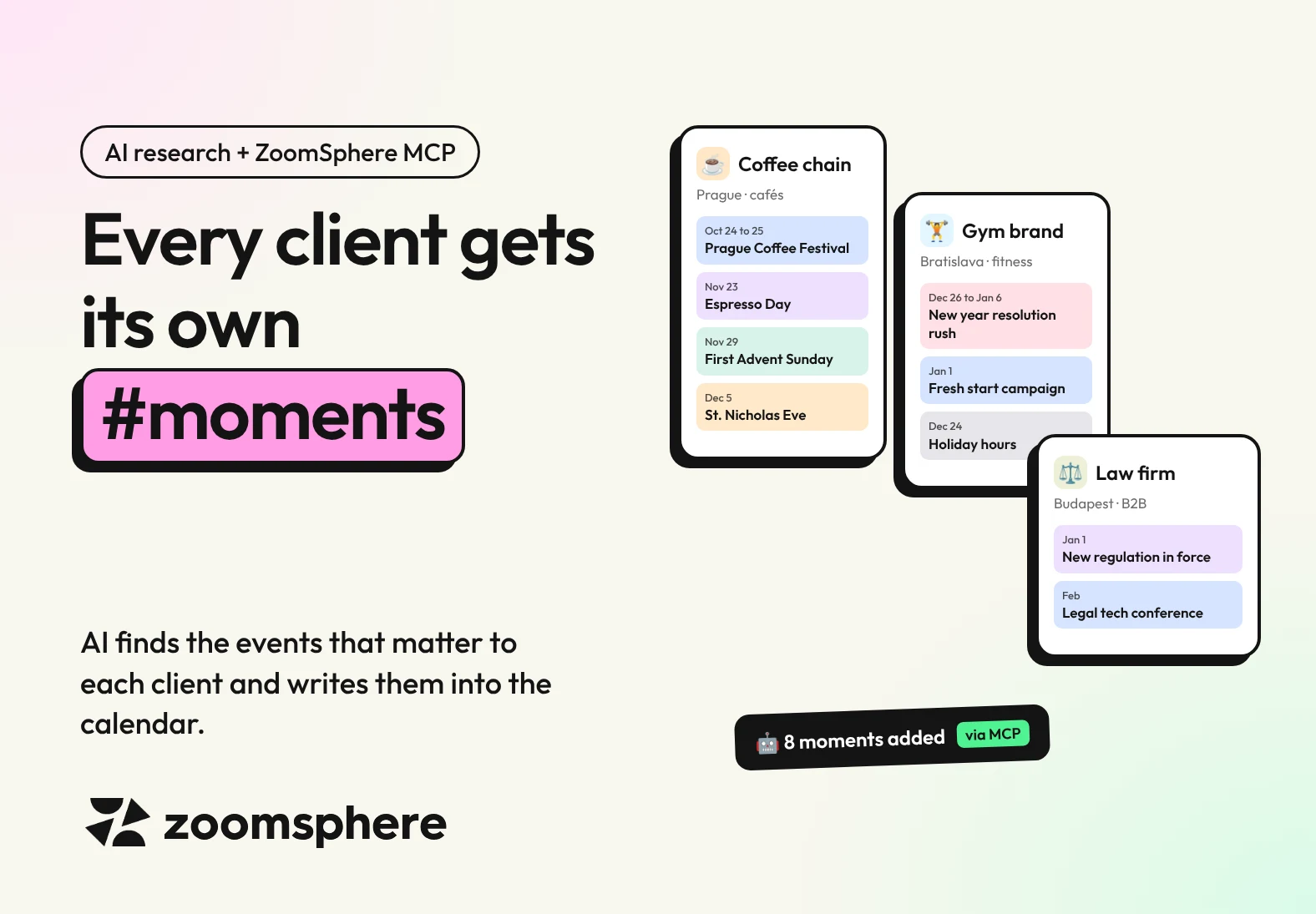
How do I fill each client's calendar with the events they should react to? Give your AI assistant a short event profile for every client: industry, cities, audience, their own key dates and what to avoid. The assistant researches the coming weeks, keeps only the moments with a clear link to that client, verifies every date, and writes them into the client's ZoomSphere calendar as Quick Notes through ZoomSphere MCP. Run it once a month per client and nobody on the team has to keep a moments spreadsheet again.
Key facts
- One profile per client: eight lines about the client decide which events are worth a post and which are noise.
- Relevance before volume: the assistant only adds a moment when it can say in one sentence why this client should care.
- Verified or flagged: every date is checked on a source. If it cannot be confirmed, the note says so instead of guessing.
- Tested on our demo client: one run added 8 moments for a Prague coffee chain in minutes, from a local coffee festival to Advent and the Christmas holidays.
- Fresh every month: a scheduled task repeats the research for each client and adds only what is new.
{{form-component}}
Why one marketing calendar never fits all clients
Generic marketing calendars are full of days nobody asked for. World Pizza Day is gold for a pizzeria and pure noise for a law firm. A regional festival matters to a café in that city and to nobody 200 kilometres away. And the most important dates of all, a client's store openings, product launches and brand birthday, are in no public calendar at all.
That is why an agency needs a different event calendar for every client, and why it rarely has one. Researching it by hand takes hours per client, and the list goes stale the moment someone saves it.
| Client | Moments worth a post | Moments to skip or keep quiet |
|---|---|---|
| Coffee chain, one city | Local coffee festivals, coffee "days", seasonal menus, Advent, local traditions | National holidays when cafés are closed, anything political |
| Gym brand, several cities | New year resolutions, local races and marathons, back to routine in September | Food-heavy holidays used for body shaming, health awareness days without expertise |
| Law firm, B2B | New laws coming into force, filing deadlines, industry conferences, awards | Fun "national days", trending memes, anything that looks unserious |
| Fashion e-shop, three markets | Shopping peaks, fashion weeks, seasonal drops, local holidays per market | Promotion on days of national mourning in any of its markets |
Step 1: write a short event profile for each client
The quality of the research depends on what the assistant knows about the client. Eight lines are enough, and you write them once. Keep them where your team already keeps client briefs: in the client's Project in Claude, in Notion or in a Google Doc.
Client event profile
EVENT PROFILE: [Client]
Industry and offer: [what they sell, to whom]
Markets and cities: [countries, cities, languages]
Audience: [who follows them and why]
Own key dates: [store openings, launches, brand birthday, recurring promos]
Event types we love: [festivals, sports, industry days, local traditions]
Avoid: [politics, religion, tragedies, topics the client never touches]
Tone for event posts: [playful, expert, quiet]
ZoomSphere calendar: workspace "[name]", scheduler "[name]"
The line people forget is own key dates. A café's fifth birthday or the opening of a new branch will beat any international coffee day, and only the client can tell you about it.
Step 2: let the assistant research and filter
With the profile in place, one prompt does the research. The important part is the filter: the assistant has to justify every moment for this specific client, and it has to verify every date.
Research and write prompt
Read the event profile for [Client]. Research events, holidays, industry moments, local happenings and awareness days for the next [8 weeks] in the client's markets and cities.
Keep only moments with a clear link to this client. For each one, write one sentence on why the client should care. Drop anything on the Avoid list. Prefer local and industry events over generic international days, and mark foreign "national days" with the country, for example (US).
Verify every date on an official or primary source. If you cannot confirm a date for this year, keep the moment but say clearly in the note that the date is not confirmed.
Before writing, list the Quick Notes already in the client's ZoomSphere calendar for that period and skip anything that is already there.
Then add each moment as a Quick Note to the client's calendar: first line an emoji and a short name of at most 18 characters, so the label stays readable in the calendar, then one or two sentences of context. Use one day or the full span for multi-day events. Colours: blue industry events, purple fun and awareness days, green seasons and traditions, orange client promos, grey closures and quiet days, yellow unconfirmed. Internal team only, unless the note is useful for the client to see.
End with a short table of what you added, with sources.
Step 3: what it looked like for our demo client
We ran exactly this for Demo Coffee Co., the fictional Prague coffee chain in our demo workspace. In a few minutes the assistant added eight moments for the next ten weeks, each with an emoji, a short reason and the right colour:
- Prague Coffee Festival, 24 to 25 October at Výstaviště Praha, as a two-day note in blue.
- National Cappuccino Day and National Espresso Day, marked as US days in purple, so nobody mistakes them for local holidays.
- First Advent Sunday, St. Nicholas Eve and New Year's Eve as seasonal moments for the cafés.
- Christmas holidays from 24 to 26 December in grey, with an instruction to keep promotion quiet while the cafés are closed.
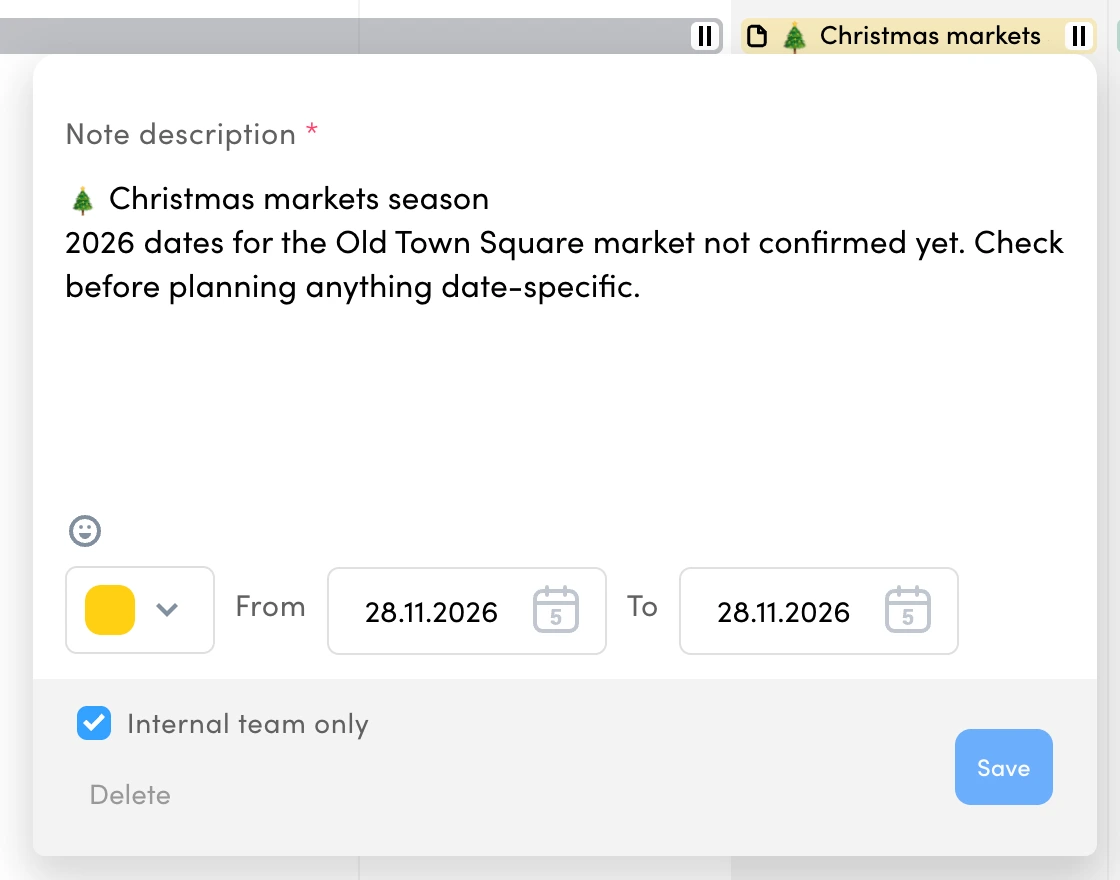
- Christmas markets season in yellow, because the 2026 dates for the Old Town Square market were not published yet.
Add the client's own dates from the event profile and a single week fills up fast. Here is the first week of December, with researched moments and the client's own deadlines side by side:
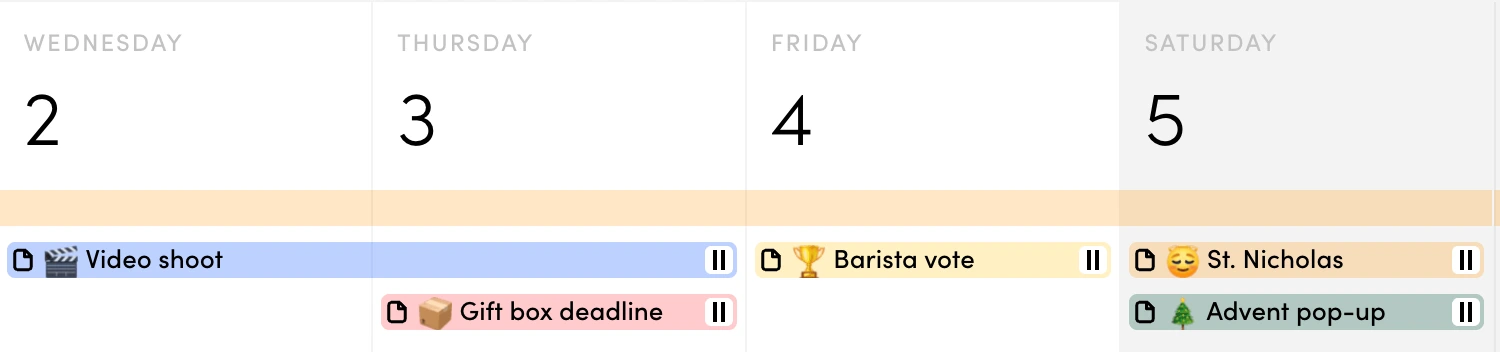
The yellow note is the one we like most. Instead of inventing a date, the assistant kept the moment and said plainly that the date still has to be checked. That is exactly what you want from research that lands in a client calendar.
{{cta-component}}
Step 4: keep every calendar fresh with a monthly task
Events get announced all year, so a one-off research run ages fast. Turn the prompt into a scheduled task in Claude that runs on the first working day of each month. Because it checks the existing notes first, it only adds what is new.
Monthly refresh, all clients
For every client listed in [Notion page "Client event profiles"], run the research and write prompt for the next 8 weeks. Skip moments that already have a Quick Note in that client's ZoomSphere calendar. Re-check every yellow (unconfirmed) note: if the date is now published, update the note and change it to the right colour.
Never delete or move notes written by people. End with one line per client: how many moments you added, updated or skipped.
Two habits make this work across many clients. Give every client its own profile, never one profile for all. And let one person own the monthly task, so somebody actually reads the report.
Show it to the client
Most notes should stay internal, but some are worth sharing. When a client opens the calendar and sees the local festival, their own anniversary and the holiday closures already marked, they see an agency that thinks ahead. Untick Internal team only on those notes and they appear in the client's view next to the posts.
Pitfalls to avoid
- Too many moments. Eight strong moments in two months beat thirty weak ones. If every day has a note, none of them stands out.
- Long labels. The calendar shows the start of the note text, so keep the first line short and put the details below it.
- Foreign days treated as local. A US "national day" can be a fun hook, but label it, so nobody plans a big campaign around it in Prague.
- Sensitive dates used for selling. Memorial days, tragedies and political events go into the calendar as quiet days, never as content hooks.
- Unverified dates. Ask for sources, and make the assistant say when a date is not confirmed.
The next step: let the agent react
Once every client calendar holds the right moments, the content agent can use them. A scheduled agent reads the Quick Notes before it plans posts, reacts to events, keeps the quiet days quiet and follows any instruction you put in a note. How to set that up is in our guide to briefing your AI content agent from the calendar with Quick Notes.
What you need
- A ZoomSphere account with a Scheduler module for each client, which holds the calendar and its Quick Notes.
- ZoomSphere MCP connected to your AI assistant. In Claude, add ZoomSphere from the connectors directory. The setup for other assistants is on our ZoomSphere MCP page.
- Web search switched on in your assistant, so it can find and verify events.
- A client event profile for each client, in a Claude Project, Notion or Google Docs.
Frequently asked questions
How do I find relevant events for each social media client?
Write a short event profile for each client with industry, cities, audience, their own key dates and topics to avoid. Then ask an AI assistant with web search to research the coming weeks and keep only moments with a clear link to that client.
Can AI add events to my ZoomSphere calendar automatically?
Yes. Through ZoomSphere MCP, an assistant such as Claude or ChatGPT can create Quick Notes on the right days in each client's calendar, including multi-day events, colours and internal-only notes.
How does the AI avoid wrong dates?
Ask it to verify every date on an official or primary source and to say in the note when a date is not confirmed. In our test it flagged the Christmas market dates instead of guessing them.
How often should I refresh client event calendars?
Once a month is enough for most clients. A scheduled task can repeat the research, skip moments already in the calendar and update notes whose dates were confirmed.
Should clients see these notes?
Only the ones that help them. Planning notes and agent instructions stay internal. Shared notes, such as local events or holiday closures, show the client that you plan ahead.
What is a Quick Note in ZoomSphere?
A coloured label over one or more days of the Scheduler calendar. Teams use it for campaigns, events, focus weeks and holidays, and it can be visible to clients or to the internal team only.
{{form-component}}
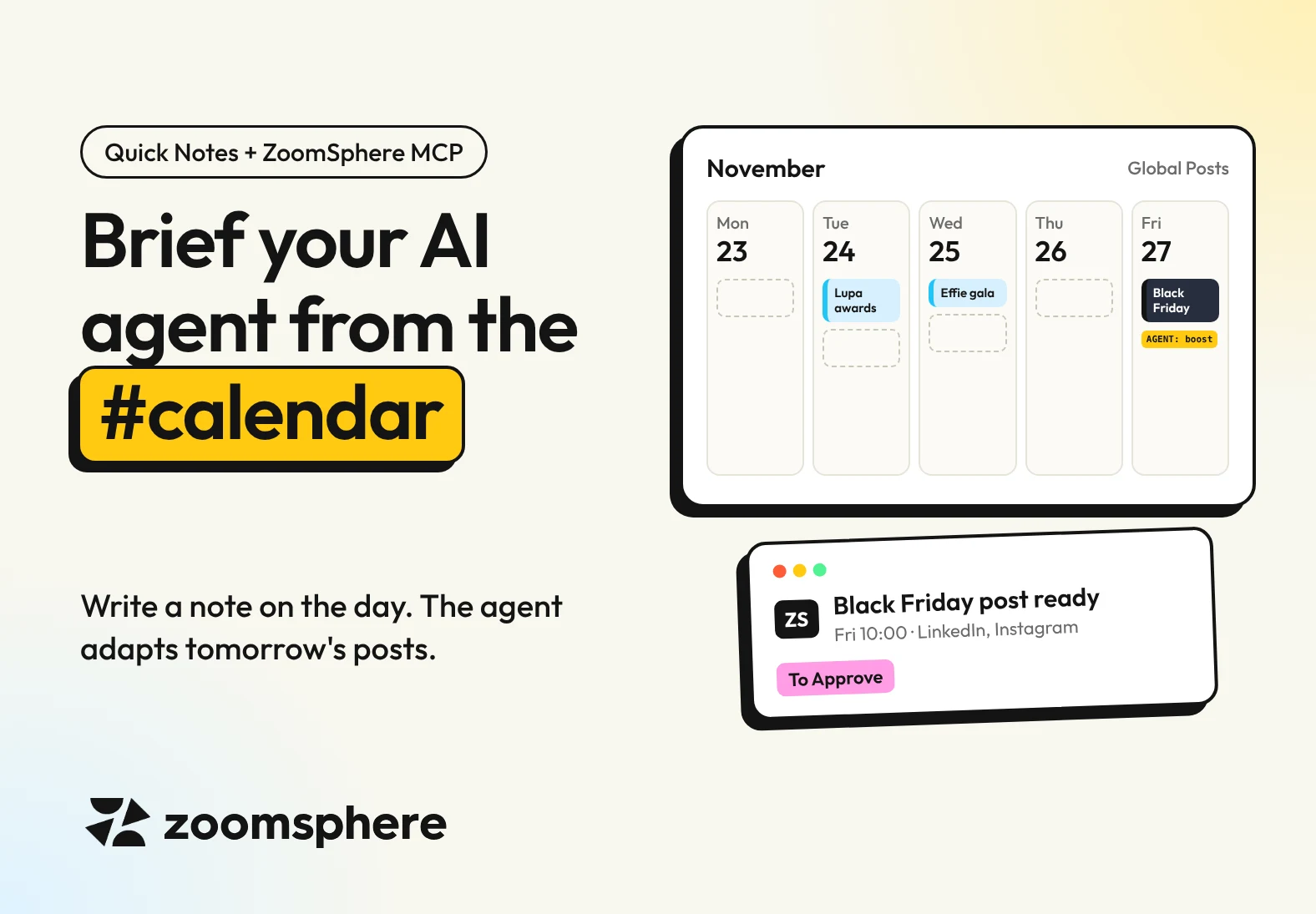
How do I steer an AI content agent without rewriting its prompt? Write a Quick Note on the day in your ZoomSphere calendar. A scheduled agent connected through ZoomSphere MCP reads the notes before it plans the next posts, so it reacts to events, keeps sensitive days quiet and follows any instruction you put in the note. Your AI assistant can even write those notes for you, after researching the events, holidays and anniversaries that matter to your audience.
Key facts
- Two directions: through ZoomSphere MCP an AI assistant can both write Quick Notes into your calendar and read them.
- Tested on our own calendar: one prompt found and verified 14 marketing moments for the next six weeks and placed them on the right days in minutes.
- No prompt editing: anyone who plans in the calendar can brief the agent, simply by adding or moving a note.
- Precise when you need it: a single line starting with AGENT: switches the topic, mutes promotion or adds a post.
- Safe by design: every post the agent creates because of a note waits in To Approve, and sensitive days are never used for selling.
{{form-component}}
The problem: an autopilot that doesn't know what day it is
A content autopilot is brilliant at keeping the calendar full, and blind to everything around it. It will happily publish a cheerful product promo on a national holiday. It will post its usual Tuesday tip while the whole industry talks about the biggest conference of the year. The agent is not careless, it simply has no idea what that day means.
The fix is not a longer prompt. It is the calendar your team already plans in.
One calendar, two directions
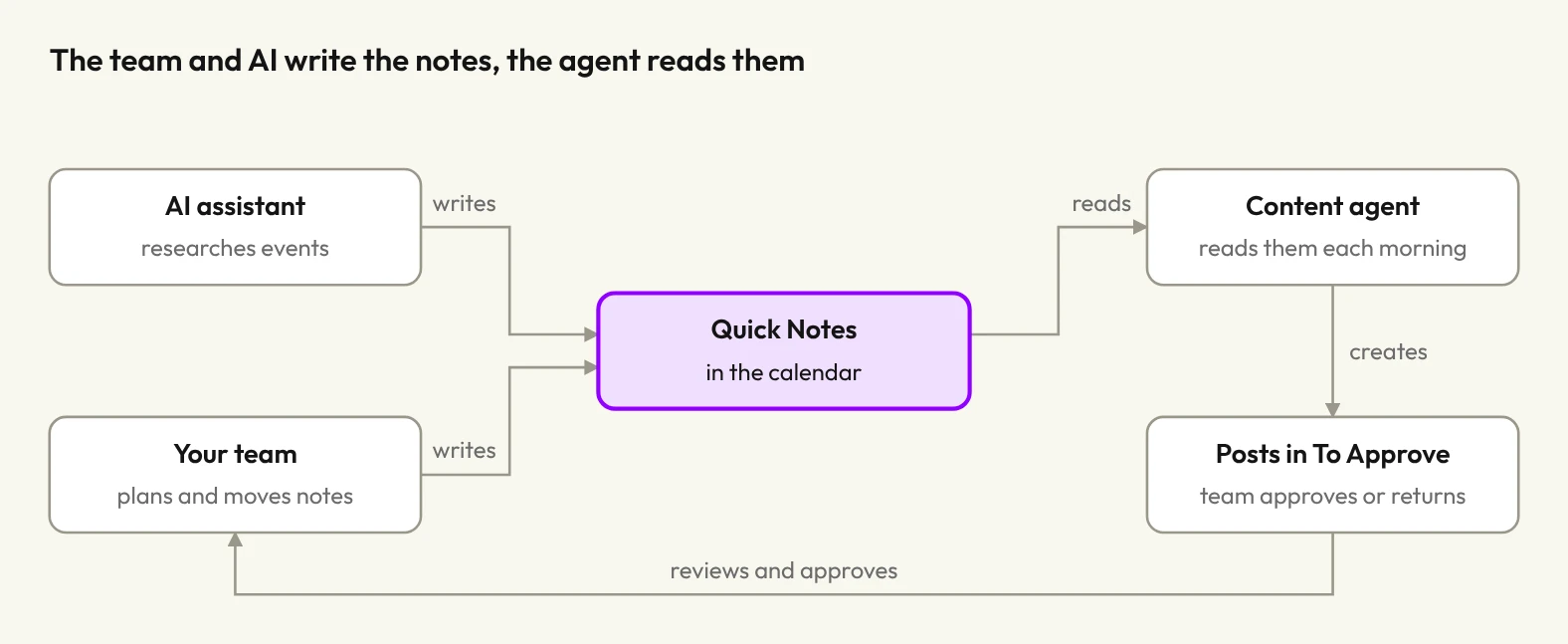
Quick Notes are the coloured labels you put over one or more days in the ZoomSphere calendar: a campaign, a launch, a focus week, a holiday. Through ZoomSphere MCP, an AI assistant can now both write them and read them. That turns a planning label into a two-way channel between your team and your agent.
- Writing: you ask your AI assistant to research the events, holidays and anniversaries that matter to your audience, and it adds them to the calendar as Quick Notes.
- Reading: your scheduled content agent checks the Quick Notes before it plans each day, and adapts the topic, the tone or the volume to what the note says.
Put the two together and you get a loop: research fills the calendar, the team adjusts it like any other plan, and the agent follows it. Nobody edits a prompt, nobody briefs the agent in a separate tool.
Part 1: let AI fill your calendar with the moments that matter
Every agency keeps some version of a marketing moments list: industry conferences, award nights, platform anniversaries, shopping peaks, public holidays in every market it serves. Usually it lives in a spreadsheet nobody opens after January. With ZoomSphere MCP, your AI assistant researches the list for the coming weeks and writes it straight into the calendar where the content is planned.
Research prompt
Research marketing events, industry conferences, award ceremonies, social media platform anniversaries, shopping peaks and public holidays in [Czech Republic, Slovakia and Hungary] for the next six weeks. Verify every date on an official source.
Then add each one as a Quick Note to my ZoomSphere calendar "[calendar name]": start the note text with an emoji and a short name, add one or two sentences of context, and make it visible to my internal team only.
Colour them by type: blue for industry events, grey for public holidays, purple for anniversaries, dark for shopping days.
We ran exactly this for our own calendar. In a couple of minutes the assistant found and verified fourteen moments for the next six weeks, from a Prague AI conference and Web Summit in Lisbon to the Effie Awards gala, Black Friday and the public holidays in all three of our home markets, and placed them on the right days with consistent colours.
Here is how it looks in a client calendar. A note can sit on a single day or stretch over a whole week, every type gets its own colour, and an emoji at the start makes each label readable at a glance.
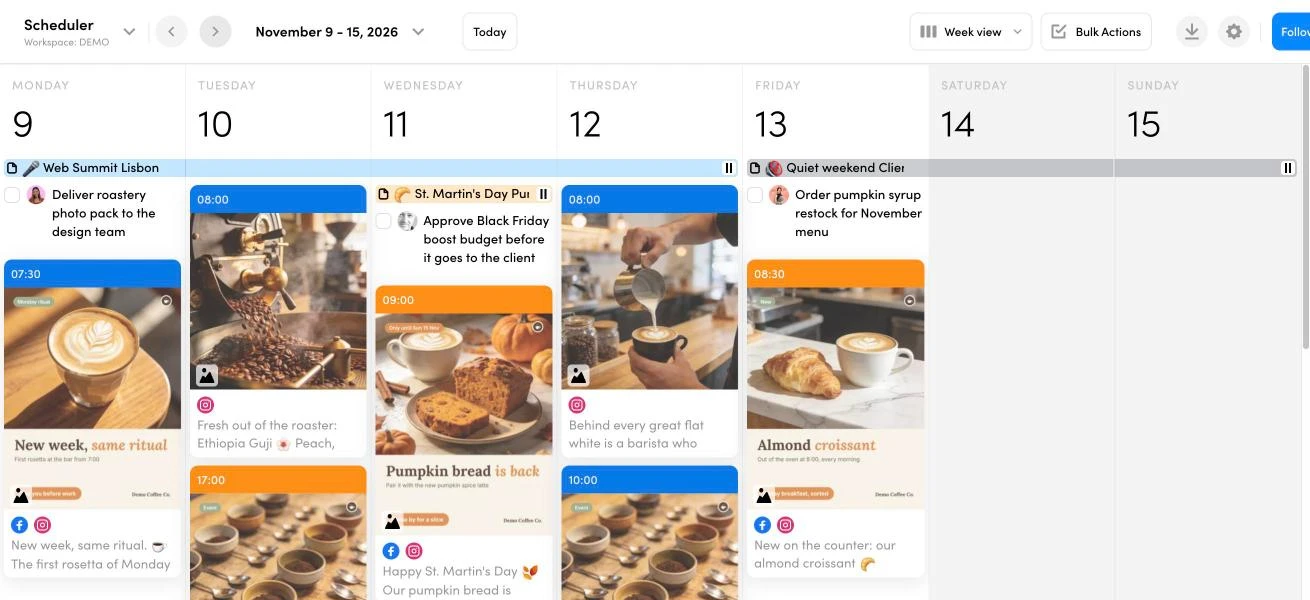
Two details are worth keeping:
- Internal team only. Quick Notes can be hidden from clients, so your planning notes and agent instructions never show up in the client's view of the calendar.
- Notes, not posts. Ask for Quick Notes, not Ideas. An Idea is a draft post. A Quick Note is context for a day, and that is what you want the agent to react to.
Part 2: let your content agent read the notes
The second half is where it gets interesting. Many teams already run a semi-autonomous setup: a scheduled task in Claude that wakes up every morning, checks the ZoomSphere calendar and prepares tomorrow's posts. Add one paragraph to that task and it starts reading Quick Notes too.
Add to your scheduled task
Before you choose topics, read the Quick Notes in the ZoomSphere calendar from today to five days ahead.
If a note contains a line starting with "AGENT:", follow it exactly.
If it does not, use judgement: industry events, award nights, platform anniversaries and seasonal moments are opportunities, so react to them and tie the post to a real benefit of our product or service. If an event is a few days away and needs a video or a carousel, prepare it now.
Public holidays, memorial days and sensitive events are never used for promotion or jokes. Keep those days neutral and light on selling.
Every post you create because of a Quick Note goes to the "To Approve" status, never straight to publishing. Verify any fact about an external event with a web search before you use it. Only read Quick Notes, never change or delete them.
From then on the morning run looks different. The agent sees that tomorrow is a public holiday in Hungary and keeps the Hungarian posts quiet. It sees the Effie shortlist on a date five days out and prepares a carousel about proving campaign results in time. It sees nothing special and simply follows the usual content plan.
The report at the end of each run says which notes influenced the plan and how, so you always know why the agent did what it did. How to set up the daily task itself is in our guide to putting social media on autopilot with scheduled AI tasks.
{{cta-component}}
The AGENT line: precise instructions in plain words
Judgement covers most days, but sometimes you want the agent to do exactly one thing. For that, add a single line to the note text that starts with AGENT:. The agent treats it as an order, everything else in the note stays context for humans.
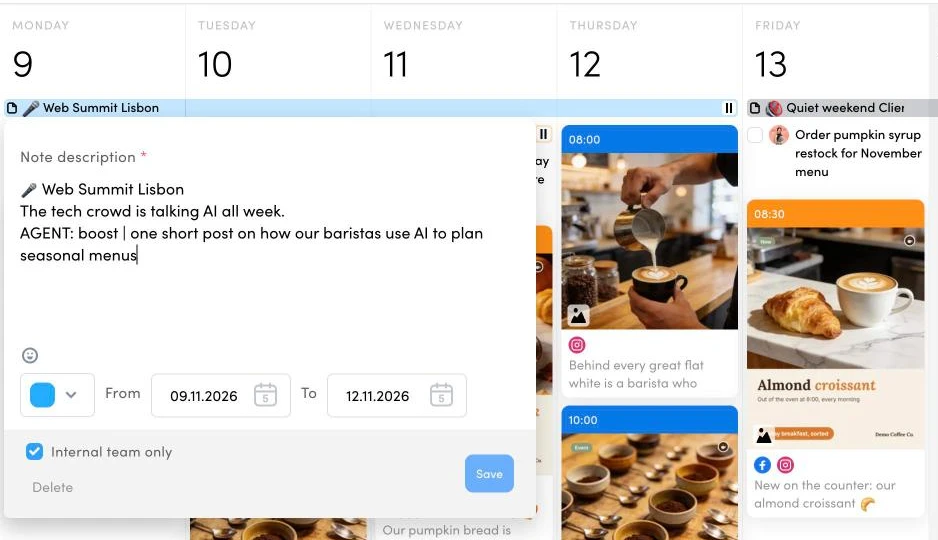
| Instruction | What the agent does | Example note text |
|---|---|---|
| AGENT: switch | Replaces the planned topic for that day | AGENT: switch | a carousel on how agencies prove campaign results to clients |
| AGENT: mute | No promotional or hard-sell posts that day | AGENT: mute on a day of national mourning |
| AGENT: boost | Adds one extra post on the topic | AGENT: boost | a short reaction video on the conference keynote |
| market: | Limits the instruction to one market's channels | AGENT: mute | market: HU |
| lead: | Prepares the content that many days ahead | AGENT: switch | Black Friday posting data | lead: 3d |
The beauty of it: anyone on the team who can plan in the calendar can now brief the agent. An account manager hears that a client's product launch moved, drags the note to the new date, and tomorrow's run already knows.
Guardrails that keep it safe
Reactive content is exactly where automation burns brands fastest, so the setup builds in four guardrails.
- Note-driven posts wait for approval. Standard posts can follow your usual flow, but anything the agent creates because of a Quick Note lands in the To Approve status. You see it in the calendar and in notifications on web and mobile, and you approve or send it back with one click. This is the same approval workflow your clients already use, so there is nothing new to learn.
- Sensitive days are off limits for selling. National holidays, memorial days and tragic events are never turned into promotion or humour, even if a note sits on that day without an instruction.
- Facts get verified. Before the agent writes about an external event, it checks the date, the place and the names with a web search. If it cannot verify something, it keeps the post general instead of inventing details.
- Notes are read only. The agent never edits or deletes a Quick Note, so the calendar stays the team's plan, not the agent's.
Four ways agencies use it
- Focus management. Mark a whole week as a focus week (a product launch, a sale, a hiring push) with one Quick Note spanning seven days. The agent leans its topics toward the focus without you rewriting the content plan.
- Reactions to industry moments. Conferences, award shortlists and platform anniversaries become timely posts prepared in advance, not a scramble on the day.
- A quiet day in seconds. When something serious happens, one note with AGENT: mute over the affected days stops the promotional tone across every channel the agent plans for. Your scheduled posts stay visible in the calendar so the team can decide what to move.
- Multi-market agencies. One calendar can hold holidays for several countries. With market: the agent mutes only the channels of the market that is celebrating, while the rest keep running.
How to start in ten minutes
- Create a ZoomSphere account and a Scheduler module. The Scheduler holds the calendar the agent works with. Connect your social profiles, or start with Virtual Channels if you just want to try it.
- Connect ZoomSphere MCP to your AI assistant. In Claude, add ZoomSphere from the connectors directory and sign in. The setup for ChatGPT and other assistants is on our ZoomSphere MCP page.
- Run the research prompt from Part 1 and check the Quick Notes in your calendar.
- Add the paragraph from Part 2 to your scheduled content task, or ask Claude to set up a new daily scheduled task that prepares tomorrow's posts.
- Try one AGENT line. Put AGENT: switch on a day next week and see what the agent makes of it.
Frequently asked questions
What is a Quick Note in ZoomSphere?
A coloured label over one or more days of the Scheduler calendar, used to mark campaigns, launches, focus days, holidays or events. It can be visible to clients or to your internal team only.
Can an AI assistant create Quick Notes?
Yes. Through ZoomSphere MCP, an assistant such as Claude or ChatGPT can create, list and update Quick Notes in your calendar, for example after researching upcoming events.
How does an AI agent use Quick Notes when creating content?
A scheduled task reads the notes for the coming days before it plans posts. It reacts to events, keeps sensitive days neutral and follows any explicit line starting with AGENT:.
Will the agent publish reactive posts without my approval?
Not with the setup in this article. Posts created because of a Quick Note go to the To Approve status, and you approve them in the calendar or in the mobile app.
Do clients see the agent instructions?
No, if you mark the note as internal team only. Clients then see only the notes you want them to see.
What is the difference between a Quick Note and an Idea?
An Idea is a draft of a specific post. A Quick Note is context for a day. Use Ideas when you want the agent to build a particular post, and Quick Notes when you want it to adapt to what is happening.
{{form-component}}
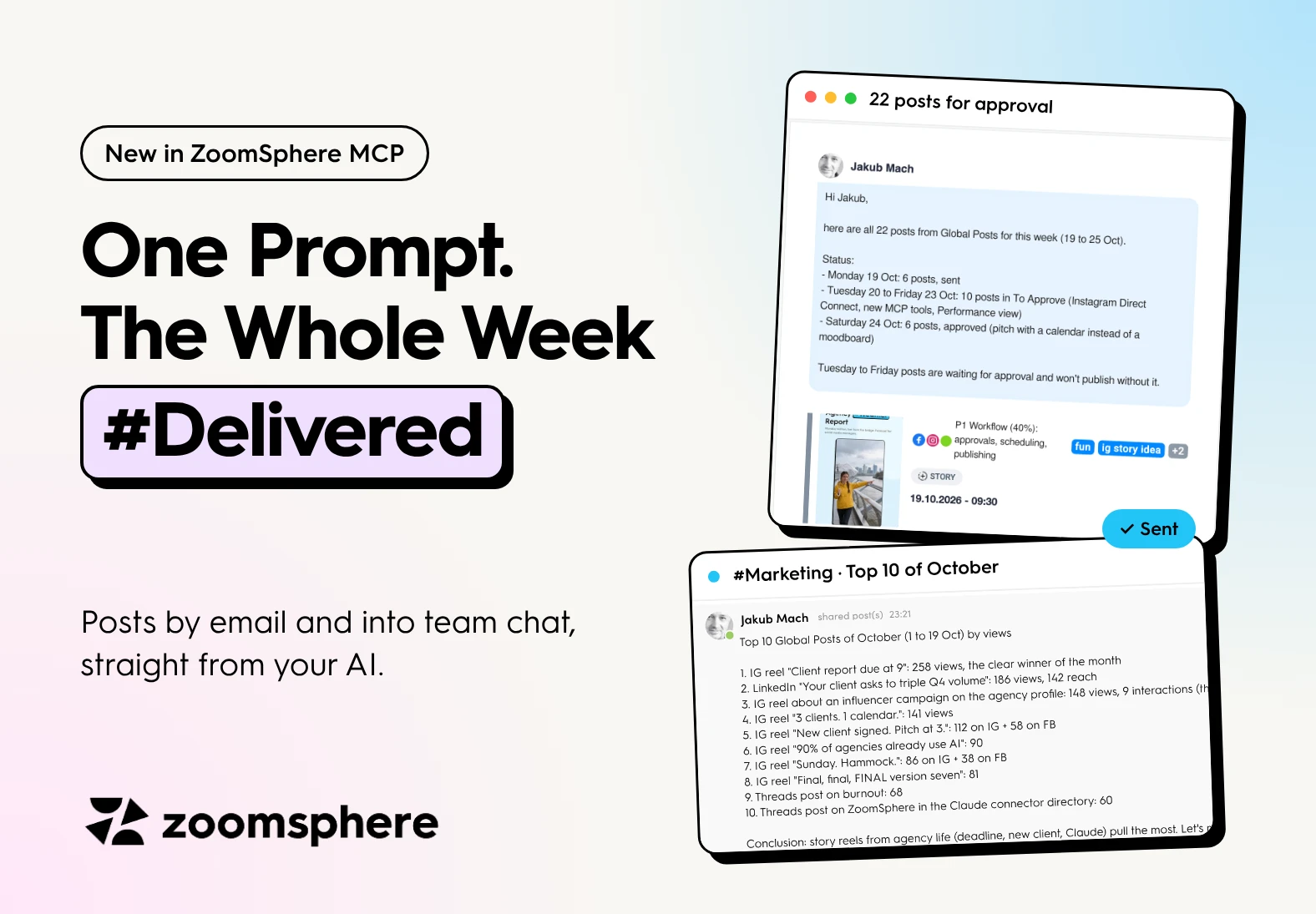
Can an AI send my social media posts to a client or to my team? Yes. With ZoomSphere connected to Claude or ChatGPT through the MCP, one sentence is enough. The AI finds the right posts, sorts them, writes a short summary and sends them as real post cards, either by email or into a ZoomSphere Chat room. Your client approves in ZoomSphere as always, and your team sees the results where it already talks.
Key facts
- Two new MCP tools: send posts by email and send posts to ZoomSphere Chat, straight from Claude or ChatGPT.
- Real post cards, not attachments. Preview, networks, content pillar, tags, status and publish time travel with every post.
- Safe by design. Email goes only to people with access to the Scheduler, chat only to rooms you are in, and the AI asks before posting into a room.
- Tested on our own accounts the evening the tools shipped: 22 posts emailed and a top 10 shared with the team in under five minutes.
- The rule stays the same: the AI moves the posts, people approve them.
The last mile of social media work just disappeared
Writing posts was never the slow part. The slow part is everything after: exporting the week, building the approval email, pasting the best posts into the team chat and chasing who saw what.
ZoomSphere MCP now does that last mile for you. Two new tools, send posts by email and send posts to chat, turn one sentence in your AI chat into a finished email in your client's inbox or a ready message in your team's room. Real post cards, real dates, real statuses. No export, no copy paste.
We tested it on our own ZoomSphere accounts the evening it shipped. Two prompts, under five minutes, and a whole stack of use cases we had not even planned for. Here are the two that hooked us.
Use case 1: the whole week in your client's inbox, from one sentence
Monday evening, the plan for the week is in the calendar. Normally that means opening the Scheduler, selecting posts and sending them for approval by hand. Now it is one line:
Prompt · Weekly email
Take this week's posts and send them to my email.
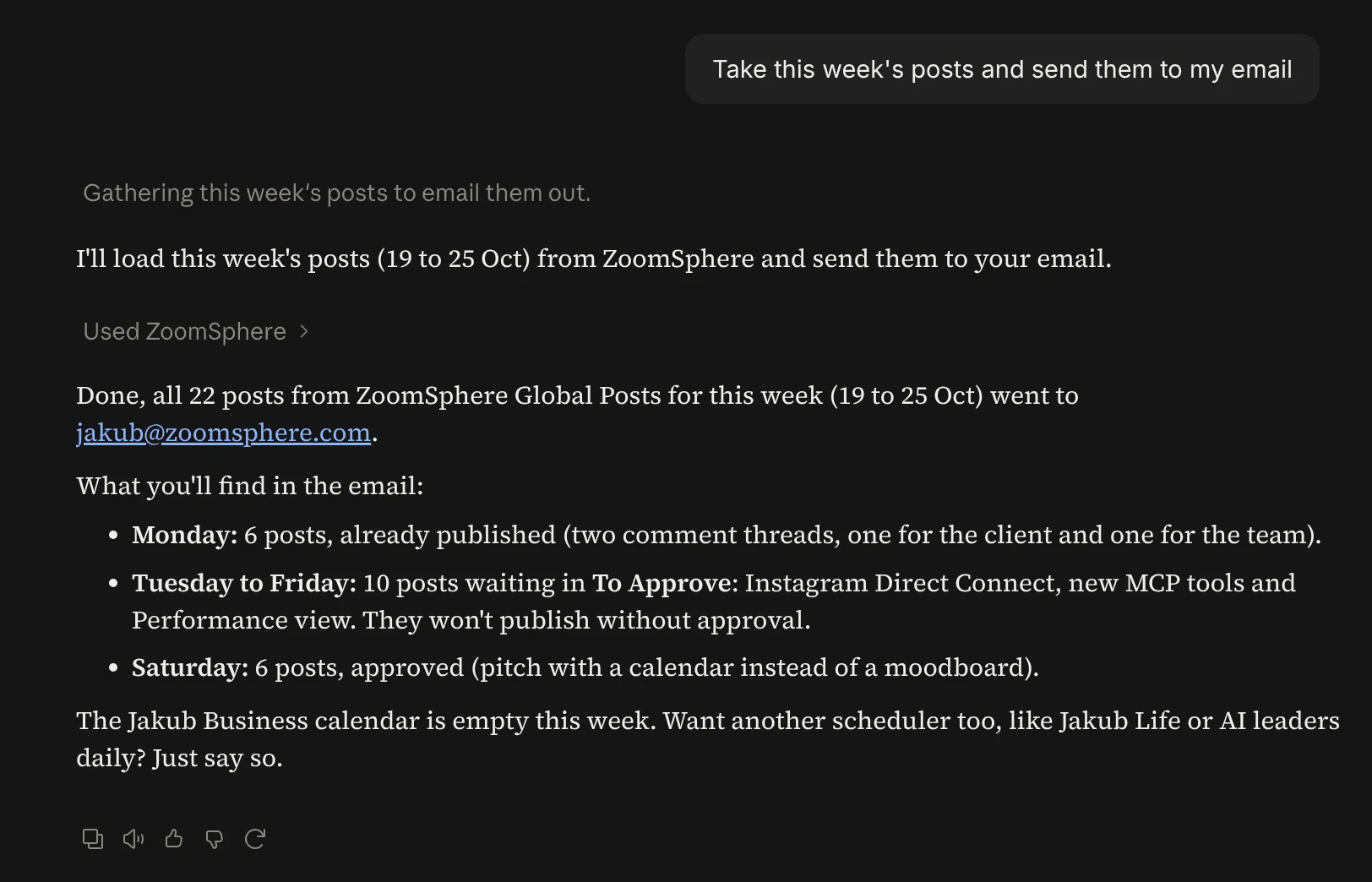
Here is what the AI did on its own, without a single follow-up question:
- Found the right Scheduler and the week (Monday 19 to Sunday 25 October).
- Loaded all 22 posts and sorted them by status: 6 already published, 10 waiting in To Approve, 6 approved.
- Wrote a short summary on top of the email, so the reader knows what needs action before scrolling.
- Sent it, with every post as a card: preview image, networks, content pillar, tags and publish time.
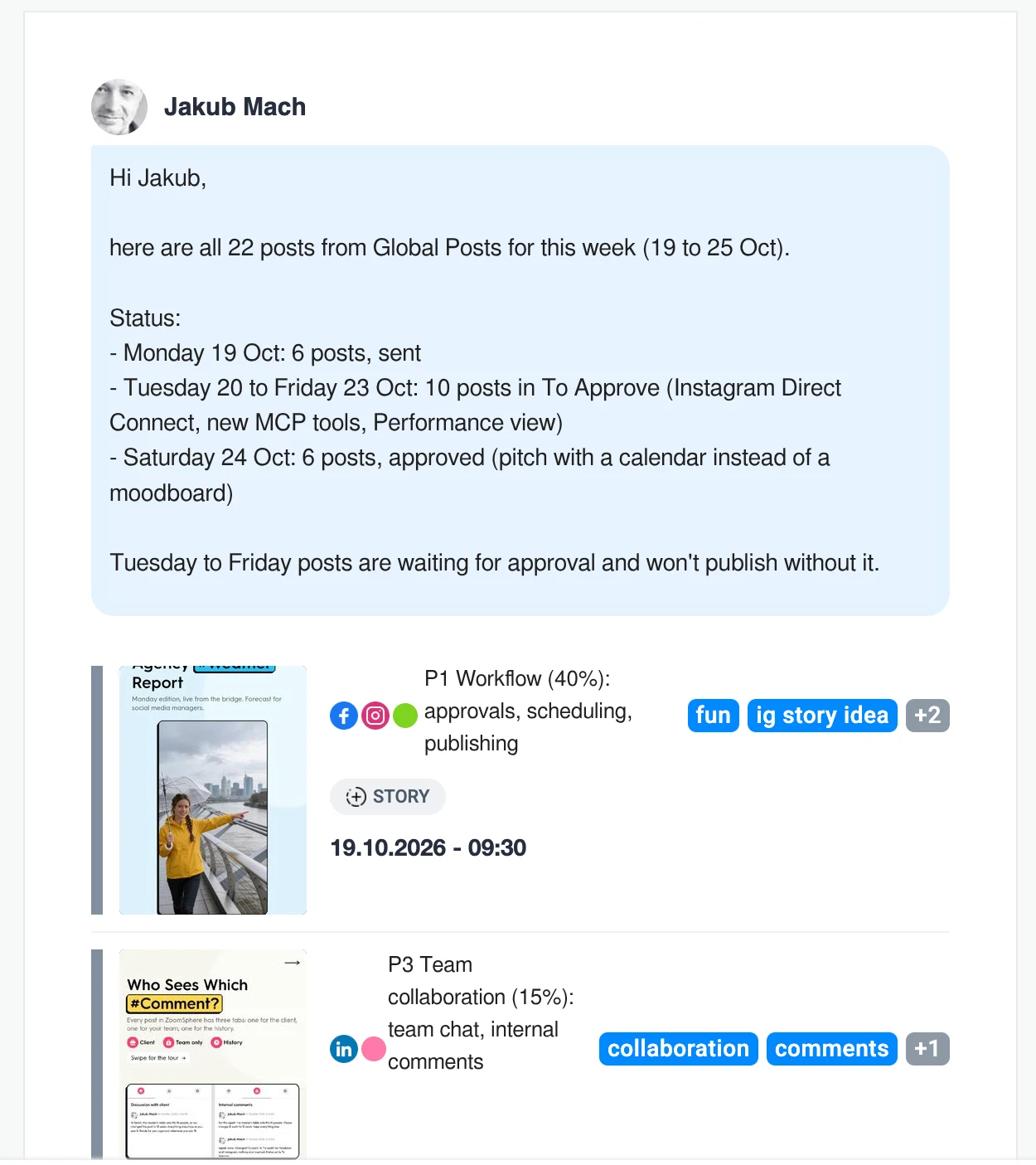
Swap "my email" for your client and this is your weekly approval email. The posts stay in ZoomSphere, so when the client approves, the status changes and the post publishes on time. Nothing gets lost in an attachment.
Worth knowing: the email can only go to people who have access to that Scheduler in ZoomSphere. Your AI cannot email a random address, which is exactly what you want from a tool that touches client content.
Use case 2: this month's top posts, straight into team chat
The second prompt is the one every team lead should steal:
Prompt · Top posts to chat
Send me this month's top posts to the ZoomSphere chat.
The AI pulled analytics for every post since 1 October across Instagram, Facebook, LinkedIn, Threads and the rest, ranked them by views and picked the top 10. Then it did something we liked even more: before sending, it asked which room to use. A chat message reaches the whole room and cannot be taken back, so a quick question beats a wrong guess.
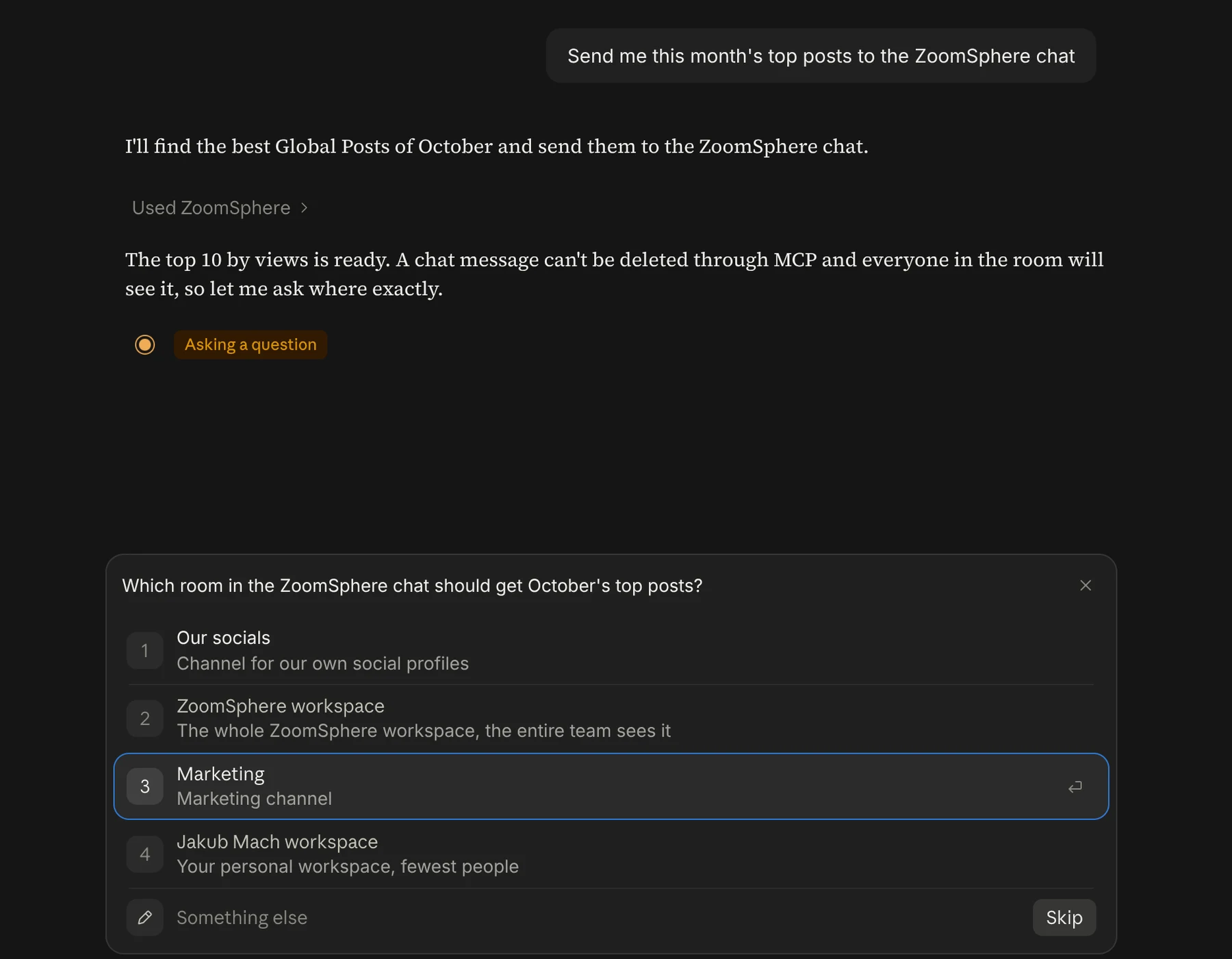
A few seconds later the Marketing room had a ranked list with the numbers and a one-line conclusion, and below it the actual posts as cards the team can open.
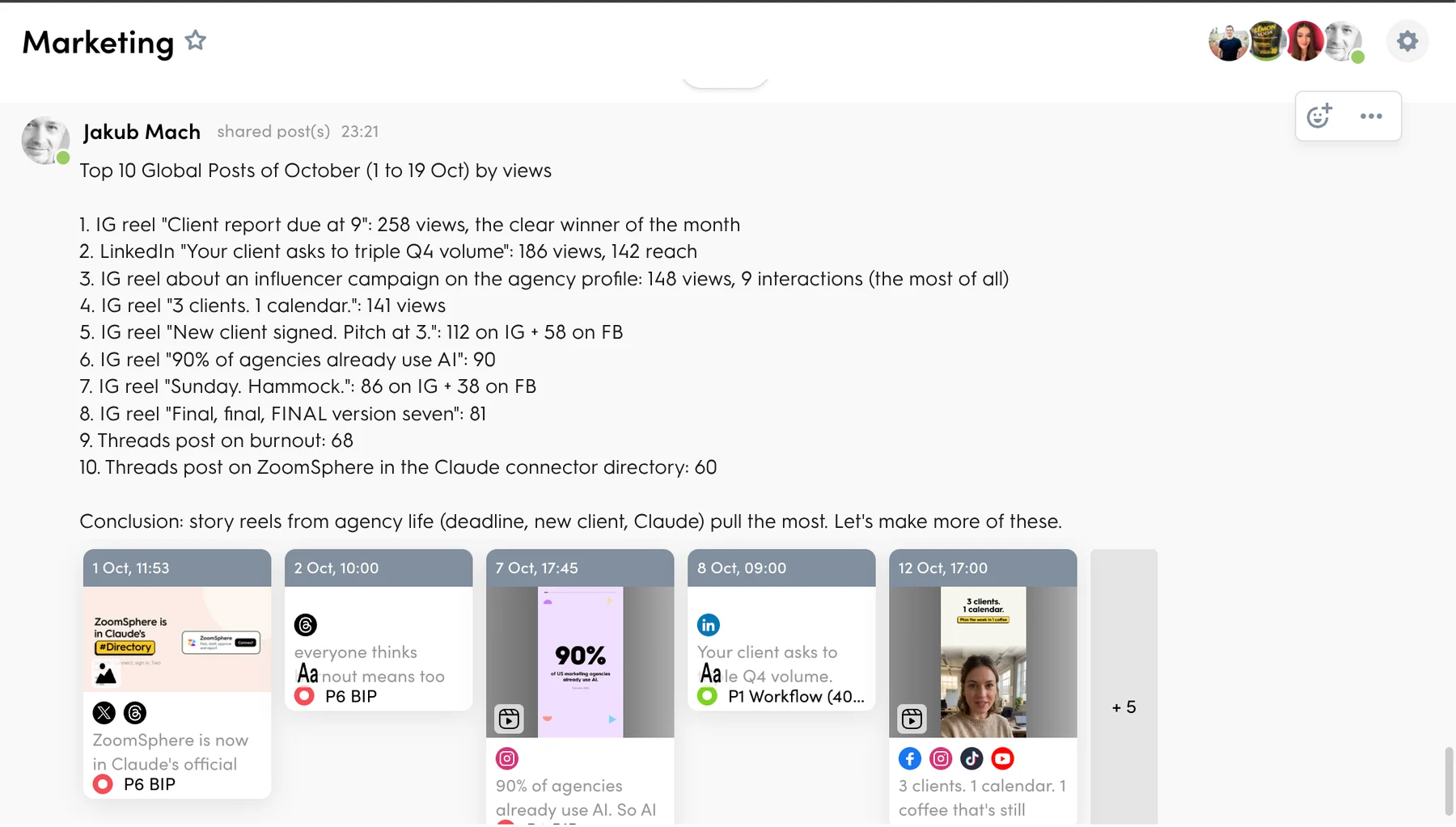
The conclusion was the useful part. Story reels from agency life (a report due at 9, a new client, a pitch at 3) beat everything else by a wide margin. The winner, a reel about a client report due at 9 am, got 258 views. Second place was a LinkedIn post with 186 views and 142 reach. That is a content decision for next month, delivered where the team already talks, without anyone opening a report.
Six more prompts to copy
Paste any of these into Claude or ChatGPT with ZoomSphere connected and change the names in brackets.
Weekly approval for a client
Take next week's posts in the [client] Scheduler that are in To Approve and email them to [client contact] with a short note asking for approval by Thursday.
Only what still needs work
Find all posts this week in To Rework and send them to the [content team] chat room, with one line per post on what the client asked to change.
Monthly report teaser
Pick the 5 best posts of last month by reach in the [client] Scheduler and email them to [client contact] with three sentences on what worked.
Best and worst by content pillar
Compare this month's posts by content pillar. Send the best and the worst post of each pillar to the Marketing chat room with the views next to them.
Monday kickoff for the team
Send this week's whole plan to the [team] chat room, grouped by day, and mention who owns each post.
Campaign wrap-up
Take all posts tagged [campaign tag] and email the top 3 by interactions to me and [account manager].
How to start
- Register in ZoomSphere and add a Scheduler with your channels.
- Connect ZoomSphere to the AI chat you already use, Claude or ChatGPT, on our MCP page.
- Type your first prompt. Start with the weekly email, it pays off on day one.
{{cta-component}}
Looking for more? All 60 prompts, from approvals to PowerPoint reports and scheduled agents, are in the ZoomSphere MCP Prompt Library.
Frequently asked questions
Who can receive the email?
Only people who have access to that Scheduler in ZoomSphere, you included. The email is sent in your name, with all recipients in BCC.
Can the AI post to any chat room?
Only to rooms you are a member of. If it is not sure which room you mean, it asks first.
Can I undo a chat message sent by the AI?
Not through the AI. That is why it asks before it sends.
Does my client need an AI tool?
No. The client gets a normal email and approves in ZoomSphere as always. Only you talk to the AI.
Does the AI approve or publish posts on its own?
No. Approval always stays with people. The AI moves the posts to where people decide.
{{form-component}}
Don’t #miss out


