ZoomSphere MCP · now in the Claude and ChatGPT directories

Connect ZoomSphere to Claude, ChatGPT and any #AIAgent

Plan, draft, send for client approval, publish and report from a chat. The ZoomSphere MCP server gives your AI agent the same calendar, statuses, comments, Ideas, Quick Notes and analytics your team already works in. Included in every account, at no extra cost.

The agent works inside your ZoomSphere account and its Scheduler, where your calendar, channels and approval stages live. No account yet? Start the 14-day free trial, no credit card, add a Scheduler and connect.

Server addresshttps://mcp.zoomsphere.com/mcp
Works in Claude · ChatGPT · Grok · Cursor · local models · Lovable · n8n · anything that speaks MCP
What the agent can do

Your calendar, with an #Agent in it

MCP (Model Context Protocol) is the open standard that lets an AI agent use an app with your login and your permissions. ZoomSphere exposes its functions once; every MCP client can use them.

📅

Posts

Create, edit, change the status of, approve, publish and delete posts on every connected channel. The server returns the rules per network, so a draft is valid before a person ever sees it.

createPost · updatePost · listPosts · getPostTypeRules · getPostsPreview
💡

Ideas

Read, create and update Ideas in the calendar. One line in Ideas becomes a full brief for a scheduled task that writes the post, makes the visual and files a draft.

listIdeas · createIdea · updateIdea
📊

Analytics & reports

Per-post and per-channel metrics, cross-network summaries, best posts of the month. The numbers come from the sync, the agent never recalculates them, and it can turn them into a PDF, a deck or a live dashboard.

getPostsAnalytics · getChannelAnalyticsSummary · listMetrics
🖼

Media & workflow

Upload visuals from a URL, from a phone folder or straight from Canva. Every draft lands in the status you choose, so approval stays exactly where your team does it today.

uploadFromUrl · uploadDirect · getSchedulingContext
💬

Comments & mentions

Read every comment under a post or Idea and add new ones, internal for the team or public for the client. Mentions notify people by bell and e-mail, so one sentence in your chat asks a client for approval or briefs a designer. The agent can also delete its own comments.

listPostComments · createPostComment · deletePostComment
🏷

Pillars, tags & brief

File every post and Idea under a content pillar, add tags and write a brief for the team. The calendar stays sorted without anyone tidying it, and reports by pillar work from day one.

createPost · updatePost · createIdea · updateIdea
📍

Locations, mentions & targeting

Everything you would set in the post editor. Tag places on Facebook, Instagram and Threads, even from photos without GPS data. Add @mentions and Instagram collaborators, limit the audience by city and age, and assign each post to the teammate who owns it.

searchPlaces · searchAccounts · searchTargeting · updatePost
🗒

Quick Notes

Read and write the coloured notes over days in your calendar. The agent researches events, holidays and industry moments into the calendar, and a scheduled content agent adapts tomorrow's posts to them. One AGENT: line in a note changes what it writes.

listNotes · createNote · updateNote · deleteNote
📨

Send by email & chat

Email a week of posts to a client for approval, or drop this month's top posts into a ZoomSphere Chat room. Real post previews, sent only to people and rooms with access to the Scheduler.

sendPostsByEmail · sendPostsToChat · listChatRooms

New in October 2026: location tagging · Quick Notes for your content agent · posts by email and chat · 60 ready prompts

Bring your own AI

Works in every #MCP client

Our MCP is a standard remote server (Streamable HTTP with OAuth sign-in). In Claude and ChatGPT it is one click away in the official directories, and any other client that can add a custom connector can add ZoomSphere too. No address to copy, no API key to paste.

Claude

Desktop, web, mobile and Claude Code. Listed in Claude's connector directory: Customize → Connectors → Discover → ZoomSphere → Connect. Scheduled tasks turn it into a colleague that works while you sleep.

Add to Claude →

ChatGPT

Web, desktop and mobile. Listed in the ChatGPT plugin directory: Plugins → search ZoomSphere → Install plugin. No Developer mode, no address to paste.

Add to ChatGPT →

Grok

Add the server address as a custom MCP connector in Grok and sign in with your ZoomSphere account.

Grok steps →

Cursor, VS Code, Windsurf

Coding agents read the same server from an mcp.json entry. Handy for building your own automations on top of ZoomSphere.

mcp.json

Local models

LM Studio, Open WebUI, Ollama-based clients and other local setups that speak MCP over HTTP. Your data stays between your machine and ZoomSphere.

Self-hosted

Lovable, n8n, Make, Zapier

App builders and automation platforms with MCP support can call ZoomSphere as a tool inside the apps and flows you build.

Builders & automation
One rule, whatever the client: the agent only sees the workspaces and channels your ZoomSphere user can see, and every write lands in the status you point it at.
Activation

Connect in #3Steps

About two minutes, no developer needed. ZoomSphere is listed in Claude's connector directory and in the ChatGPT plugin directory, so there is nothing to type and no address to copy. Grok steps are below.

Claude

1

Open ZoomSphere in Claude's directory

Open claude.ai/customize/connectors/id/zoomsphere, or go to Customize → Connectors → Discover and search for ZoomSphere.

2

Click Connect and sign in

A ZoomSphere login window opens; approve access with your normal ZoomSphere account.

3

Switch it on and ask

In a chat, click + → Connectors and switch ZoomSphere on. Then ask: "What is scheduled in my calendar this week?"

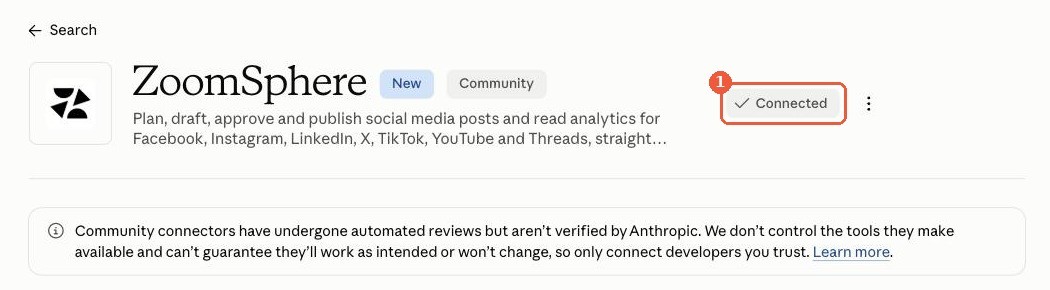
ZoomSphere in Claude's official connector directory, with the Connect button

ChatGPT

1

Open ZoomSphere in the ChatGPT directory

Open the ZoomSphere plugin page, or click Plugins in the ChatGPT sidebar and search for ZoomSphere.

2

Click Install plugin and sign in

A ZoomSphere login window opens; approve access with your normal ZoomSphere account.

On ChatGPT Business or Enterprise, a workspace admin may need to enable the plugin first.

3

Mention it and ask

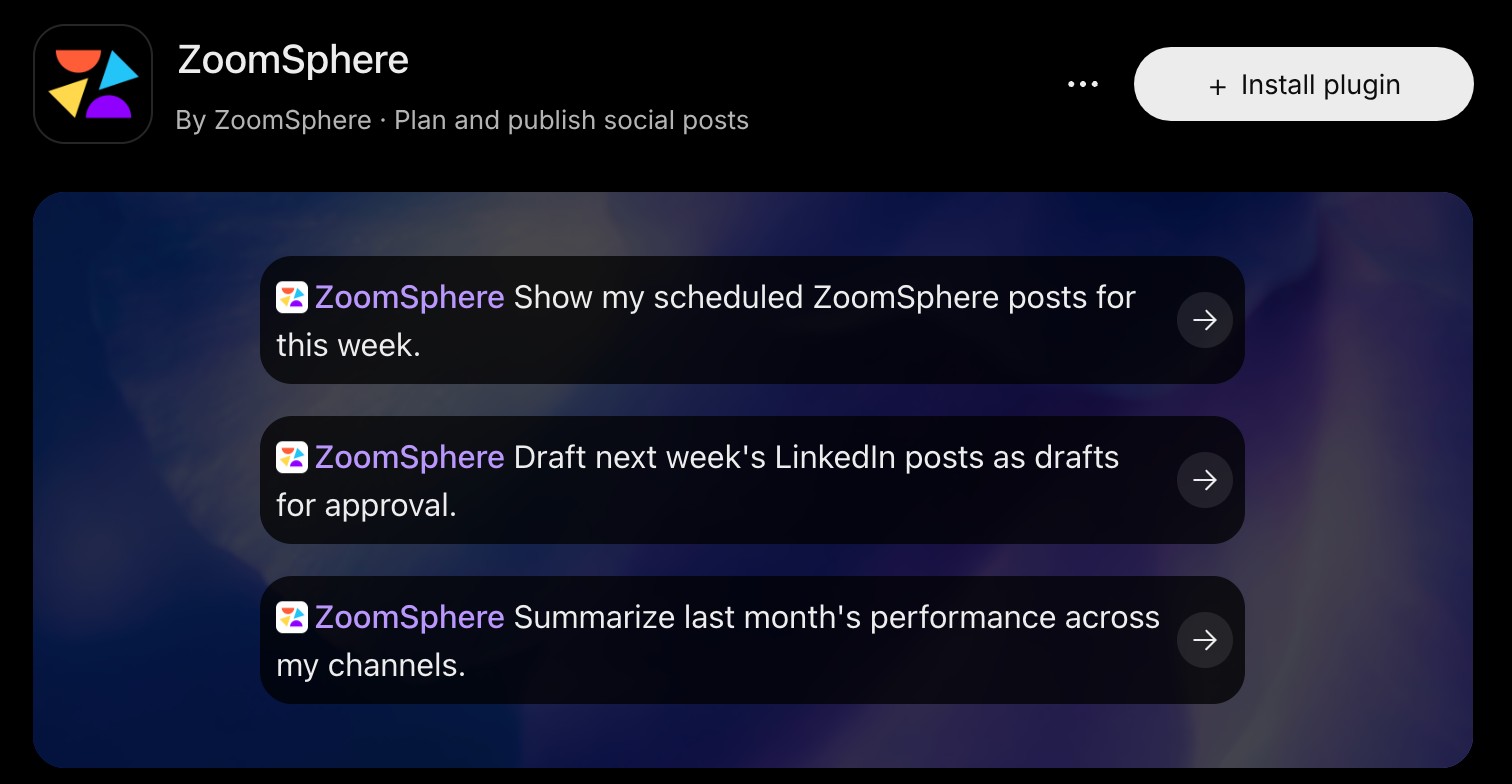
In any chat, mention ZoomSphere and ask: "Show my scheduled ZoomSphere posts for this week."

ZoomSphere in the ChatGPT plugin directory, with the Install plugin button and three example prompts

Grok

  1. Open Grok's settings and find the option to add a custom MCP connector.
  2. Name it ZoomSphere and paste https://mcp.zoomsphere.com/mcp as the server address.
  3. Sign in with your ZoomSphere account and allow access.
  4. Start with a read-only question: "What is scheduled in my ZoomSphere calendar this week?"

The full Claude setup guide with screenshots: download the PDF. Connected the early-access way? Switch to the directory version. Something not working? See troubleshooting.

Real builds, not demos

What people already #Build with it

Every build below runs in our own workspaces. Real screenshots, real numbers and the exact prompt that does it. Pick a job, copy the prompt, paste it into Claude or ChatGPT.

Left, a prompt in Claude asking to send next week's posts to Sarah for approval. Right, the same posts in ZoomSphere in To Approve with a comment mentioning Sarah.New in October
ApproveZoomSphere

The approval round, in one sentence

Tell Claude to ask the client for approval. The agent moves the posts to To Approve, files them under the right content pillar and mentions the client in a comment under each one. The client gets a bell and an email, and every reply comes back to your chat as a clean to-do list.

ResultA 24-photo shoot became 17 posts waiting for client approval after a single prompt.
Show the prompt
PROMPT

Prepare 3 posts for Demo Coffee Co. for next week on Instagram and Facebook. Put them in To Approve, file them under the pillar Product Information and add a public comment to each one that mentions the client and asks for approval by Friday.

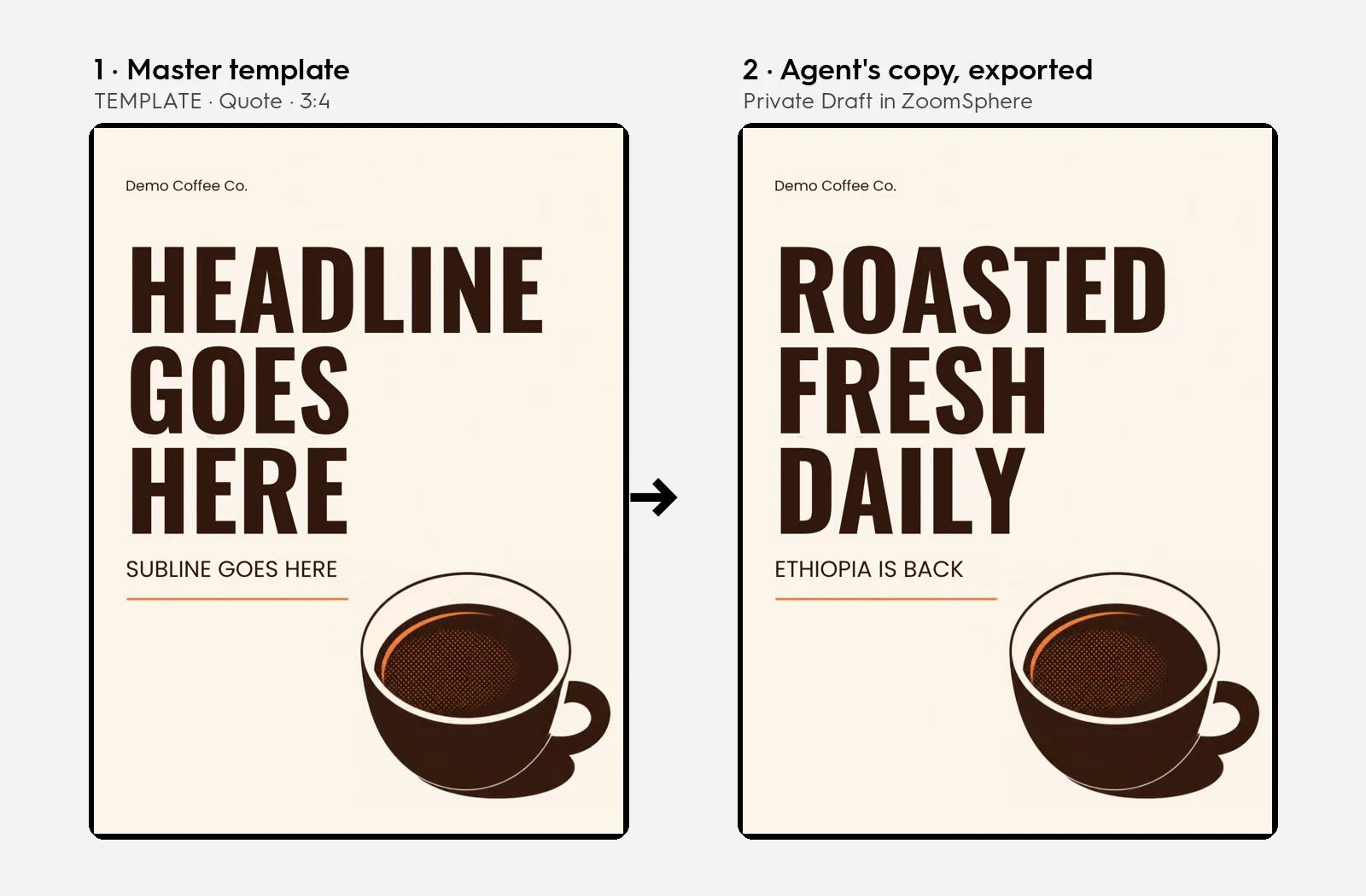
A Canva master template with placeholder text next to the finished coffee post the agent made from it.New in October
CreateZoomSphereCanva

On-brand visuals from your Canva templates

The designer keeps the brand in Canva, the agent fills it. One prompt writes the copy, autofills the client's template, exports the visual and files the post as a Private draft. Clients never get mixed up.

ResultTemplate to finished draft in one run, with a brand check that catches text spilling out of the layout.
Show the prompt
PROMPT

Take the newest Idea in the [client] calendar. Write the caption and the headline, autofill "TEMPLATE · Quote · 3:4" from the [client] Canva folder, export it and save the post as a Private draft for Thursday 10:00.

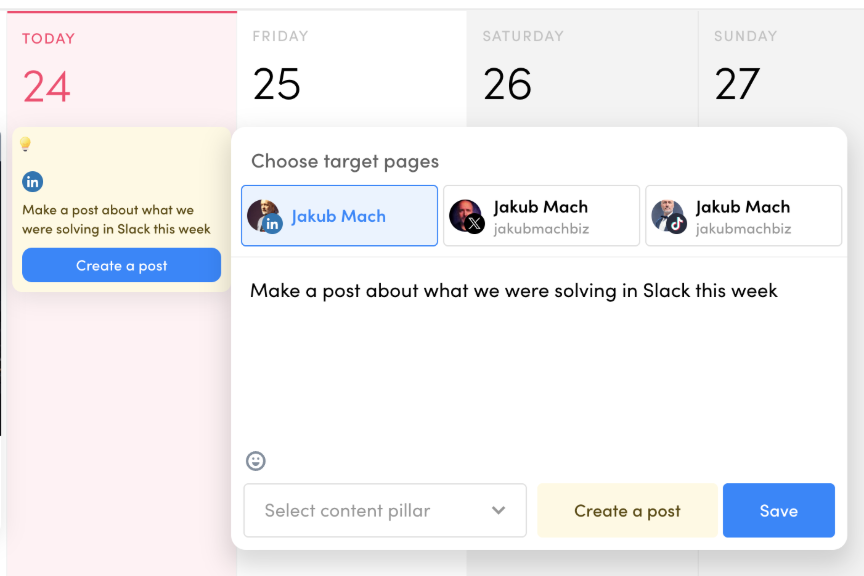
One line typed into the Ideas section of the ZoomSphere calendar.
CreateZoomSphere

Ideas as the content trigger

Type one line into Ideas. An hour later a draft with a visual is waiting in To Approve. "A post about what we solved in Slack this week" becomes an authentic post, because the agent can read the source.

ResultOne line in the calendar, one finished draft with a visual, every hour without anyone asking.
Show the prompt
PROMPT

Read the unprocessed Ideas in my calendar. For each one draft the post in our tone, make the visual in our template and save it as a Private draft. Never publish.

Instagram post preview in ZoomSphere tagged Galerie Vaňkovka, Brno, with a photo of coffee cupping bowls.New in October
CreateZoomSphere

One post, every branch

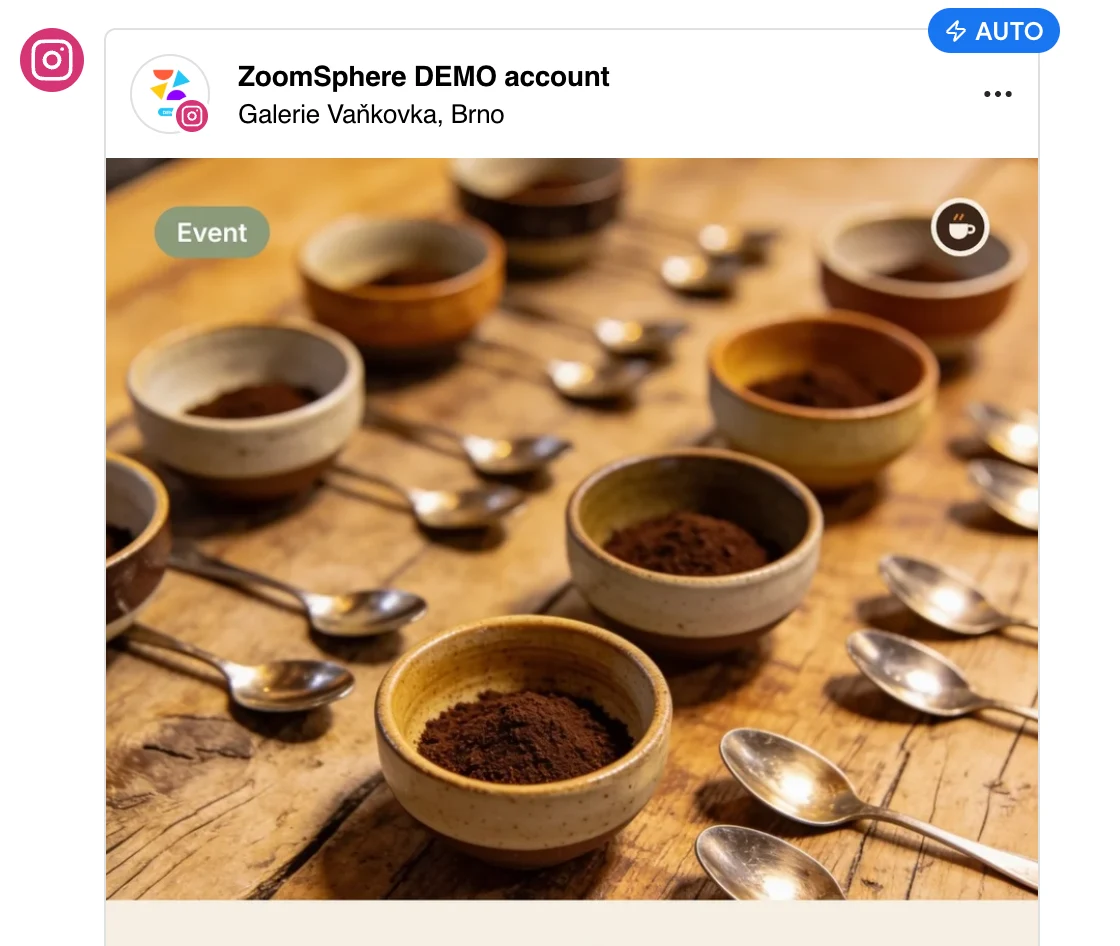
Write the post once. The agent creates a variant for every branch with its own location tag on Facebook, Instagram and Threads, and recognises the place from the photo when the GPS data is gone. When one mall closes, it pauses only the posts tagged there.

Result4 branches in 3 countries, 4 tagged drafts from a single prompt.
Show the prompt
PROMPT

Create one draft per branch on Facebook and Instagram for 12 November, 15 minutes apart: Old Town Square Prague, Galerie Vaňkovka Brno, Eurovea Bratislava, Westend Budapest. Put the branch name in the copy and tag the branch as the location.

A Quick Note in the ZoomSphere calendar for Web Summit Lisbon with a line starting AGENT: boost.New in October
CreateZoomSphere

The calendar briefs the agent

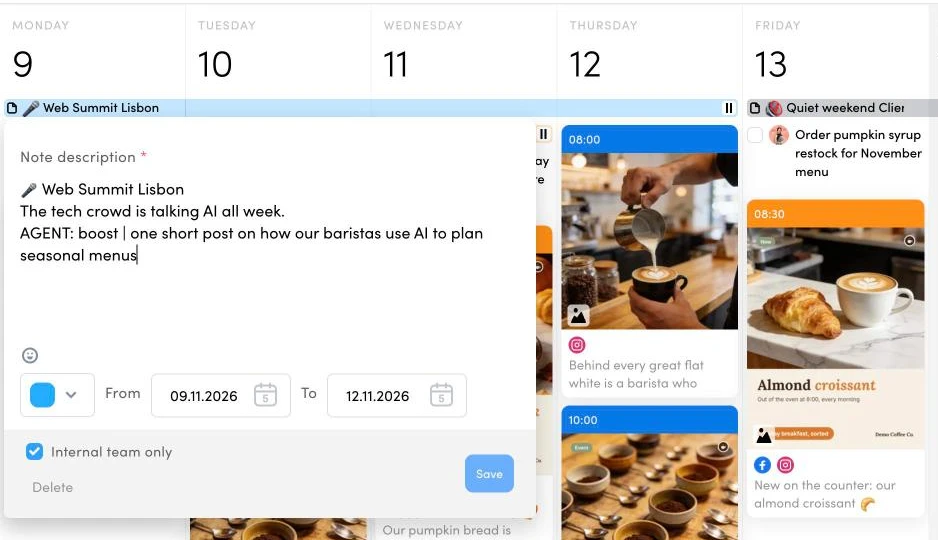
The agent researches the events, holidays and industry moments that matter to each client and writes them into the calendar as Quick Notes. The daily content agent reads them before it plans, and one AGENT: line in a note switches the topic, mutes promotion or adds a post.

Result14 marketing moments found, verified and placed on the right days in minutes.
Show the prompt
PROMPT

Before you plan tomorrow's posts, read the Quick Notes from today to five days ahead. Follow any line starting with AGENT: exactly, react to industry moments, and keep public holidays free of promotion.

An email in the inbox with a summary written by the AI and post cards with previews, networks, pillars and publish times.New in October
ApproveZoomSphere

The whole week in the client's inbox

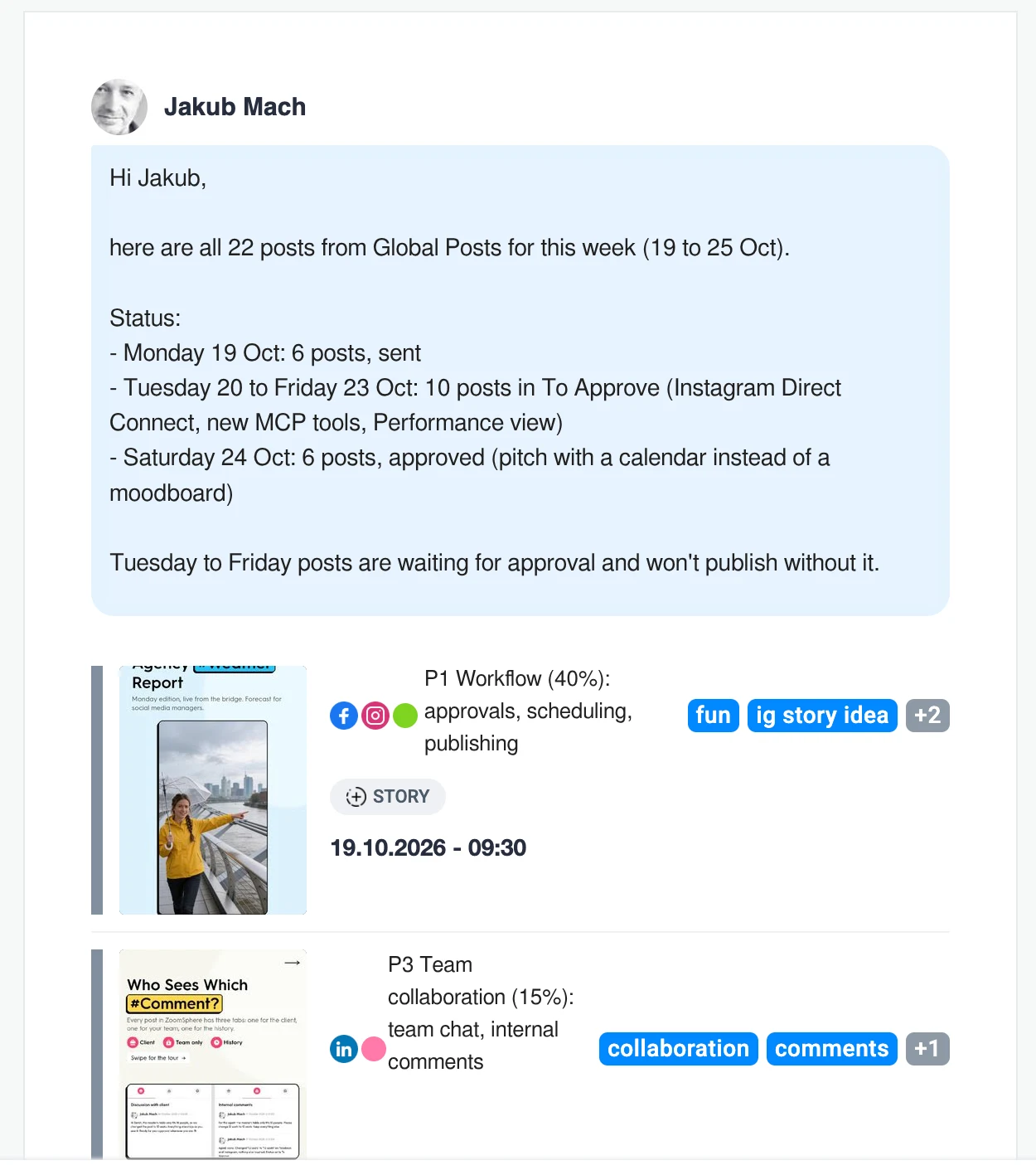
The agent finds the right posts, sorts them by status, writes a summary on top and emails them as real post cards. The month's top posts land in the team's ZoomSphere Chat room the same way.

Result22 posts emailed and a top 10 shared with the team in under five minutes.
Show the prompt
PROMPT

Take next week's posts in To Approve and email them to [client contact] with a short note asking for approval by Thursday.

A Slack direct message to Lucy: her carousel goes live at 5 PM and is still waiting for approval.New in October
OperateZoomSphereSlack

Alerts that find the author

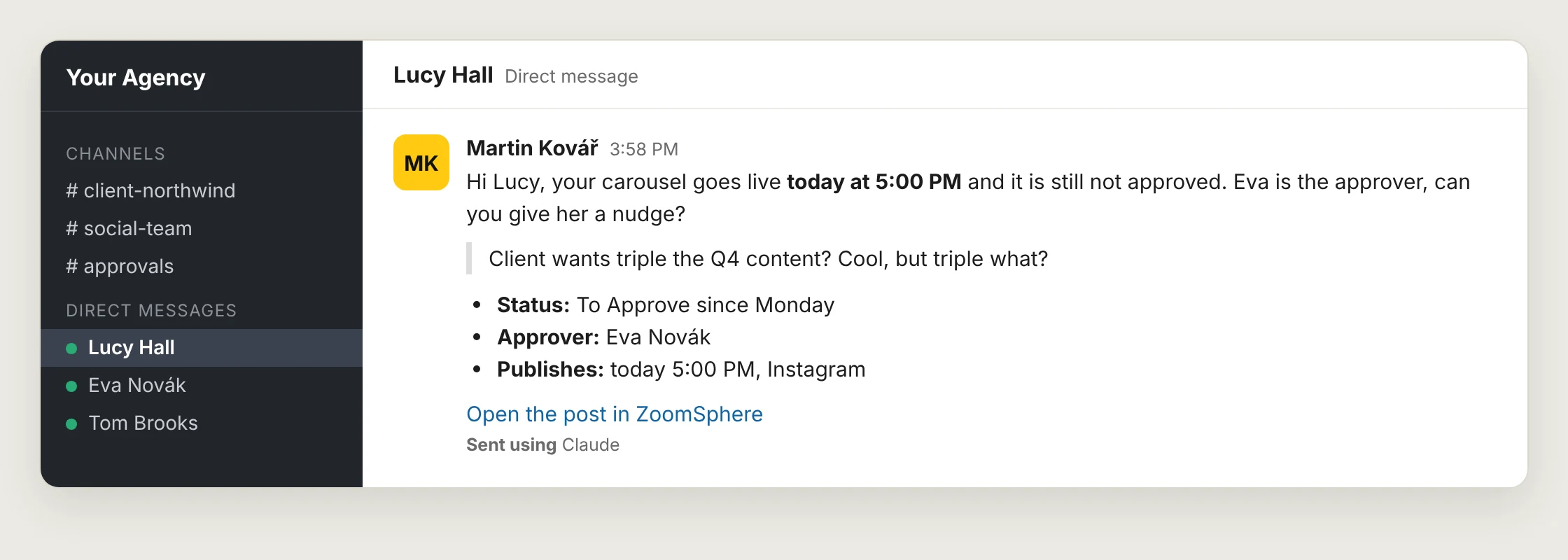
No alerts channel that everyone mutes. Every hour the agent checks the calendar and messages the one person who can fix it: a post going live unapproved, a failed upload, an urgent client comment, or a post that beat the usual numbers.

ResultThe first run on our own calendar caught 2 posts stuck in To Approve and a carousel that failed on TikTok.
Show the prompt
PROMPT

Every hour on weekdays, check posts from yesterday to the next 48 hours. Message the assigned user or owner in Slack when a post goes live within 60 minutes unapproved, fails on any channel, or gets a client comment asking to hold it.

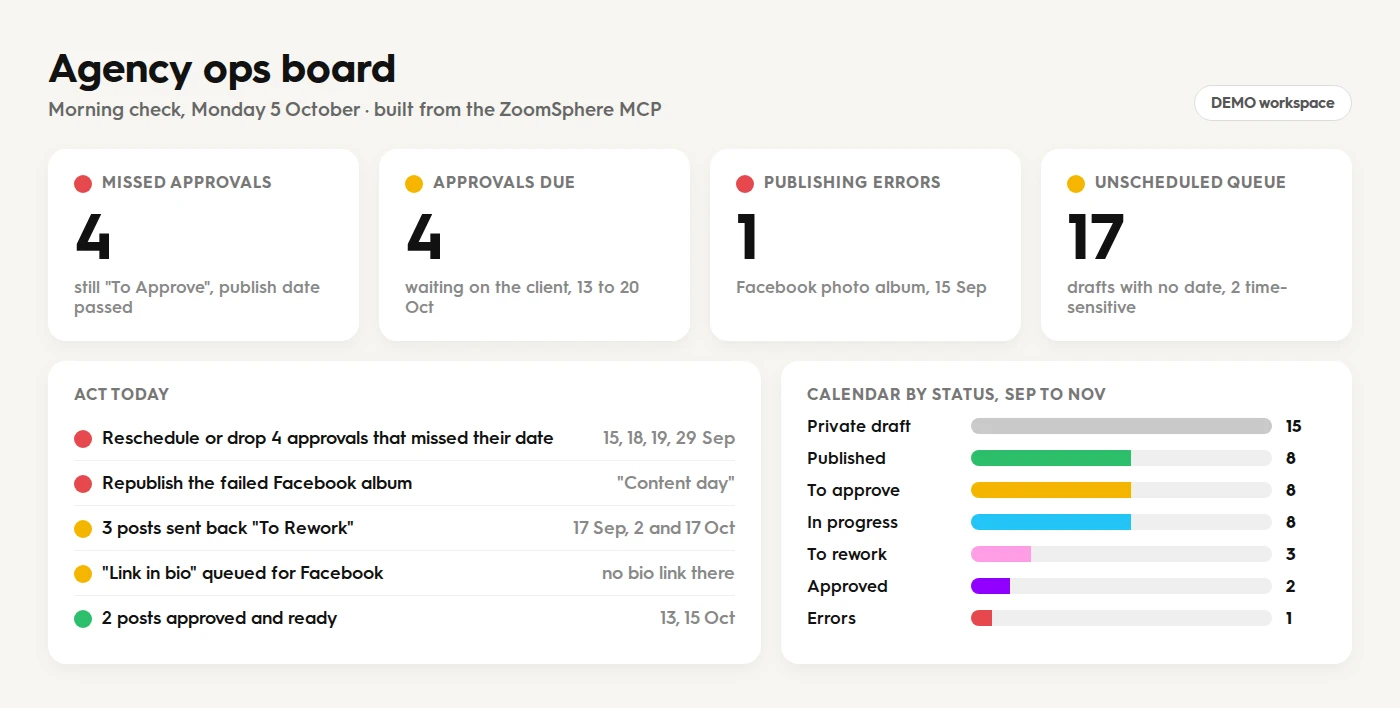
Agency ops board with traffic lights for missed approvals, approvals due, publishing errors and unscheduled drafts.New in October
OperateZoomSphereNotion

The agency ops board, before coffee

Missed approvals, publishing errors, forgotten drafts and posts over the client's contract, on one page every morning. With Notion in the same chat, it also shows who on the team is about to drown.

ResultOne morning check found 4 missed approvals, 1 publishing error and 17 forgotten drafts.
Show the prompt
PROMPT

Every weekday at 8:00, check all my ZoomSphere workspaces for overdue approvals, publishing errors, posts sent back to rework and the unscheduled queue. Build an ops board with traffic lights and an act today list.

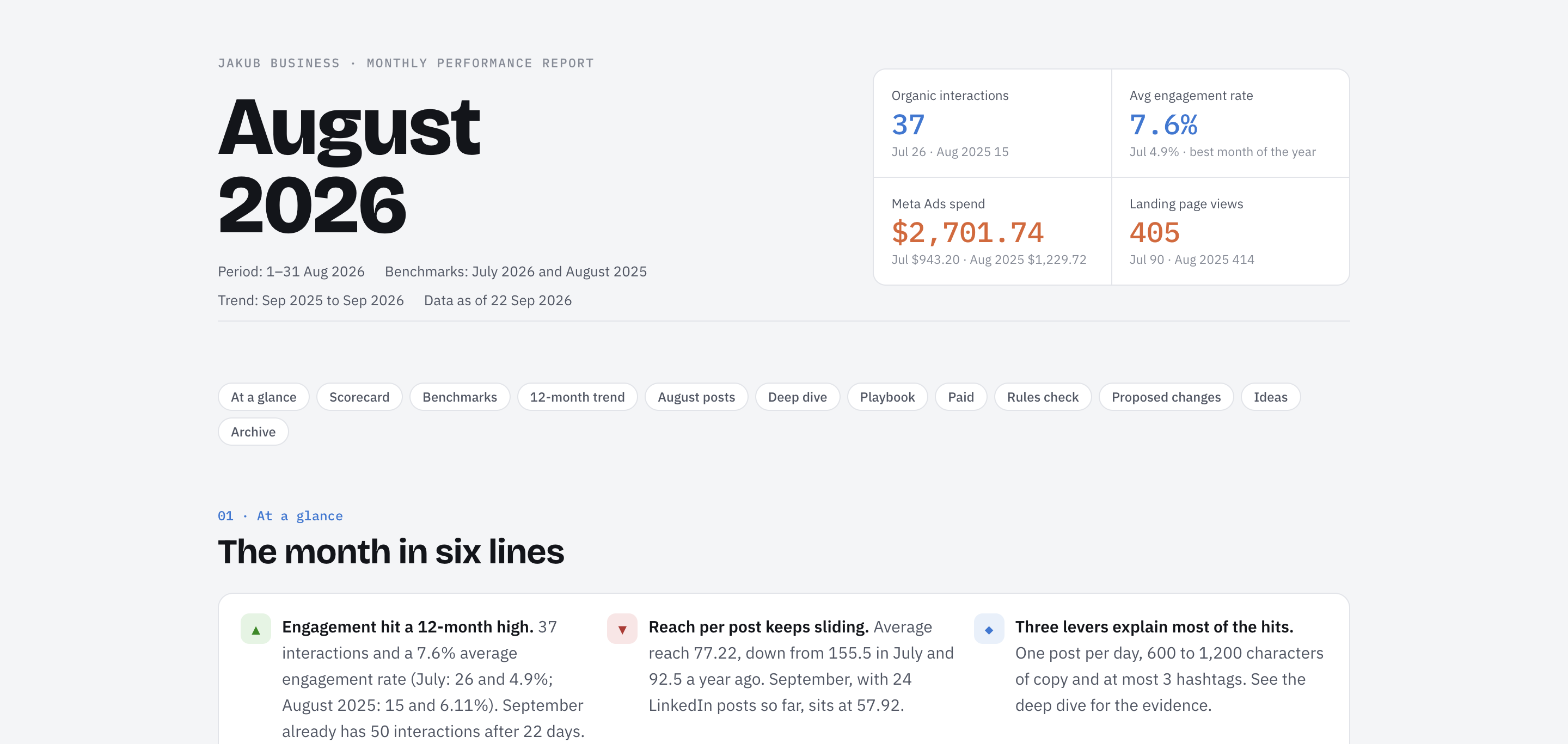
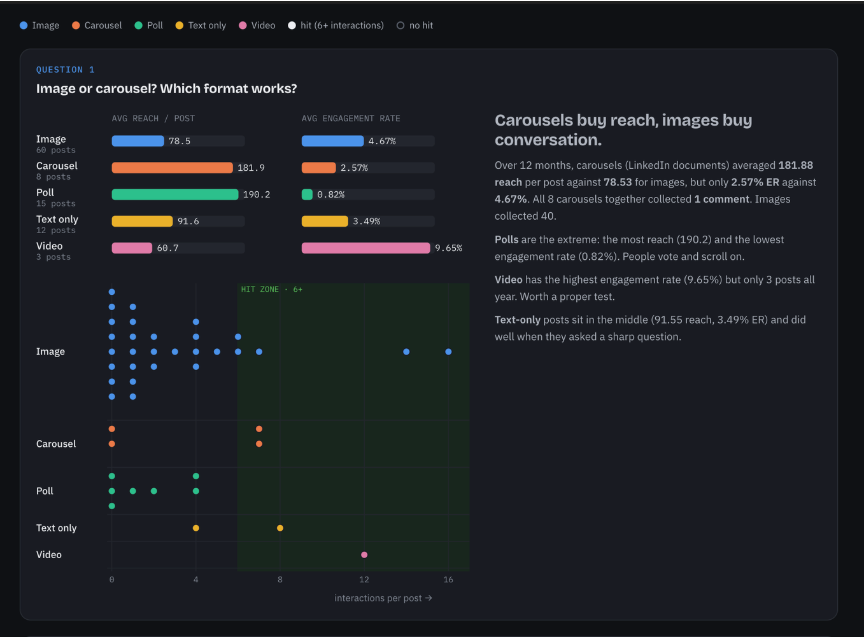
A monthly report written from the ZoomSphere analytics tools.
ReportZoomSphere

The monthly report, written for you

Per-channel numbers, best posts, what to repeat. The agent reads the analytics tools and writes the report each client actually asks for, as a PDF, a deck or a live dashboard. The numbers are exactly what ZoomSphere shows.

ResultA report shaped around the client's questions, rebuilt automatically every month.
Show the prompt
PROMPT

Summarise last month for all channels in this workspace: reach, engagement, three best posts and one recommendation per network.

One page of a report that puts organic and paid results side by side.
ReportZoomSphereMeta Ads

Organic next to paid

With the Meta Ads connector in the same conversation, the agent puts organic reach next to ad spend and answers the question every client asks: which posts deserve a boost.

ResultOne client report for organic and paid, with three posts worth boosting next.
Show the prompt
PROMPT

Compare last month's organic reach per post from ZoomSphere with Meta Ads results for the same period. Which three posts would you boost, and why?

Built something we haven't?60 more ready prompts live in the MCP Prompt Library. Share your own build with the prompt in #mcp-builds on our Discord, Zoomers.
Better together

Works with your other #Connectors

The value is in the combination. A calendar connector alone is a faster way to type; a calendar plus your files, your designs and your team chat is a colleague.

ZoomSphereCanvaMeta AdsSlackIntercomGoogle DriveDropboxNotionZapierWebflowSeedream & Seedance

We ranked the ones we use every day: The best MCP connectors for AI-powered social media management

Safe by design

Drafts by default, humans #InControl

An agent in your calendar should feel like a careful new colleague, not a loose cannon. The MCP is built for that.

🔑

Your login, your permissions

You sign in with your own ZoomSphere account. The agent sees only the workspaces, channels and posts you can see.

📝

Statuses are first class

Point the agent at a working status such as Private draft and keep publishing for people until a workflow has proven itself.

✋

Per-tool approval

Claude and ChatGPT let you set write tools to "needs approval". Reads run freely, writes wait for your click.

💶

No extra cost, nothing to install

Included in every ZoomSphere account. No API key to paste, no plugin to maintain. Disconnect in one click whenever you like.

Community

Join the #Builders

Our Discord community, Zoomers, is where the recipes live: the full builds, the prompts, the scheduled-task rules, and the "what broke" sections that every honest build has.

  • #mcp-builds: real workflows from real workspaces, with the prompts
  • New tools and rule changes announced first
  • Direct line to the people who build the MCP

Zoomers on Discord

Free to join. Bring a build or a question.

Join the Discord
FAQ

Questions people #Ask

Can I connect Claude or ChatGPT to my social media scheduling tool?

Yes, if the tool has an MCP server. ZoomSphere does: it is listed in Claude's official connector directory and the ChatGPT plugin directory, and works in Grok and any other MCP client. Once connected, your AI assistant can read your content calendar, draft and schedule posts for Facebook, Instagram, LinkedIn, TikTok, YouTube, X and Threads, send them for client approval and pull analytics, all with your own login and permissions. It is included in every ZoomSphere account at no extra cost, and the three steps are above.

Is the ZoomSphere MCP free?

Yes. The MCP costs nothing extra: it is included in every ZoomSphere account. You need that account with a Scheduler, plus an AI client that supports MCP connectors, such as Claude, ChatGPT or Grok. New to ZoomSphere? The 14-day free trial needs no credit card.

Do I need a ZoomSphere account to use the MCP?

Yes. Sign up, add a Scheduler and connect your social channels; the agent then signs in with your own login and works in that calendar. Without a Scheduler there is no calendar to plan in, no approval stages and nothing to publish to. Everything the agent creates lands in the same approval flow your team and clients already use.

Do I need a developer to set it up?

No. ZoomSphere is listed in Claude's connector directory and in the ChatGPT plugin directory: open it, click Connect or Install plugin and sign in with your ZoomSphere account, about two minutes. In Grok you add a custom connector with the address https://mcp.zoomsphere.com/mcp and sign in; the ChatGPT and Grok steps are on this page.

Is ZoomSphere in Claude's connector directory?

Yes. Search for ZoomSphere under Customize → Connectors → Discover, or open claude.ai/customize/connectors/id/zoomsphere. It is built and operated by ZoomSphere and marked as a Community connector.

Is ZoomSphere in the ChatGPT plugin directory?

Yes. Click Plugins in the ChatGPT sidebar and search for ZoomSphere, or open the ZoomSphere plugin page. It is built and operated by ZoomSphere and listed under Business & Operations.

How do I connect ZoomSphere to ChatGPT?

Open ZoomSphere in the ChatGPT plugin directory (or Plugins in the sidebar → search ZoomSphere), click Install plugin and sign in with your ZoomSphere account. No Developer mode and no server address needed.

Which AI tools does it work with?

Any client that speaks MCP: Claude (including Claude Code), ChatGPT, Grok, coding agents such as Cursor, local models through clients like LM Studio or Open WebUI, and builders and automation platforms such as Lovable, n8n, Make and Zapier.

Can the agent publish posts without a human?

Only if you let it. Every write goes to the status you choose, so you can keep publishing for people and let the agent fill "To approve". In Claude and ChatGPT you can also set individual tools to require your approval.

Can the agent ask my client for approval?

Yes. The agent can switch posts to "To approve", email them to your client with real post previews, and write a public comment under each post that mentions your client, who gets a bell notification and an e-mail. It can also read what the client wrote back, summarize the feedback and brief a colleague in an internal comment the client never sees. The agent can delete its own comments, never anyone else's. Your client joins ZoomSphere as a free user, never a paid seat, and every approval is recorded in the activity log. 10 ways to use comments with prompts · how approval workflows work.

What data can the agent see?

Exactly what your ZoomSphere user can see: your workspaces, channels, posts, comments, Ideas, Quick Notes and analytics. Nothing more. You can disconnect the connector at any time.

How do I roll it out to my whole team?

Admins of Claude for Teams add ZoomSphere from the directory once for the whole organization, and admins of ChatGPT Business and Enterprise enable it from the ChatGPT plugin directory; each person then signs in with their own ZoomSphere account. See the Claude for Teams and ChatGPT for Workspaces guides.

Where do I get help or report a bug?

From real people, not a chatbot. Our support team answers by phone and in the in-app chat, in English and Czech. The help centre has setup and troubleshooting guides, and the Discord community is the fastest place to compare builds with other users.

Real humans, not a chatbot

Stuck connecting Claude or ChatGPT? Phone and chat support in English and Czech, from people who know ZoomSphere inside out.

Talk to us

Give your calendar an #Agent

Two minutes to connect in Claude or ChatGPT, a few more in Grok. Then ask for this week's plan, hand over the Ideas, and let the drafts come to you.

#InAction

Watch the agent #Work

Three real flows in a live demo workspace: plan a week, send it for approval, read the numbers. Every step happens in ZoomSphere, driven from a chat. Click a video to watch it with sound.

  • Your AI agent plans a week of postsOne prompt in Claude creates 10 posts for Demo Coffee Co. on Instagram and Facebook, all saved as Private Draft in the ZoomSphere calendar.
  • Send a week of posts for approval from a chatThe AI agent moves 10 posts from Private Draft to To Approve and the ZoomSphere calendar marks them orange for client review.
  • Ask your AI agent how a post performedThe AI agent reads post performance from ZoomSphere: 723 reach, 825 video views, 46 interactions and 15.8 percent completion for a TikTok reel.

This page in your language: Česky · Slovensky · Magyarul

#ScheduledTasks

Put your social media on #Autopilot

Most AI assistants can now run a prompt on a schedule. Write the instructions once, and your agent shows up every morning like a colleague: it checks, prepares and reports, and everything it creates waits as a Private draft for a person to approve.

  • Weekdays 8:00

    Client approval nudge

    Lists every post waiting for approval, flags what is due within 3 days and drafts a friendly reminder for the client.

  • Weekdays 7:30

    News to draft

    Finds one fresh story from your industry and turns it into a post, saved as a Private draft for tomorrow.

  • Mondays 7:00

    Monday analyst

    Reads last week's numbers across all workspaces and sends a five-line digest: winner, loser, anomaly, backlog, plan.

The one rule: scheduled tasks never publish. They only read, report and create drafts, so nothing reaches a client or a feed without a human yes.

Copy the scheduled prompts

Don't know what to ask? Steal our prompts

We wrote a library of 60 ready-made prompts for the ZoomSphere MCP: everyday calendar operations, cross-workspace status checks, approval workflows, PowerPoint reports, live dashboards and scheduled AI colleagues that work while you sleep. Copy, paste, ship.

Open the MCP Prompt Library